
Space settings
A space is a self-contained work area with its own documents, folders, share links, data rooms, members, plan, and custom domain. Splitting work by team, brand, or project keeps material and collaborators from mixing, and you can move between spaces in one click.
What is a space?
Section titled “What is a space?”One account can belong to several spaces. Each space keeps its own documents, folders, share links, data rooms, members, plan, and custom domain.
Which features are unlocked — logo settings, custom domain, member invites — and whether you are an admin or a member are judged for the space you are currently in, not for your account as a whole.
View and edit space information
Section titled “View and edit space information”Open Settings
Click Settings at the bottom of the sidebar.
Open Space Information
In the Space section on the left, select Space Information. The tab appears for admins only.
Edit and save
Change the fields and click Save. Changes apply immediately.
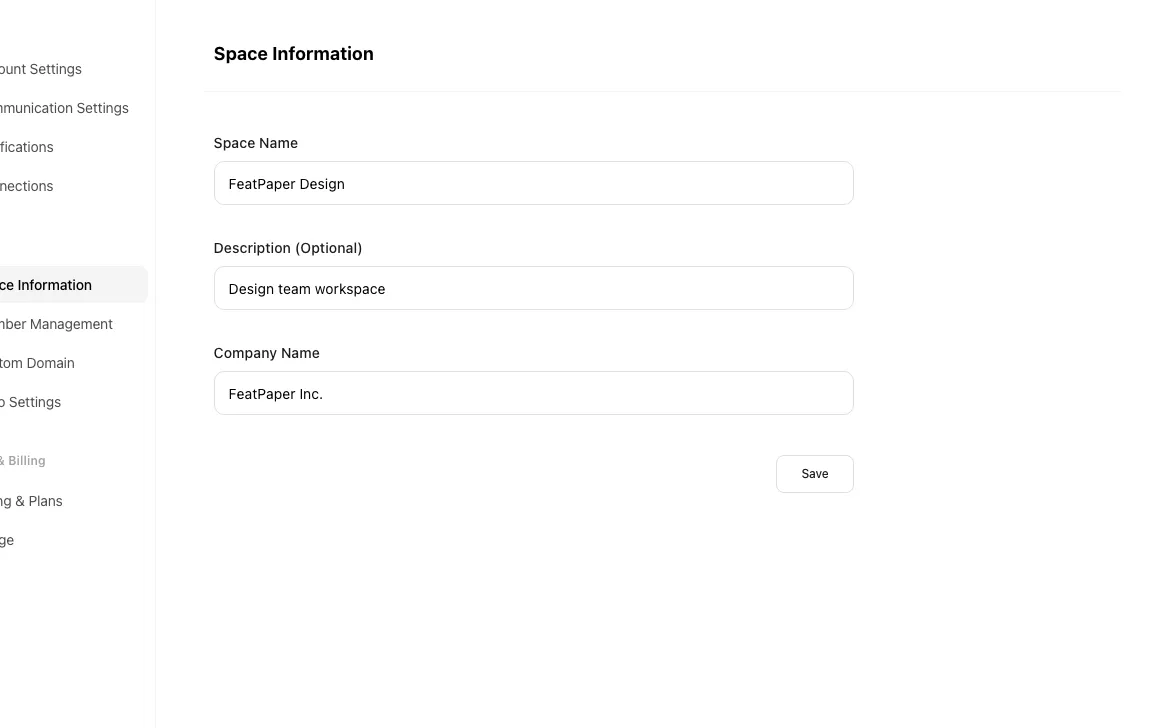
| Field | Required | Length limit | Notes |
|---|---|---|---|
| Space Name | Required | 60 characters | Shown in the sidebar and dashboard |
| Description (Optional) | Optional | 300 characters | What the space is for |
| Company Name | Optional | 60 characters | Shown in the web viewer and on data room pages |
- Going over a limit blocks the save with a field-level message, such as one telling you the space name must be 60 characters or fewer.
- Leading and trailing spaces are trimmed automatically.
- An empty space name won’t save.
Switch spaces
Section titled “Switch spaces”If you belong to more than one space, click the current space name at the top of the sidebar.
The dropdown holds:
- The current space name with its plan label —
Starter,Pro,Business, orEnterprise - A Space Information button — admins land on Space Information, members land on Member Management
- An Invite Members button — shown to admins only
- Your login email and the list of spaces you belong to; clicking one switches immediately and lands on Home
What is decided per space
Section titled “What is decided per space”Plan and role are resolved per space, not per account.
| Feature | Unlocked for |
|---|---|
| Logo settings (Customize your brand) | Pro and above, admin |
| Custom domain (Connect a custom domain) | Enterprise, admin |
| Member invites and role permissions (Invite your team) | Business and above, admin |
So a custom domain you use in an Enterprise space stays locked when the same account switches to a Starter space.
Button and shortcut reference
Section titled “Button and shortcut reference”The buttons people look for most on this screen.
| Button / element | Where | What it does |
|---|---|---|
| Save (Space Information) | Bottom of the tab | Applies the space name, description, and company name. Over the 60/300/60-character limits it shows a message and doesn’t save. |
| Current space name | Top of the sidebar | Opens the dropdown with the plan label, shortcut buttons, and your list of spaces. |
| Space Information | Space switcher dropdown | Admins go to Space Information, members go to Member Management. |
| Invite Members | Space switcher dropdown, admins only | Goes to Member Management. |
| A space in the list | Bottom of the dropdown | Switches to that space immediately and lands on Home. |
Shortcut: Open Settings
Frequently asked questions
Section titled “Frequently asked questions”I don't see the Space info tab.
Space Information appears for admin accounts only. On a member account, the Space Information button in the space switcher goes to Member Management instead. Ask an admin to change the values.
Can I create a new space?
Not from the dashboard. The space switcher has no New Space button; it only switches between spaces you already belong to. Contact support if you need another space.
My space info won't save.
The space name is required and limited to 60 characters. The description allows 300 and the company name allows 60. An empty or over-long value blocks the save and shows a message on that field.
Where does the company name show?
In the web viewer, on the share screen, and at the top of a data room’s public page next to the space logo. Recipients see it, so enter your accurate company name.
If I rename the space, does it affect my existing share links?
No. The space name and description are display information for the sidebar and dashboard. Share link URLs and access permissions are untouched.
If I belong to several spaces, do my documents switch when I switch spaces?
Yes. Switching loads that space’s documents, folders, share links, data rooms, members, and settings, and the previous space’s lists don’t linger. You land on the new space’s Home.
My spaces are on different plans. Are the logo, custom domain, and member-invite locks judged for my whole account or the space I'm looking at?
For the space you are currently in. Logo settings need Pro and above, a custom domain needs Enterprise, and member invites need Business and above. The same account sees different features unlocked depending on the space.
Are the admin and member roles assigned per space too?
Yes. Roles are granted per space, so you can be an admin in one space and a member in another. Admin-only screens are judged by your role in the current space, and an unresolved role is treated as the narrower one (member).
Key points
Section titled “Key points”- A space scopes documents, links, data rooms, members, and the plan.
- Limits are 60 characters for the space name, 300 for the description, 60 for the company name, with surrounding spaces trimmed.
- The company name shows in the web viewer and on data room public pages.
- The space switcher does three things — Space Information, Invite Members (admins), and switching — and there’s no New Space button (contact support for another space).
- Plan labels read
Starter,Pro,Business, andEnterprise, and feature locks follow the current space.