
How to check if someone opened your document
Share the document as a link instead of a file and you can tell whether the other person opened it. From the moment a FeatPaper link is opened, the view count, the viewer, and per-page dwell time are recorded in the document’s Insights tab. You can also be notified by email or Slack every time the document is opened.
Why send a link
Section titled “Why send a link”- An email attachment tells you nothing about whether it was opened. A link records the open time and the view count.
- Knowing which page someone stopped on tells you what to explain first in the follow-up.
- When several people get the same file, splitting the link per person shows you who actually cared.
- You can separate silent recipients from people who opened it twice and order your follow-ups accordingly.
How to check
Section titled “How to check”Share the document as a link
Upload the document, then send the share link instead of the file. Recipients open it right in the browser, with no sign-up or login. When you already know the recipient, create a per-recipient link on the Share links tab so each person is identified without asking for details.
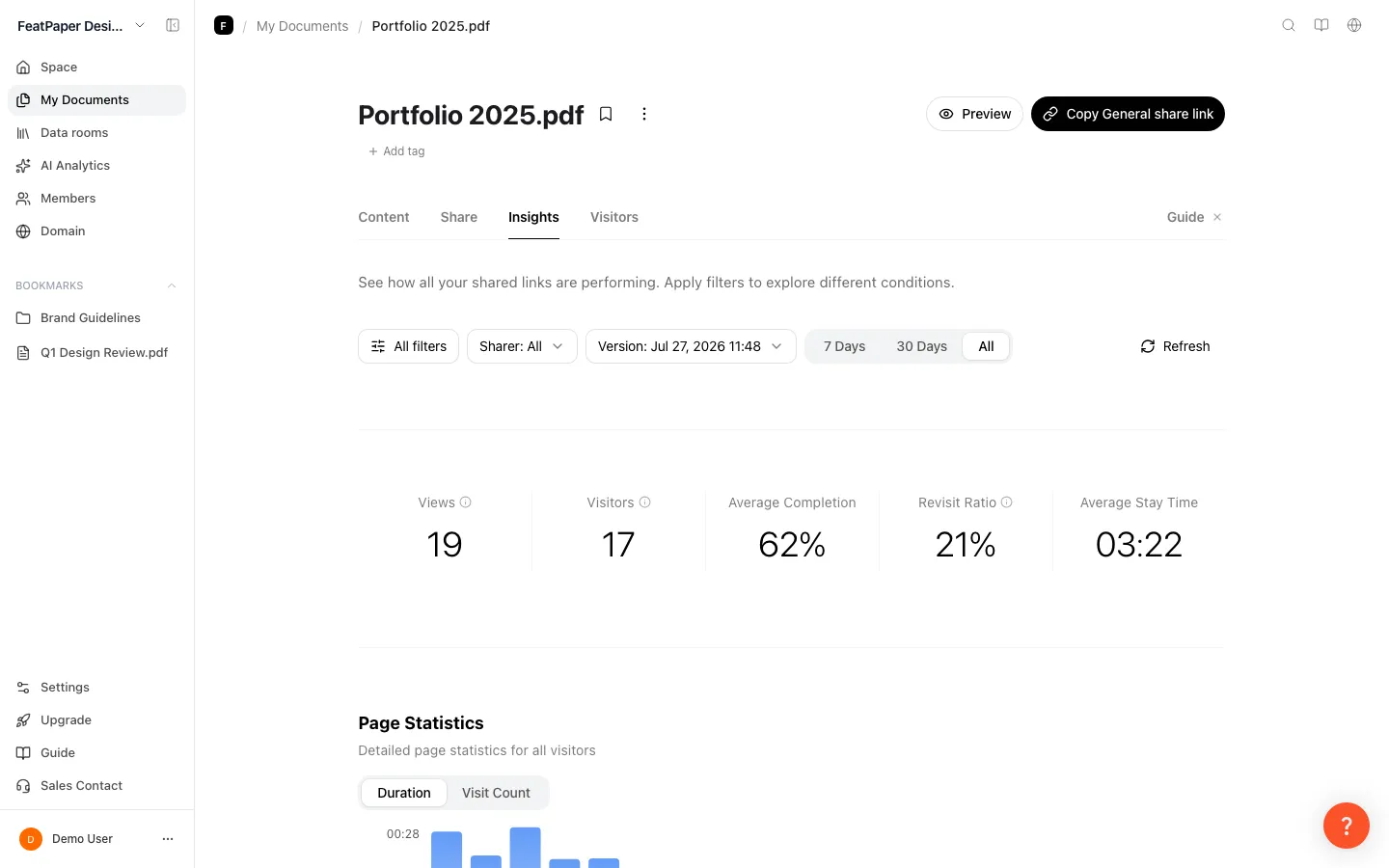
Read the Insights tab
Open the document detail and go to Insights. You see the view count, the viewers, which pages were read and for how long, and which site each viewer came from. The bottom section lists every read, one row at a time.
Switch to the Viewers tab for person-level detail
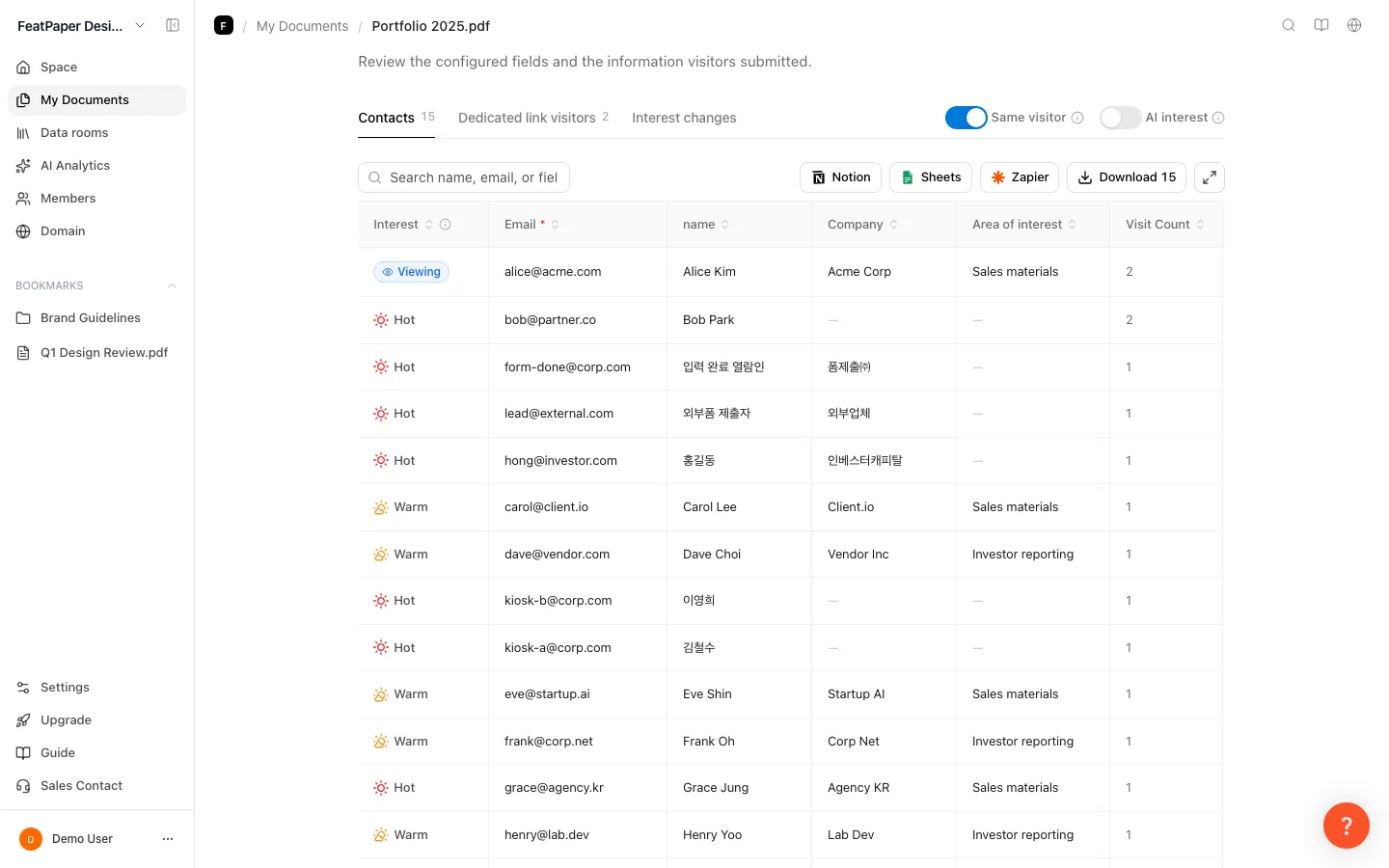
The Viewers tab splits into Contacts, Recipients, and Interest changes. People who submitted the lead form appear under Contacts; people who arrived through a per-recipient link appear under Recipients. Contacts opens first.
Narrow it down with filters
On Insights you can filter by Period, Sharer, Version, Share Link, Referrer, Parameter, Device, OS, Browser, and Country. Period offers Last 7 Days, Last 30 Days, All, and a custom range. The default on entry is All.

Turn on view notifications (optional)
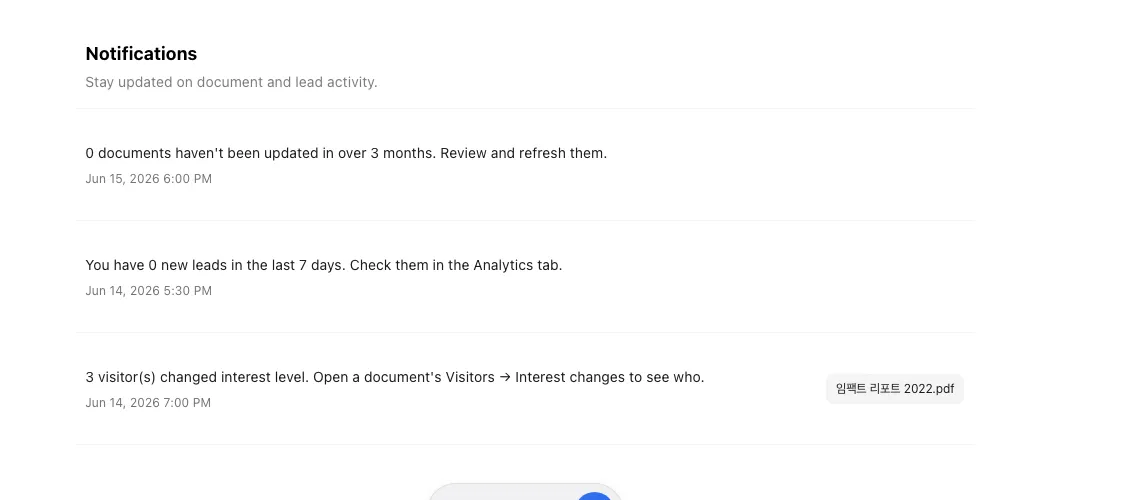
To be told rather than to keep checking, turn on the view notification in each link’s share settings. Whether a notification is actually sent also depends on the default rules in Settings > Notifications.
What the viewer tables show
Section titled “What the viewer tables show”The Contacts table and the Recipients table use different columns. Both start with the Interest grade (Hot/Warm/Cold).
| Table | Column order |
|---|---|
| Contacts | Interest → one column per lead form field → Views → AI summary and AI interest → Referrer → Stay time → Submitted at |
| Recipients and the all-viewers section on Insights | Interest → Share link → Views → AI summary and AI interest → Pages of interest → Referrer → Stay time → Location → Last viewed |
- The Views column appears when same-viewer grouping is on. AI summary and AI interest appear only with AI interest switched on, and they work on every plan — Starter runs them on its 30 monthly credits. What needs Pro or above is AI Analytics, the feature that answers free-form questions about your engagement data.
- The Referrer column shows the domain only, with
www.stripped, and—when there is no value. It cannot be sorted. - Tables render up to 200 people at a time, and Show more adds another 200. Search, sorting, counts, and CSV always run against the full set.
- AI interest is a different value from the Interest grade on the left. It is an outreach note the AI builds from the pages a viewer spent time on.
When notifications are sent
Section titled “When notifications are sent”A notification needs both the per-link toggle and the space default rules to agree. Turning it on for a link is not enough if the default rules filter it out.
| Setting | Where | Values |
|---|---|---|
| View notification | Per-link share settings | On / off |
| Notification channels | Settings > Notifications | Email, Slack (needs connecting) |
| Who to be notified about | Settings > Notifications | Lead form submitters, per-recipient link, unknown viewers |
| Minimum interest level | Settings > Notifications | All views, Warm or above, Hot only |
| Always notify on repeat views | Settings > Notifications | Notifies on a repeat read even below the interest threshold |
| Repeat notification cooldown | Settings > Notifications | Off (notify every time), 30 minutes, 6 hours, 24 hours |
What each plan sees
Section titled “What each plan sees”View counts and summaries carry no time limit on Starter. The 7-day window applies only to per-viewer detail.
| Item | Starter | Pro and above |
|---|---|---|
| Views and summaries | No time limit | No time limit |
| Per-viewer detail (who, which page, how long) | 7 days after upload | Full history |
| Period filter | Fixed to the last 7 days | Last 30 days by default, changeable |
| Share link and version filters | Not available | Available |
| CSV export | Not available | Available |
| AI Analytics (free-form questions) | Not available | Available |
Past the 7-day window, Starter shows the counts but hides the content. Records keep accumulating, so moving to Pro opens the whole history at once.
Ways to use this
Section titled “Ways to use this”Checking opens pays off less from staring at a screen and more from wiring alerts, link types, and AI together so the screen tells you what to do next.
An email attachment or a forwarded file tells you nothing, not even whether it was opened. Send a link and the open time, the view count, and the per-page stay time are all recorded — and with alerts on, the response reaches you before you go looking for it.
Good to know
Section titled “Good to know”- Your own reads are counted too. Right now opening your own document while signed in is treated like any other read and can notify you. To leave test reads out, register your office IP under Analytics Exclusion.
- Different email or phone means a different person, even on the same computer and browser. This stops a stale cookie on a shared machine from merging two people.
- Anonymous reads with no details at all appear as one row per read.
- CSV from the Viewers tab always covers everything. CSV from the all-viewers section on Insights applies the filters on screen.
- With very many documents, the space summary may not load everything. A notice tells you the totals can be lower than reality when that happens.
Frequently asked questions
Section titled “Frequently asked questions”How do I know if someone opened my document?
The document’s Insights tab records the view count, the viewers, and per-page dwell time automatically. Turn on the view notification in each link’s share settings and you also get an email or a Slack message when it is opened.
Can I see who opened it by name?
Two ways. Issue a per-recipient link for each person and the link name identifies them, or send a lead capture link so the viewer enters a name and email before the document opens. Anonymous reads appear as separate rows.
Does view tracking work on the free Starter plan?
Yes. On Starter the view count and summaries carry no time limit. Only per-viewer detail — who read which page and for how long — is limited to 7 days after upload, after which the counts stay visible and the content is hidden. Records keep accumulating, so Pro opens the full history. See Compare plans and pricing.
If the same person opens it several times, how many does that count as?
One. The same email (case and whitespace ignored) or the same phone number (digits only) is treated as one viewer even across devices. A different email or phone is a different person, even on the same computer.
Can I see the exact time it was opened?
Yes. The viewer list shows first read and last read timestamps, along with per-page dwell time and completion rate. Export everything with CSV (Pro and above).
Can I see which pages held their attention?
Insights shows per-page response and top pages. The viewer tables list top pages 1, 2, and 3 with dwell time and completion rate.
I am not getting view notifications
Check that the view notification is on for that link, then check Who to be notified about, Minimum interest level, and Repeat notification cooldown in Settings > Notifications. With the minimum level set to Hot only, a quick skim will not notify you. Slack has to be connected first.
What happens if the recipient forwards my document?
The forwarded read is recorded against the same link. To restrict it to the intended person, add an email allow list or a password to that link.
Key points
Section titled “Key points”- Sharing a document as a FeatPaper link records views, viewers, and per-page dwell time in the document’s Insights tab.
- For person-level detail, use the Viewers tab: Contacts, Recipients, and Interest changes.
- Turn on the view notification per link, then tune the audience, minimum interest level, and cooldown in Settings > Notifications.
- On Starter, views and summaries have no time limit; only per-viewer detail is capped at 7 days after upload.
- Your own reads are counted, so keep test reads out with Analytics Exclusion (office IP); a different email or phone counts as a different person even on the same device.