
Add motion effects
With the motion editor, you lay videos, scheduled links, and clickable areas over a plain PDF, so a viewer can watch a clip, book a meeting, or open the next document without leaving the page.
What is the motion editor?
Section titled “What is the motion editor?”The motion editor is a full-screen editor for placing interactive elements — videos, GIFs, links — over a PDF document. The PDF stays the same file; the elements you place on top of it are what viewers interact with.
The editor opens in two modes
Section titled “The editor opens in two modes”There is one document editor, but it opens in two different modes depending on where you came from. Motion mode is for video, GIFs, and links; lead form mode handles the lead form only. The header and sidebar differ between them, so to add motion you have to come in through Add video or link in the Content tab.
| Where you came from | Mode it opens in | Address |
|---|---|---|
| Document detail > Content tab > Add video or link | Motion mode | /dashboard2/document-edit/{linkKey} |
| Any lead form button (Lead form settings, for example) | Lead form mode | /dashboard2/document-edit/{linkKey}?leadform=settings |
Same screen, different contents:
| Screen element | Motion mode | Lead form mode |
|---|---|---|
| Header motion type tabs VIDEO · GIF · EMBED · LINK · NAV · DOCS | Shown | Hidden |
| Header editing tips (lightbulb icon) | Shown | Hidden |
| Motion how-to popup on first open | Shown once | Never shown |
Sidebar + Add Lead Form button (document with no form) | Hidden | Shown |
Sidebar Lead form marker (document with a form) | Hidden | Shown |
| Slot between pages for dropping the marker | Hidden | Shown |
Sidebar page thumbnails and the Motion badge | Shown | Shown |
| Lead Form Settings panel | Can’t be opened | Opens from the marker or + Add Lead Form |
| Motion elements already on the canvas | Visible and editable | Visible and editable (you just can’t add more) |
| FeatPaper logo, current/total page indicator, SAVE & EXIT | Shown | Shown |
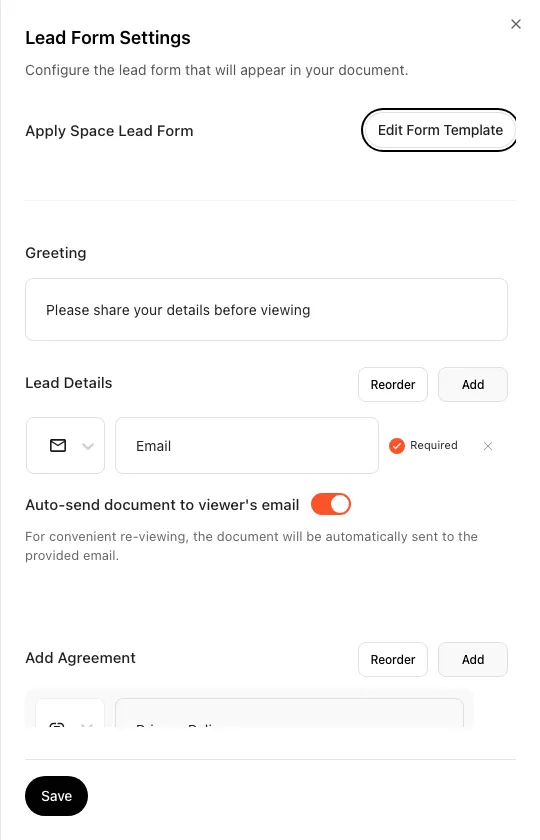
Press the marker or + Add Lead Form in lead form mode and the Lead Form Settings panel opens on the right. This panel can’t be opened from motion mode.
Open the motion editor (motion mode)
Section titled “Open the motion editor (motion mode)”Document detail → Content tab
Open a document from My Documents to go to its detail page, and stay on the default screen, the Content (document) tab. The Content tab shows the note “Add videos and links, or swap in a new version. Your shared links stay the same.”
Click Add video or link
Click the Add video or link button and the full-screen editor opens in motion mode. The button is visible only to those with edit rights (admin). Its card reads “Add YouTube, Google Sheets, links and more right on the page.”
What the screen shows
Section titled “What the screen shows”The motion editor (motion mode) opens full screen and splits into three areas.
Header (top bar)
- FeatPaper logo (far left) — click it and a popup asks whether to save before you leave the editor. Same in both modes.
- Current/total page indicator — shows the page you are editing and the page count, like
01 | 20. Same in both modes. - Motion type tabs — six of them: VIDEO · GIF · EMBED · LINK · NAV · DOCS. Each opens the content-input dialog for that type. Motion mode only.
- Editing tips (lightbulb icon) — opens “Motion Editing Tips” with double-click zoom, arrow-key nudging, and the copy shortcuts. Motion mode only.
- SAVE & EXIT (far right) — saves every change and closes the editor. Same in both modes. Saved motion reaches shared links after you click Publish on the document detail page; see Save and exit.
Left sidebar (page list)
- The document’s page thumbnails run top to bottom. Click one to switch the canvas to that page. Same in both modes.
- Any page holding at least one motion element gets a
Motionbadge on its thumbnail. - Lead form elements — the
+ Add Lead Formbutton, theLead formmarker, and the drop slot between pages — are all hidden in motion mode. Even on a document with a lead form set up, no marker appears.
Canvas (center)
- The main area for placing and editing motion elements over a PDF page. The right arrow moves to the next page.
- Click an element and a blue border appears with 🔒 Lock (top left), Settings, and Delete (✕) (top right).
- Double-click the page to zoom the canvas in for precise placement.
Motion types — add video, GIF, embed, or link to a document
Section titled “Motion types — add video, GIF, embed, or link to a document”| Type | Description |
|---|---|
| VIDEO | Insert by uploading a video file or pasting a YouTube/Vimeo link. You can set autoplay, loop, mute, and hide-the-scrubber options. |
| GIF | Insert by entering a GIF link or uploading a GIF file. |
| EMBED | Paste an embed link to insert external content. Supports Typeform · Tally · Calendly · Google Sheets, Docs, Slides and Forms · Google Maps · Figma · Canva · Loom · Spotify · SoundCloud · Arcade · LottieFiles · WhatTime (YouTube and Vimeo go in the VIDEO tab). For the exact link each service needs, see Everything you can add with motion. Enter an unsupported service URL and a notice appears. |
| LINK | Create a clickable area over the page that links to any external URL you want. |
| NAV | Create a clickable area over the page that jumps to another page (by page number) in the document. |
| DOCS | Search for another FeatPaper document and continue it over the current viewer. The tab shows on every plan, but the actual link works only on the Pro plan and above (Pro/Business/Enterprise, or an invoice-billed space); trying it on a lower plan shows an upgrade prompt. |
Add a motion
Section titled “Add a motion”Pick a motion type
Click the motion type tab you want to add in the header.
Enter the content
Enter a link or upload a file (VIDEO/GIF). For EMBED enter an embed link, for LINK the URL to go to, and for NAV the page number to jump to, then press Add. Once added, a Motion badge shows on the page thumbnail on the left.
Select, resize, reposition
Click an element on the canvas to select it — a blue border and controls appear. Drag the corner handles to resize, and drag the element body to reposition. Nudge it with the arrow keys (hold Shift to move farther), and double-click the page to zoom in for precise placement.
A selected element shows these controls:
- 🔒 Lock (top left): Fixes the element’s position and size.
- Settings: Re-adjust that element’s options (a video’s autoplay, mute, etc.).
- Delete (✕) (top right): Removes the element.
Video settings
Section titled “Video settings”Pick the VIDEO type and you can set these options.
| Option | Description |
|---|---|
| Autoplay | Plays automatically when the page is shown. |
| Loop | Replays from the start when the video ends. |
| Mute | Plays muted. |
| Hide scrubber | Hides the playback controls (the scrubber). |
Defaults are Autoplay on · Loop on · Mute off · Hide scrubber off. For VIDEO and GIF you pick either a link or a file upload. A YouTube or Vimeo link carries no count or size limit — the video stays on their servers. A GIF address behaves differently: FeatPaper fetches the file and keeps its own copy, so a GIF you paste in counts exactly like one you upload.
Videos and GIFs per document, and size limits
Section titled “Videos and GIFs per document, and size limits”What changes by plan is how many videos and GIFs you can attach to one document and the file size. Motion itself — video, GIFs, embeds, links, page jumps — works on every plan.
| Plan | Videos & GIFs per document | MP4 & GIF size per file |
|---|---|---|
| Starter | 3 | 30 MB |
| Pro | 5 | 50 MB |
| Business | Unlimited | 100 MB |
| Enterprise | Unlimited | Custom |
Link and navigation settings
Section titled “Link and navigation settings”The LINK and NAV types create a clickable area over the page.
- Clickable area: Set its position and size by dragging. When the page opens in the web viewer, the link area briefly flashes to stand out so viewers notice it.
- Set the target: For LINK, enter the URL to go to; for NAV, enter the page number to jump to, then press Add.
- Click tracking: Links viewers click can be checked in the document detail’s Insights tab.
Editing shortcuts
Section titled “Editing shortcuts”| Shortcut | Action |
|---|---|
| Arrow keys | Move the selected element in 1px steps |
| Shift + arrow keys | Move the selected element in 10px steps |
| Backspace | Delete the selected element (elements created by the PowerPoint/Figma/Express plugins can’t be deleted) |
| Cmd + Z (Mac) / Ctrl + Z (Windows) | Undo |
| Cmd + Shift + Z (Mac) / Ctrl + Shift + Z (Windows) | Redo |
| Cmd + Y (Mac) / Ctrl + Y (Windows) | Redo |
| Cmd + C (Mac) / Ctrl + C (Windows) | Copy (paste at the same position and size) |
| Cmd + V (Mac) / Ctrl + V (Windows) | Paste |
| Double-click the page | Zoom the canvas in for precise editing |
Save and exit
Section titled “Save and exit”When editing is done, click the header’s SAVE & EXIT button. SAVE & EXIT performs the same save in both modes, so motion and the lead form (contents and position) are saved together. Motion changes are saved to the document itself, not to a link, and if there are changes, the original PDF and thumbnails are regenerated.
Saved motion doesn’t reach viewers yet. Your dashboard and Preview show it right away, but shared links keep the previous motion — along with its page thumbnails and downloadable PDF — until you publish.
Save in the editor
Click SAVE & EXIT. You return to the document detail page.
Check it in Preview
Click Preview at the top right to see the new motion as viewers will.
Click Publish
Click Publish next to Preview. It appears only while changes are pending. Every link already sharing the document picks up the new motion from the next view onward, and you see Published to the shared link. There is no need to recreate or reshare a link.
Ways to use this
Section titled “Ways to use this”Motion doesn’t stop at “put a video on a PDF.” Pair it with analytics, share links, and the lead form and the document carries the viewer into the next action. Three combinations people reach for.
Email a PDF and the viewer closes the window when they are done, and finding the next step is on them. Layer motion on and the document carries video, booking, and the next document inside it — and because the save applies to the document rather than a link, one Publish updates every link already in circulation from the next view onward.
Button and shortcut reference
Section titled “Button and shortcut reference”The buttons and actions people look for most on this screen.
| Button / element | Where | What it does |
|---|---|---|
| Add video or link | Document detail > Content tab | Opens the editor in motion mode. Visible only to those with edit rights (admin). |
| Lead form settings > Open | Share links tab > Share settings sheet on the Lead capture link row | Opens the same editor in lead form mode (?leadform=settings). The motion type tabs don’t appear. |
| Motion type tabs (VIDEO / GIF / EMBED / LINK / NAV / DOCS) | Editor header (motion mode only) | Opens the content-input dialog for the selected type. DOCS needs the Pro plan or above for the actual link. |
| Page thumbnail | Editor left sidebar (both modes) | Switches the canvas to that page. A page holding motion shows a Motion badge. |
+ Add Lead Form and the Lead form marker | Editor left sidebar (lead form mode only) | Hidden in motion mode. Drag the grip handle (⋮⋮) on the left to reposition the marker; click anywhere from the label to the pencil icon to open the settings. There is no delete button. |
| Lightbulb icon (Motion Editing Tips) | Right of the editor header (motion mode only) | Shows editing tips like double-click zoom, arrow-key nudging, and Ctrl+C/V copy. |
| SAVE & EXIT | Right of the editor header (both modes) | Saves every change (motion plus lead form) and leaves the editor. Lead form settings apply to shared links right away; motion waits for Publish. |
| Publish | Document detail, top right, next to Preview (only while changes are pending) | Sends saved motion, along with any pending version or title change, to every shared link. |
Shortcut: Open My Documents
Frequently asked questions
Section titled “Frequently asked questions”I want to add a video to my document. Where do I do that?
Adding a video to a document is exactly what the motion editor is for. In the document detail’s Content tab, press Add video or link to open the editor, then in the header’s VIDEO tab paste a YouTube/Vimeo link or upload a video file to insert the video over the page. GIFs, embeds, and clickable links are added the same way.
Where can I open the motion editor?
Click Add video or link in the document detail page’s Content tab and the full-screen editor opens in motion mode. The button is visible only to those with edit rights (admin). Lead form settings > Open in the Share links tab does reach the same editor, but in lead form mode, where the motion type tabs don’t appear — so don’t use that route to add motion.
I opened Lead form settings and the VIDEO and GIF tabs are missing.
That is expected. The editor opens in one of two modes depending on where you came from. Enter from the lead form side, such as Lead form settings > Open, and it opens in lead form mode with ?leadform=settings on the address. In that mode the header’s VIDEO · GIF · EMBED · LINK · NAV · DOCS tabs and the editing tips (lightbulb icon) are hidden entirely. To add video or links, leave with SAVE & EXIT and come back in through Add video or link in the document’s Content tab.
I opened the motion editor and the lead form marker is missing.
Coming in through Add video or link puts you in motion mode, which hides every lead form element: the + Add Lead Form button, the Lead form marker, and the drop slot between pages. The form hasn’t been deleted, only hidden in this mode, and saving with SAVE & EXIT from motion mode leaves the form and its position intact. To see the marker, come back in through the Share links tab: the Lead capture link row > Share settings > Lead form settings > Open.
I don't see the Add video or link button.
Check two things. First, location. This button is in the document detail’s Content tab (named “Document” before the 2026-07-18 revamp), next to the Manage versions card. It isn’t shown in the Share, Insights, or Viewers tabs. Second, permission. Add video or link (motion editing) only appears with edit rights (admin) on that document. If you were only granted can view in the folder, the button isn’t shown.
I don't see the 'Document' tab — where do I edit motion?
The 2026-07-18 revamp renamed the document detail tabs. The old “Document” tab became the Content tab, “Performance” became the Insights tab, and the lead form was pulled out of its own tab into the Viewers and Share links tabs (current lineup: Content · Share links · Insights · Viewers). Motion editing still starts, as before, from the Add video or link button in the first tab, Content.
Do videos/GIFs play in the downloaded PDF too?
No. VIDEO, GIF, and EMBED play only in the FeatPaper web viewer. On the original PDF (the download), a QR code that jumps to the web viewer is auto-generated in that spot. LINK and NAV, by contrast, apply to both the web viewer and the original PDF.
What plan do I need to link another document with the DOCS tab?
The DOCS tab itself shows on every plan, but to actually search for and link a document you need the Pro plan or above (Pro, Business, Enterprise) or an invoice-billed space. Trying it on a lower plan shows an upgrade prompt.
How are LINK and DOCS different?
LINK is a general-purpose link you connect by entering any external URL directly. DOCS is a dedicated feature for searching and picking another FeatPaper document in the same space, and it is available only on the Pro plan and above.
What happens if I leave without saving my edits?
Clicking the logo at the top brings up a popup asking whether to save. If you try to close or refresh the browser directly, the browser raises a leave warning. Always leave through SAVE & EXIT instead.
Do videos or GIFs I add via motion also face the document upload size limit?
They do face limits, but not the same limit as PDFs. Adding by URL has no size limit for a YouTube or Vimeo link. An external GIF address is different: FeatPaper keeps its own copy, so it faces the same limit as an uploaded GIF. Uploading the file itself applies the media limit, and MP4 and GIF share it — 30 MB on Starter, 50 MB on Pro, 100 MB on Business, and custom on Enterprise. The document (PDF) limit of 30 / 100 / 300 MB / custom runs on its own axis, so Business accepts a 200 MB PDF and rejects a 200 MB video.
When I save, does it apply to links I'm currently sharing right away, or do I need a new link?
Neither. Saving keeps the new motion in your dashboard and Preview only. Click Publish at the top right of the document detail page, and every share link pointing at that document shows the new motion from the next view onward. You don’t need a new link or to reshare an existing one. Lead form settings are the exception: they apply as soon as you save.
I saved my motion, but viewers still see the old version.
Saving doesn’t publish. Go back to the document detail page and click Publish next to Preview. If the button isn’t there, the save had no changes, it’s already published, or you don’t have edit access to the document.
Can I edit motion elements added by the PowerPoint/Figma/Express plugins?
You can move and resize them, but you can’t delete them with the Backspace key. To remove an element created by a plugin, re-export from the original plugin.
What happens if I open the same document's motion editor with another admin at the same time?
No conflict check or merge is done for simultaneous editing. Whoever presses SAVE & EXIT later has their content saved as is, overwriting the other admin’s earlier save. Take care not to have several people edit the same document’s motion at once.
If someone opens a link while saving (during PDF regeneration), what do they see?
The previously published motion. When you press SAVE & EXIT, the motion is saved and, if there are changes, the original PDF and thumbnails are regenerated — that progress is shown only on the editor screen. Shared links don’t pick up any of it until you click Publish, so a viewer never sees a broken or “generating” screen.
Where do I click to move the lead form marker or open its settings?
First you have to be in lead form mode for the marker to be visible (Share links tab > Lead capture link row > Share settings > Lead form settings > Open). The marker has two click zones. Drag the grip handle (⋮⋮) on the left to move it between pages — the tooltip reads “Drag to move”. Clicking anywhere from the label to the pencil icon on the right opens the form settings panel. The narrow icon on the right used to be the only way in, so clicking the label did nothing or dragged the document instead. That behavior is fixed. After changing settings, press SAVE & EXIT in the header to apply them, and a notice reads “Lead form settings saved”.
How do I remove a lead form marker from a document?
The editor marker has no delete button. The marker only drags to a new position or opens its settings. To stop collecting information, don’t delete the marker — share the document with the Open-access link instead of the Lead capture link in the Share links tab. The general link opens the document straight away with no form.
How many videos can I put in one document?
Starter allows 3 per document, Pro allows 5, and Business and Enterprise have no count limit. Videos and GIFs share that one number, so three on Starter could be two videos and a GIF; a still image (PNG or JPG) placed through the GIF tab counts too. Go over and you see “This document exceeds your plan’s video and GIF limit,” asking you to remove an attached video, GIF, or image. YouTube and Vimeo links, embeds, clickable links, and page jumps stay unlimited, so if you need more videos and can’t move up a plan, host them on YouTube or Vimeo and insert them as links.
Do motion effects need a paid plan?
No. Motion effects themselves work on every plan. Starter can layer video, GIFs, embeds, clickable links, and page jumps onto a document. What changes by plan is how many videos and GIFs one document holds (3 / 5 / unlimited / unlimited, counted together) and the file size. Only DOCS, which chains in another FeatPaper document, needs Pro or above.
Can I edit motion on a tablet or phone (touch screen)?
The motion editor has no “please open on a PC” notice or mobile block screen, so the editor itself opens on tablets and phones, and basic editing — placing elements on the canvas and dragging to move or resize — works with touch alone. But shortcuts like arrow-key nudging (1px), Shift+arrow (10px), Backspace delete, Cmd/Ctrl+C·V copy-paste, and Cmd/Ctrl+Z undo need a physical keyboard, so they aren’t available on touch-only devices. For precise placement or copy editing, use a PC with a keyboard.
Can I add a contact or meeting-booking button (CTA) to a PDF or document?
Yes, in two ways. First, use the LINK type to draw a clickable area on the page and point it straight at a booking URL such as Calendly. Second, the EMBED type plants Calendly on the page as a widget, so viewers book right there without leaving the document (this works in the web viewer only).
Separately, if you want a contact button that floats over the whole document, that isn’t the motion editor. Turn on the Communication toggle in the document’s Share settings — the channels you registered (website, email, phone) then appear as a popup at the bottom right of the web viewer. Register the channels themselves in advance under communication settings in Settings tour. Based on the plan comparison table, you can register 3 channels on Starter, 3 on Pro, 5 on Business, and unlimited on Enterprise.
Is the QR code embedded in the PDF a fixed address per document, or different per link?
The QR isn’t a fixed address per document. It is a different address for each share link that downloaded that PDF. The web-viewer address carries both the link value and the page number, so the same document has different QR destinations for different share links. The QR image inside a PDF you already printed or saved is itself fixed, so changing or removing the motion on the web later doesn’t change that image. Scanning it still opens the same web-viewer address, and what appears there depends on whether that link and document are still live. Remove only the motion and the viewer opens normally but the video no longer plays. Delete the document or the link and the viewer has no valid content to show.
Key points
Section titled “Key points”- The editor opens in motion mode or lead form mode. The motion type tabs (VIDEO · GIF · EMBED · LINK · NAV · DOCS) appear only in motion mode. Reach motion mode through Add video or link in the Content tab. The lead form marker appears only in lead form mode.
- Motion effects are open on every plan. Starter can add video, GIFs, embeds, clickable links, and page jumps.
- Plans set how many videos and GIFs one document holds (3 on Starter, 5 on Pro, unlimited on Business and Enterprise) and the file size, which MP4 and GIF share (30 / 50 / 100 MB / custom).
- Videos and GIFs count together against that one number, still images added through the GIF tab included, and it covers the whole document rather than each page. YouTube and Vimeo links, embeds, clickable links, and page jumps are unlimited.
- VIDEO, GIF, and EMBED play in the web viewer only. The original PDF gets a QR code in that spot instead. LINK and NAV apply to both.
- Motion saves to the document, not to a link. Click Publish after SAVE & EXIT, and every link already shared shows the new motion from the next view onward. Lead form settings apply on save.
Learn more
Section titled “Learn more”Everything you can add with motion
See how to add YouTube, Typeform, Calendly and every other supported service.
Upload a document
See how to upload a PDF and what the monthly and size limits are.
Update a document
Find out what happens to motion when you swap in a new version.
Set up a lead form
Lead form mode in the same editor — build the form and place it.
Share with a link
Configure communication channels and other per-link settings.