
Upload your first document
One PDF is all it takes: folder to upload to ready-to-share in about three minutes. This page takes the shortest route to your first live document, set to share and tracking engagement right away.
Create a folder
Section titled “Create a folder”Create a folder first, so your documents stay organized.
Go to My Documents
Logging in opens Home, the KPI overview. Document management lives under My Documents in the sidebar — click it to open your folder and document list.
Create a new folder
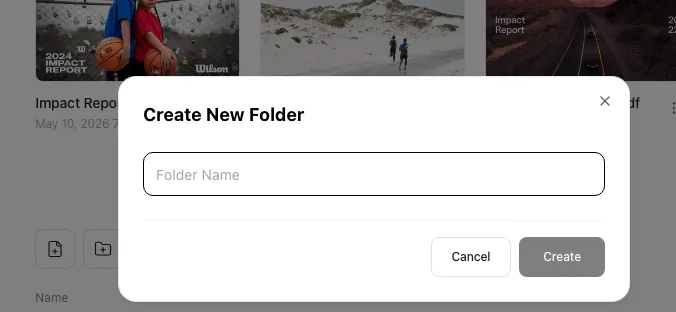
Click the New Folder icon (a folder with a +) in the list toolbar and type a folder name. The File Upload icon to its left is for uploading files.
Upload a file
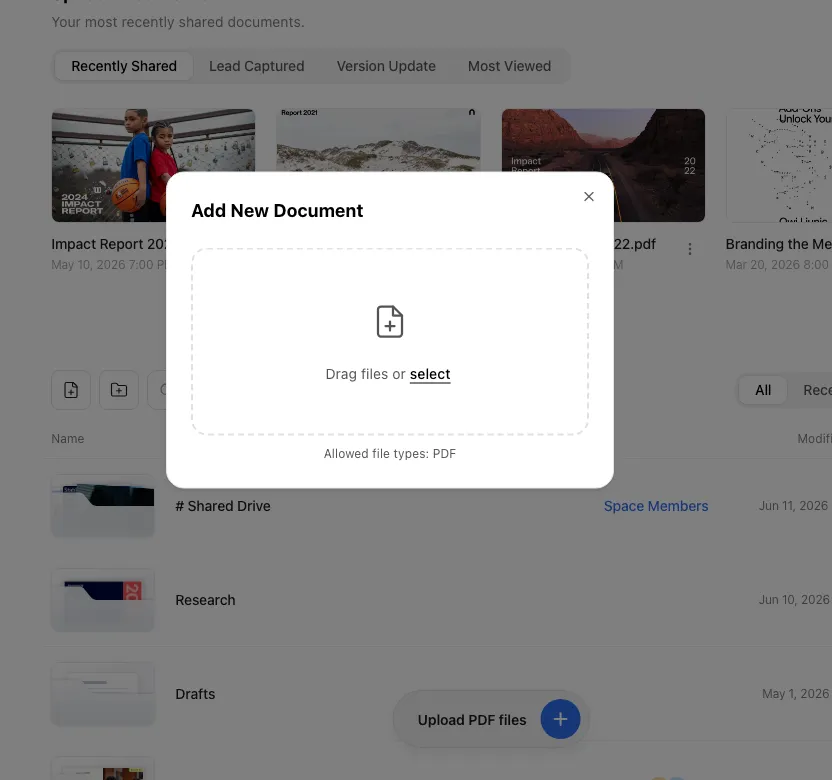
Section titled “Upload a file”You upload files from inside a folder. An empty folder shows a dashed-border upload area in the center. In a folder that already has documents, click the File Upload icon in the toolbar, or drag a file anywhere on the screen.
Choose a file
Drag and drop a file onto the upload area, or click the area to pick a file.
Watch it upload
A progress bar and a transfer count, for example 3.2 MB / 12 MB, track the upload. When the “File uploaded successfully.” toast appears you do not stay in the list — you jump straight to the Content tab on the detail page of the document you uploaded.
Supported file formats:
| Format | Extension |
|---|---|
.pdf |
Upload limits — size and monthly count
Section titled “Upload limits — size and monthly count”Uploads are checked against a file size limit and a monthly upload count at the same time.
| Limit | Starter | Pro | Business | Enterprise |
|---|---|---|---|---|
| PDF file size | 30 MB | 100 MB | 300 MB | Custom |
| Monthly uploads (new documents + versions) | 10 | 30 | 30 per seat | Custom |
| Videos & GIFs per document (counted together) | 3 | 5 | Unlimited | Unlimited |
After the upload
Section titled “After the upload”When the upload finishes you do not stay in the list. FeatPaper takes you straight to the Content tab on the new document’s detail page. Check the document there, then go straight on to sharing.
- Copy the share link — a new document starts with its Lead capture link set as your quick link. Click Copy share link at the top right to copy it; recipients leave their name and email before the document opens. To send a link that opens without a form, make the Open-access link your quick link in the Share links tab (see Quick links).
- Sample recipient link — the Share links tab already holds one per-recipient link named “To: Jane Doe (sample)”. To send it to someone specific, hover over its row and use Rename (the pencil) to enter their name. If you don’t need it, delete it with Delete link at the bottom of its share settings. It counts toward the per-document recipient link limit (3 on Starter).
- Use other links — the open-access link, lead capture link, and Public web link come ready on every document. To track people one by one, create more Per-recipient links with Add link.
- Set per-link options — viewer type, PDF download, viewing period, communication channels, view notification, and access restrictions such as an email allow list or password, each stored per link.
- Check analytics — see who opened which page and when, in the Insights and Viewers tabs.
Uploading several files in a row? Each upload sends you to that document’s detail page, so head back to the folder list before starting the next one.
Ways to use this
Section titled “Ways to use this”Do not stop your first document at “uploaded” — set it up all the way to the point where responses come back. The upload drops you on the document’s detail page, so opening its Share links tab and fixing the link and the alerts right then takes about ten minutes.
Attach a PDF to an email and you never learn whether it was opened, and every correction means sending a new file. Send a link and the open and the per-page stay time are recorded, while the content is swapped behind the same address with a version update (every plan, one monthly upload).
Button and shortcut reference
Section titled “Button and shortcut reference”The buttons and actions people reach for most on this screen.
| Button / element | Where | What it does |
|---|---|---|
| File Upload icon | List toolbar, after the invite icon inside a folder | Opens the PDF upload dialog. |
| New Folder icon | Right of the File Upload icon, before the search box | Opens a dialog to name a folder. |
| Upload area (dashed border) | Center of an empty folder | Click to open the file picker, or drag and drop a file to start uploading right away. |
| Plugin icons (Figma · Adobe Express · PowerPoint) | Bottom of an empty folder’s upload area | Click to open each plugin’s install page in a new tab. |
| Newly uploaded document card | Document list | Click to open the document detail page for share links, per-link settings, and analytics. |
Shortcut: Open My Documents
Frequently asked questions
Section titled “Frequently asked questions”I can't find the My Documents menu in the sidebar.
Logging in opens Home, the KPI overview, first. Document management lives under My Documents in the sidebar, which always shows in the main menu. If the sidebar is collapsed, expand it with the toggle button at the top.
Where do I create folders and documents?
Two icons sit in the list toolbar. The File Upload icon uploads a PDF, and the New Folder icon (a folder with a +) to its right makes a folder.
Can I upload a PPT or Word file directly?
Direct uploads support PDF files only. To keep a PowerPoint original in its native format, use the PowerPoint plugin icon at the bottom of the upload area.
It says my file is too big.
You have gone over your current plan’s file size limit. PDFs cap at 30 MB on Starter, 100 MB on Pro, and 300 MB on Business, with Enterprise set per contract. Video (MP4) has its own caps: 30 MB on Starter, 50 MB on Pro, and 100 MB on Business. Need bigger files? Upgrade to a higher plan.
It says I've used all my uploads this month.
You have hit the monthly upload count. Starter gets 10 a month, Pro 30, and Business 30 per seat, counting new documents and version updates together. The notice includes the date the next cycle opens. To upload sooner, change plan — on Business, adding seats raises the limit too — or ask your space admin. Check what is left under Settings > Usage.
I don't see the upload area.
The upload area appears in the center only when a folder has no documents at all. In a folder that already has documents, add one with the File Upload icon in the toolbar, or by dragging a file onto the screen.
Drag-and-drop doesn't work on my phone or tablet — how do I upload?
On mobile you upload by tapping instead of dragging. In an empty folder, tap the dashed upload area in the center and your phone’s file picker opens, filtered mostly to PDFs. In a folder that already has documents, tap the File Upload icon in the toolbar, then tap the file-picker button inside to choose a PDF. If you pick a non-PDF from “All files” by mistake, FeatPaper stops it before the upload starts with a “You can only upload PDF files.” notice.
Can I share a document as soon as I upload it?
Yes. When the upload finishes you land on the Content tab of the document’s detail page. Click Copy share link at the top right to copy the Lead capture link, your default quick link. To send the Open-access link, which opens without a form, click its row in the Share links tab to copy it, or click its icon (pin) to make it your quick link. Wait until conversion finishes before you send it.
My new document has a 'To: Jane Doe (sample)' link. Can I delete it?
Yes. When you upload from the dashboard, FeatPaper adds one sample recipient link to show how per-recipient links work. If you have someone to send it to, use Rename (the pencil) on its row in the Share links tab and enter their name. Otherwise, delete it with Delete link at the bottom of its share settings. The sample link counts toward the per-document recipient link limit (3 on Starter).
Can I send the link the moment upload progress hits 100%?
Hold on a moment. 100% means the file has finished transferring to the server, but converting pages into a document can continue briefly after that. If the detail page you landed on still shows a “Converting document” notice with a progress bar, conversion is not done. Wait for that notice to clear and the normal analytics screen to appear before you hand out the link.
I was invited to a folder but I don't see the upload button.
Your folder invite granted can view access, which is read-only, so the File Upload icon and the upload dropzone do not appear. To upload into the folder directly, ask the folder owner or an admin to switch your invite to can edit. Space admins can upload to any folder without a separate invite.
Can I upload a new version of a sample document?
No. The sample documents added at sign-up cannot be updated, and you see “Sample documents cannot be updated” if you try. Documents you uploaded yourself support version updates on every plan, Starter included.
Key points
Section titled “Key points”- Create the folder first, then upload inside it — that keeps everything tidy.
- The upload lands you on the document’s Content tab automatically; sharing happens on the Share links tab.
- A new document starts with the Lead capture link as your quick link, so Copy share link at the top right sends it right away. Rename or delete the sample link “To: Jane Doe (sample)” that comes with it.
- Uploads respect a file size limit and a monthly count — Starter gets 10 a month.
- 100% progress is not the same as conversion complete. Wait for the Converting document notice to clear.
Learn more
Section titled “Learn more”Tour the Home screen (KPI overview)
Explore the full layout of Home, the first screen after login.
See who read your document
Learn how to read engagement data and manage your uploaded documents.
Share with a link
Learn how to share a document securely and set per-link options.
Organize with folders
Learn how to keep documents organized with folders.