
Compare plans and pricing
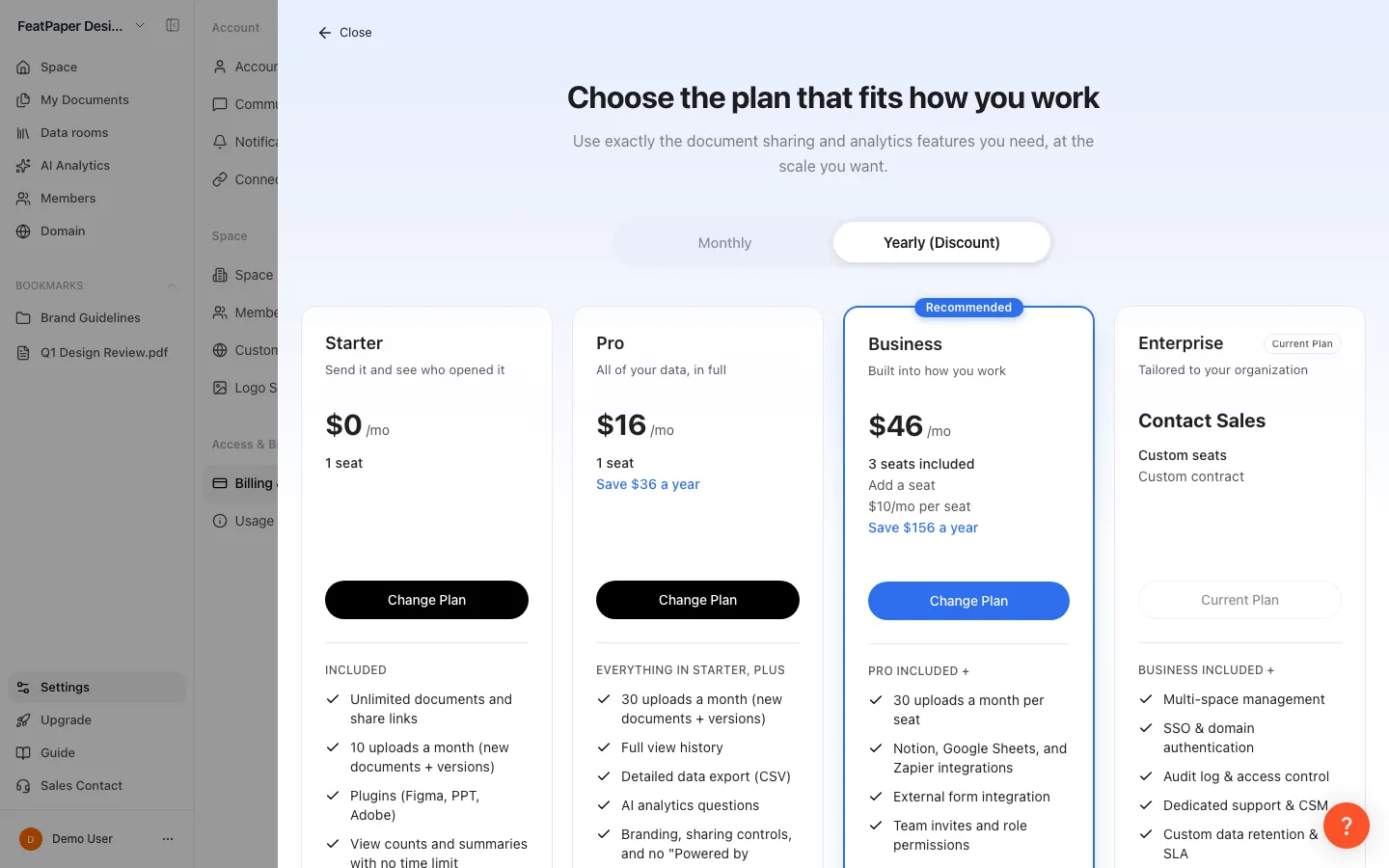
FeatPaper has four plans: Starter, Pro, Business, and Enterprise. The free plan is called Starter. Pro costs $19 a month, Business costs $59 a month with 3 users included, and Enterprise is Contact Sales. Your plan sets how many uploads you get each month, how far back per-viewer detail goes, and which team, integration, and security features open.
How much does each plan cost?
Section titled “How much does each plan cost?”The Pro plan costs $19 per month and Business costs $59 per month with 3 users included. Starter is $0, and Enterprise is priced by contract. Switch to yearly billing and Pro drops to $16 a month, Business to $46 a month.
| Plan | Monthly | Yearly (per month) | Seats included | Yearly savings |
|---|---|---|---|---|
| Starter | $0 | $0 | 1 user | — |
| Pro | $19/mo | $16/mo | 1 user | Save $36 a year |
| Business | $59/mo | $46/mo | 3 users included | Save $156 a year |
| Enterprise | Contact Sales | Contact Sales | Custom users | — |
- Extra seats exist on Business only. They cost $12 per seat per month, or $10 per seat per month on yearly billing. Starter and Pro are fixed at 1 seat, so no per-seat price appears on those cards.
- All prices are shown in USD. The
$0,$16, and$46on the cards are dollar amounts; the panel does not print a separate currency note. - Yearly prices are shown as a monthly equivalent, so the suffix stays /mo on the yearly tab.
$16/momeans paying for a year up front works out to $16 a month. - The Enterprise card shows Contact Sales instead of a price, Custom users on the user line, and Custom contract below it.
Why the free plan is now called Starter
Section titled “Why the free plan is now called Starter”The free plan is named Starter. The old name Free is gone from the product — plan cards, the space switcher, and cancellation notices all say Starter. Cancel a paid subscription and the space moves to Starter once the billing cycle ends. Where older material says Free, it means this same plan.
Which plan should you pick?
Section titled “Which plan should you pick?”Pick Starter to send documents and see who opened them. Pick Pro to keep your full view history, Business to work as a team with integrations, and Enterprise when you have security or contract requirements.
| Plan | The line on the card | Pick it when |
|---|---|---|
| Starter | Send it and see who opened it | You want unlimited documents and share links, with view counts and summaries that never expire |
| Pro | All of your data, in full | You need per-viewer detail for the full period, CSV export, AI analytics, and branding |
| Business | Built into how you work | You invite teammates, split roles, and connect Notion, Google Sheets, Zapier, or an external form |
| Enterprise | Tailored to your organization | You need SSO, audit logs, a custom domain, or invoice billing |
Each card states what it builds on: Everything in Starter, plus, Pro included +, and Business included +. Business carries the Recommended badge.
Starter
Starter is free. The card lists seven included items:
- Unlimited documents and share links
- 10 uploads a month (new documents + versions)
- Plugins (Figma, PPT, Adobe)
- View counts and summaries with no time limit
- Per-viewer detail for 7 days after upload
- 30MB PDFs, 30MB videos (3 videos and GIFs per document)
- Collect contacts with a lead form
It comes with 1 user, 3 per-recipient links per document, 1 data room, and 30 AI credits a month.
Pro
For one person who wants the whole data set. Everything in Starter, plus these six lines:
- 30 uploads a month (new documents + versions)
- Full view history
- Detailed data export (CSV)
- AI analytics questions
- Branding, sharing controls, and no “Powered by FeatPaper”
- 100MB PDFs, 50MB videos (5 videos and GIFs per document)
Pro stays at 1 user, with 10 per-recipient links per document, 3 data rooms, and 1,000 AI credits a month.
Business
For a team. Pro included + these six lines:
- 30 uploads a month per seat
- Notion, Google Sheets, and Zapier integrations
- Form integration
- Team invites and role permissions
- 300MB PDFs, 100MB videos (unlimited videos and GIFs per document)
- Add seats to raise your limits
It includes 3 seats and the card shows an Add a seat line ($12 per seat per month, $10 on yearly billing). Per-recipient links and data rooms are unlimited, and the 3,000 AI credits rise as you add seats.
Enterprise
For organizations with security or procurement requirements. Business included + these six lines:
- Multi-space management
- SSO & domain authentication
- Audit log & access control
- Dedicated support & CSM
- Custom data retention & SLA
- Custom domain settings
Pricing is Contact Sales, users read Custom users, and file sizes and retention are Custom by contract. Enterprise can also be billed by invoice.
Ways to use this
Section titled “Ways to use this”Reading down the feature list is slower than matching a plan to how you work right now. Moving up a plan never unlocks one feature in isolation — seats, monthly uploads, and monthly AI credits all rise with it.
Before you upgrade for one feature, look at the limits that come with it. Moving to Pro for CSV export also takes monthly uploads from 10 to 30, and on Business every seat you add brings another 30 monthly uploads and more AI credits — a seat is capacity, not a headcount, so you can raise limits without inviting anyone.
Compare documents, sharing, and view analytics
Section titled “Compare documents, sharing, and view analytics”Document storage and share links are unlimited on every plan. What your plan changes is the monthly upload count, per-recipient link count, PDF size, and how far back per-viewer detail goes. The tables below mirror the comparison table in the plan selection panel.
What changes for documents and sharing
Section titled “What changes for documents and sharing”| Feature | Starter | Pro | Business | Enterprise |
|---|---|---|---|---|
| Unlimited document sharing & storage | ✓ | ✓ | ✓ | ✓ |
| Monthly uploads | 10 | 30 | 30 per seat | Custom |
| Motion-embedded standard link | ✓ | ✓ | ✓ | ✓ |
| Information-form link | ✓ | ✓ | ✓ | ✓ |
| Per-recipient links | 3 | 10 | Unlimited | Unlimited |
| Public web link | ✓ | ✓ | ✓ | ✓ |
| Data rooms | 1 | 3 | Unlimited | Unlimited |
| Link version management | ✓ | ✓ | ✓ | ✓ |
| PDF file size | 30MB | 100MB | 300MB | Custom |
| Plugins (Figma · PPT · Adobe) | ✓ | ✓ | ✓ | ✓ |
| Viewer type (presentation / document) | ✓ | ✓ | ✓ | ✓ |
- Every plan, Starter included, gets one Open-access link, one Information-form link, and one Public web link per document, issued automatically. There’s nothing to create or upgrade for them. The only link type with a plan limit is the per-recipient link, which you make yourself.
What changes for view analytics
Section titled “What changes for view analytics”| Feature | Starter | Pro | Business | Enterprise |
|---|---|---|---|---|
| View count & summary | No time limit | ✓ | ✓ | ✓ |
| Per-visitor detail | 7 days | Full period | Full period | Full period |
| Per-viewer interest analysis | ✓ | ✓ | ✓ | ✓ |
| View alerts | ✓ | ✓ | ✓ | ✓ |
| Data export (CSV) | — | ✓ | ✓ | ✓ |
Compare motion content, sharing controls, and branding
Section titled “Compare motion content, sharing controls, and branding”Adding video and GIF content works on every plan. Only how many videos and GIFs one document holds, and the file size, change by plan. Branding and download blocking start at Pro; custom domains are Enterprise only.
How motion content limits differ
Section titled “How motion content limits differ”| Feature | Starter | Pro | Business | Enterprise |
|---|---|---|---|---|
| YouTube · MP4 · GIF and more | ✓ | ✓ | ✓ | ✓ |
| Videos & GIFs per document | 3 | 5 | Unlimited | Unlimited |
| MP4 · GIF file size | 30MB | 50MB | 100MB | Custom |
- Videos and GIFs share that one allowance — three on Starter means three items in total, in any mix. Still images (PNG, JPG) added through the GIF tab are stored as GIFs and count as well, and the number covers the whole document rather than each page.
- YouTube and Vimeo links, embedded web links, in-document page jumps, and linked documents are unlimited on every plan.
- GIFs use the same size ceiling as MP4 — one row covers both, so a GIF can be as large as a video on your plan.
What sharing controls and branding you get
Section titled “What sharing controls and branding you get”| Feature | Starter | Pro | Business | Enterprise |
|---|---|---|---|---|
| Lead form customization | ✓ | ✓ | ✓ | ✓ |
| View period limit | — | ✓ | ✓ | ✓ |
| Disable original PDF download | — | ✓ | ✓ | ✓ |
| Branding settings | — | ✓ | ✓ | ✓ |
| Remove “Powered by FeatPaper” | — | ✓ | ✓ | ✓ |
| Lead form templates | — | — | ✓ | ✓ |
| Custom domain | — | — | — | ✓ |
| Communication CTA | 3 | 3 | 5 | Unlimited |
Compare AI, automation and team, and Enterprise features
Section titled “Compare AI, automation and team, and Enterprise features”AI analytics starts at Pro, team invites and integrations start at Business, and SSO, audit logs, and invoices are Enterprise. AI search citation optimization is on for every plan.
What AI you get on each plan
Section titled “What AI you get on each plan”| Feature | Starter | Pro | Business | Enterprise |
|---|---|---|---|---|
| AI interest analysis | ✓ | ✓ | ✓ | ✓ |
| AI analytics | — | ✓ | ✓ | ✓ |
| Monthly AI credits | 30 | 1,000 | 3,000 | Unlimited |
| AI search citation optimization | ✓ | ✓ | ✓ | ✓ |
AI interest analysis and the Public web link (AI search citation optimization) are not “coming soon” — they are live on all four plans. Starter also gets 30 credits a month, so AI is not fully locked there. The one AI feature Starter can’t use is AI analytics. Business credits rise when you add seats.
What automation and team features you get
Section titled “What automation and team features you get”| Feature | Starter | Pro | Business | Enterprise |
|---|---|---|---|---|
| Notion, Google Sheets, and Zapier | — | — | ✓ | ✓ |
| Form integration | — | — | ✓ | ✓ |
| Included seats | 1 | 1 | 3 | Custom |
| Space & team invites | — | — | ✓ | ✓ |
| Role permissions (Viewer / Editor / Admin) | — | — | ✓ | ✓ |
| Multi-space management | — | — | — | ✓ |
| Two-way cross-tool plugin sync | — | — | ✓ | ✓ |
The comparison row is labeled “Role permissions (Viewer / Editor / Admin)”, but in the product a space has just two roles: Admin and Member. Viewer (can view) and editor (can edit) are folder permissions you choose when inviting someone to a folder — see Invite your team. Enterprise seats read Custom, not Unlimited.
What Enterprise adds
Section titled “What Enterprise adds”| Feature | Starter | Pro | Business | Enterprise |
|---|---|---|---|---|
| SSO · domain verification | — | — | — | ✓ |
| Audit logs · access control | — | — | — | ✓ |
| Dedicated support · CSM | — | — | — | ✓ |
| Custom data retention · SLA | — | — | — | ✓ |
Which plan unlocks which feature — lead forms, CSV, integrations
Section titled “Which plan unlocks which feature — lead forms, CSV, integrations”Lead forms and AI search citation optimization are open on every plan. Everything still behind a paid gate is listed below.
| Feature | Opens on |
|---|---|
| Lead form customization | Every plan (Starter included) |
| AI search citation optimization | Every plan |
| AI analytics | Pro and above |
| Data export (CSV) | Pro and above |
| Branding and removing “Powered by FeatPaper” | Pro and above |
| Disable original PDF download, view period limit | Pro and above |
| Link version management | Every plan. Each new version uses one of your monthly uploads |
| Team invites and role permissions | Business and above |
| Notion, Google Sheets, and Zapier | Business and above (per the comparison table) |
| Form integration | Business and above |
| Custom domain, multi-space management, SSO, audit logs | Enterprise |
- Starter can use lead forms. The old “Pro and above” notice is gone. To build one, see Set up a lead form.
- Below Pro, CSV export shows “Get detailed data as a file / You can still read it on screen. Exporting to a file starts on Pro.” Reading it on screen keeps working.
- Integrations show “Let your view records land in Notion automatically.”
- PDF download and the viewing period are set per link in that link’s share settings, not for the whole document. Saving either one applies to that link only — other links on the same document, and any link you create later, won’t pick it up. Set them again each time you create a link. See Share with a link.
Which limits aren’t rows in the comparison table?
Section titled “Which limits aren’t rows in the comparison table?”The panel’s comparison table has 41 rows. The items below aren’t rows there, but they do differ by plan or come up often.
| Item | Starter | Pro | Business | Enterprise |
|---|---|---|---|---|
| Data rooms | 1 | 3 | Unlimited | Unlimited |
| Date filter, version filter, share-link filter | — | ✓ | ✓ | ✓ |
| Filter by sharer | Depends on your role¹ | Depends on your role¹ | Depends on your role¹ | Depends on your role¹ |
¹ Filter by sharer has no plan gate. It appears in the filter bar only while you hold owner or editor (can edit) access to the document. A viewer (can view) never sees the axis at all. See document analytics.
Hit the data room cap and the notice reads “You can’t create more data rooms / Your plan allows N data rooms and you’re using N.” See Data rooms.
These work the same on every plan: document search by name and tag, tags, bookmarks, document preview, copying a share link, and the QR code inside a downloaded PDF. So do video, GIF, web link, click area and page-jump embeds, view alerts, and the home summary (share stats, shared document list, contact list, referrers, activity alerts). In document analytics, the same applies to view counts, completion rate, return rate, average dwell time, page stats, and best pages. It also covers the viewer list with grouping, individual viewer detail, and excluding internal viewers. On Starter, per-viewer detail within that set is limited to 7 days after upload.
How far back can Starter see view data?
Section titled “How far back can Starter see view data?”View counts and summaries never expire on Starter. The 7-day limit applies to per-viewer detail only.
| Data | Starter | Pro and above |
|---|---|---|
| View count & summary | No time limit | No time limit |
| Per-viewer detail (who read which page) | 7 days after upload | Full period |
- Nothing is deleted after 7 days. Past that window the counts stay visible and the detail is masked. It unmasks the moment you move to Pro or above.
- The product states it as “On Starter, view data is available for 7 days after upload. Pro opens the full history.”
- On Starter the date filter (“Date filtering is available on Pro and above”), the version filter, and the share-link filter are locked.
- Interest changes past the window read “Interest changes more than 7 days after upload aren’t shown.”
For where this appears on screen, see document analytics.
How the monthly upload limit is counted
Section titled “How the monthly upload limit is counted”The monthly upload limit counts new documents and version updates together. Starter gets 10, Pro gets 30, Business gets 30 per seat (90 a month on 3 seats), and Enterprise is custom.
- The product says it plainly: “Creating or updating a document uses 1 upload each time.”
- Undoing an upload or restoring an earlier version does not give the count back.
- On your last upload, a heads-up appears first: “This is your last upload this month.”
- Once the limit is gone you see “You’ve used all of this cycle’s uploads” plus the date you can upload again. New documents and new versions are both blocked, and existing documents stay as they are.
- Members also see “Ask your space admin to raise the limit.”
- Check how much is left under Settings > Access & Billing > Usage, in the This cycle section. See AI credits and usage.
Change your plan
Section titled “Change your plan”The plan selection panel covers the screen. Top to bottom it holds the heading, billing toggle, four plan cards, four outcome figures, the feature comparison, and an FAQ.
Open the plan panel
Go to Settings → Access & Billing → Pricing to pick a plan from the same cards and billing toggle and go straight to checkout — View feature comparison opens the full table. Clicking any locked feature opens the plan selection panel.
Choose a billing cycle
Pick Monthly or Yearly (Discount) in the toggle at the top. Yearly is selected on open, and switching recalculates each card’s price and savings line.
Select Change Plan on a card
Click Change Plan on the plan you want. Your current plan is marked Current Plan and can’t be clicked.
Pick your seat count on Business
Choose Business and How many people? opens first. Set the count, check the monthly total, and confirm. You get “Your plan changes to Business with N seats right away, and your card is charged for the change immediately.” New subscriptions continue to checkout instead.
Finish payment
Features unlock as soon as payment completes. Enterprise shows Contact Sales instead of a price and opens an inquiry form in a new tab.
Can I add seats on the Business plan, and when am I charged?
Section titled “Can I add seats on the Business plan, and when am I charged?”On Business, open Settings > Access & Billing > Billing & Plans and use the Seats section to add or remove seats one at a time. Adding takes effect right away and is charged immediately; removing is scheduled for your next billing date.
Open the Seats section
Go to Settings → Access & Billing → Billing & Plans and find Seats. It reads like “3 of 5 in use · 3 included in your plan,” with “$12 per additional seat” below it.
Add a seat
Use Add one seat to raise the number, then click Update seats. The confirmation says “New seats are available right away, and your card is charged now for the remaining days of this period,” and you land on “Seats added. Your card has been charged for the change.”
Remove a seat
Lower the number and click Schedule change. “The reduction is scheduled and takes effect on your next billing date. Until then your current seats stay available.” Time you already paid for is not refunded.
Cancel a scheduled change
A scheduled reduction shows as “Your seat count changes to N on [date].” Click Cancel scheduled change and you get “The scheduled seat change was canceled. Nothing was charged.”
Here is what each blocking message means.
| On-screen message | What it means |
|---|---|
| ”You can’t go below N. Seats that are in use have to be freed up first.” | Remove members before lowering the count. |
| ”This plan includes N seats — you can’t go below that.” | Change plans to go lower — Business keeps a floor of 3 seats. |
| ”Your current plan comes with a fixed number of seats.” | Starter and Pro are fixed at 1 user. |
| ”This plan goes up to N seats. Contact sales for more.” | You reached the plan ceiling. |
| ”Seats can’t be changed while the subscription is scheduled to end.” | Use Resume Subscription first. |
| ”Seats can’t be changed while a payment is outstanding.” | Update the card — the last payment failed. |
| ”Your current plan and payment method don’t support adding seats here.” | Invoice or Payple billing — contact support or your administrator. |
- Adding a seat also raises your monthly upload limit and AI credits.
- Invite a member with no free seat and an extra charge notice appears: “One user is added and your card is charged now for the remaining days of this period. Your upload limit and AI usage increase too.” With a free seat available, no notice appears.
- On Payple billing you get “Seats are available on card billing” and a Switch to card billing with N seats button. After switching, the Payple recurring payment stops from the next cycle and the period already paid is not refunded automatically.
To invite the people themselves, see Invite your team.
Payment methods and invoices
Section titled “Payment methods and invoices”Billing & Plans shows a summary card (plan, cycle badge, current rate, seats in use, next invoice), your payment method, and your invoices. Starter has no summary card.
| Method | Notes |
|---|---|
| Credit and debit cards | Major cards are supported. Replace the card on file with Update card under the payment method. With none on file you see “No card registered.” |
| Invoice (tax invoice) | Enterprise only. The screen shows Using Invoice Billing and “Please contact your administrator for plan changes or billing inquiries.” |
| Payple | A legacy recurring payment. The payment method and cancellation can’t be handled on screen. |
- The Invoices table has Date, Total, Status, Download columns, with statuses Paid / Pending / Refunded / Void / Failed. On spaces billed through Payple, a VAT button sits next to Download and opens the Add VAT No. dialog for the invoice PDF.
- With no invoices yet you see “No invoices yet / Invoices appear here after your first payment.”
- Only the billing contact (space owner) can view invoices. Everyone else sees “Only the billing contact can view invoices.”
- If a card payment fails, the summary card shows a Failed badge and the billing contact gets a payment-failed email with a Check payment method link. Retry counts and the next attempt date are not stated.
- Payple spaces see “Changing your payment method or cancelling your subscription can’t be done here. Please contact support or your administrator to make the change.”
Shortcut: Open Settings
Cancel, expire, and resume
Section titled “Cancel, expire, and resume”Click Cancel Subscription and you get “Your subscription stays active until the end of the current billing period. After that, your space moves to Starter.” Confirming schedules the cancellation.
- While a cancellation is scheduled, paid features keep working but seat changes are blocked.
- Resume Subscription gives you “The scheduled cancellation is canceled and auto-renewal starts again. Seat changes reopen too.” A subscription that already expired can’t be resumed.
- Once a subscription truly expires, the space owner keeps working normally and only non-owner members are cut off, with a Space access is limited notice. Documents and analytics data are preserved.
- A scheduled cancellation or a payment retry is not an expiry, so members keep full access and paid features during that window.
What happens when you click a locked feature
Section titled “What happens when you click a locked feature”Every sidebar menu stays visible on every plan — nothing is hidden and no badge is added. Click a feature your plan doesn’t include and a plan panel opens focused on that feature, highlighting the plan that unlocks it.
| Plan highlighted | Features | Headline |
|---|---|---|
| Pro | AI analytics, branding, disable PDF download, view period limit, CSV export | ”Discover new insights with AI analytics” |
| Business | Team invites, role permissions, Notion / Google Sheets / Zapier, form integration | ”Align your team and share results together” |
| Enterprise | Custom domain, multi-space management, SSO, audit logs | ”Boost trust with your own company domain” |
When the panel opens in that focused mode, the card carries a Selected feature badge. Other locked features open the plain plan panel.
Button and shortcut reference
Section titled “Button and shortcut reference”The buttons people look for on this screen, and what each one does.
| Button or element | Where | What it does |
|---|---|---|
| Pricing tab | Settings > Access & Billing | Plan cards and billing toggle; pick a plan and go to checkout. View feature comparison opens the table (admins only). |
| Billing & Plans tab | Settings > Access & Billing | Opens the summary card, payment method, invoices, and Seats (admins only). |
| Usage tab | Settings > Access & Billing | Shows this cycle’s usage and your plan limits (members can open it; the detailed log is admin-only). |
| Billing toggle (Monthly / Yearly (Discount)) | Top of the plan panel | Recalculates each card’s price and savings line. Yearly is the default. |
| Change Plan | Bottom of each card except Enterprise | Continues to payment or swaps the plan. Enabled for admins only. |
| Current Plan | Your current plan card | Marks the plan you are on, and cannot be reselected. |
| Recommended badge | Business card | Marks the recommended plan. |
| Selected feature badge | When opened from a locked feature | Shows which feature triggered the panel. |
| Contact Sales | Enterprise card, sidebar | Opens the sales inquiry form in a new tab. |
| Update seats | Billing & Plans > Seats | Applies added seats immediately and charges the prorated amount. |
| Schedule change | Billing & Plans > Seats | Schedules a reduction for your next billing date. |
| Cancel scheduled change | When a change is scheduled | Cancels the scheduled seat change. Nothing extra is charged. |
| Update card | Billing & Plans > payment method | Replaces the card on file. |
| Cancel Subscription | Billing & Plans | Schedules the move to Starter at the end of the cycle. |
| Resume Subscription | While a cancellation is scheduled | Cancels the scheduled end and restarts auto-renewal. |
| Download | Invoices table | Downloads that invoice, or explains when no document exists. |
Close (←) / ESC | Top left of the plan panel / keyboard | Closes the panel and returns to the previous screen. |
Frequently asked questions — pricing and payment
Section titled “Frequently asked questions — pricing and payment”How much does the Pro plan cost per month?
The Pro plan costs $19 per month on monthly billing, or $16 per month on yearly billing (shown as a monthly equivalent). Yearly billing displays Save $36 a year on the card. All prices are in USD.
How much does the Business plan cost, and how many seats are included?
Business costs $59 per month monthly, or $46 per month on yearly billing, and includes 3 seats. Yearly billing displays Save $156 a year. Extra seats add $12 per seat per month, or $10 per seat per month on yearly billing.
How much do I save with yearly billing?
The product shows money, not a percentage. The toggle reads Yearly (Discount), and the savings differ per plan: Pro saves $36 a year ($19 to $16), Business saves $156 a year ($59 to $46), and extra seats drop from $12 to $10. The older percentage wording no longer applies.
Is the free plan now called Starter?
Yes. The free plan is shown as Starter throughout the product. When you cancel a subscription, the space moves to Starter at the end of the current cycle. Free is the old name for it.
Why is there no price on Enterprise, and how do I sign up?
Enterprise shows Contact Sales instead of a price, and seats, file sizes, and retention read Custom because they are set by contract. Click Contact Sales on the Enterprise card, or the sales link in the sidebar, to open the inquiry form in a new tab. Leave your company, department, title, name, email, phone, and question, and a manager follows up.
What payment methods are supported?
Major credit and debit cards, plus invoice billing on Enterprise. Replace the card on file with Update card under Billing & Plans > payment method, and download past receipts from Invoices on the same screen.
How do I change the payment details on a plan I already pay for?
Open Billing & Plans > payment method and click Update card to swap the card; you get “Payment method has been updated.” Spaces still billed through Payple can’t do this on screen and need to contact support or their administrator.
Can I use it right after paying?
Yes. Every feature in the plan activates as soon as payment completes. There is no approval wait.
If I cancel, do features stop right away?
No. You keep paid features until the current billing cycle ends, then the space moves to Starter automatically. Seats can’t be changed while a cancellation is scheduled; Resume Subscription cancels the scheduled end and reopens both auto-renewal and seat changes. A subscription that already expired can’t be resumed.
Can I change plans anytime?
Yes. Upgrade or downgrade whenever you like — the difference is prorated to your billing cycle. Only space admins can make the change.
Can I switch from yearly billing back to monthly?
Flipping the toggle to Monthly doesn’t give you a button, because your current plan card stays disabled as Current Plan. To move a live subscription from yearly to monthly, contact support or your administrator. Proration follows the payment provider’s policy.
I'm on an invoice contract and every Change Plan button is disabled.
Invoice-billed spaces are billed manually from a sales agreement, so the self-serve flow is turned off. The screen shows Using Invoice Billing and “Please contact your administrator for plan changes or billing inquiries.” Request seat or plan changes through Contact Sales.
Can teammates press Change Plan, and whose card gets billed?
Only space admins can change the plan; members see the buttons disabled with “Only admins can change the plan.” Billing runs at the space level, so any charge goes to the payment method on the space subscription rather than a teammate’s own card. Payment method changes and cancellation are space-level too.
Frequently asked questions — plan limits
Section titled “Frequently asked questions — plan limits”Can I use a Public web link on the free Starter plan?
Yes. The Public web link is on every plan. When you upload a document it gets one automatically, along with an Open-access link and an Information-form link, so there’s nothing to create — copy it from the document’s Share links tab. The link type that has a plan limit is the per-recipient link (3 per document on Starter, 10 on Pro, unlimited on Business and up).
How far can I get on Starter?
Documents and share links are unlimited. You get 10 uploads a month (new documents plus versions), 30MB per PDF, 30MB of video (3 videos and GIFs per document), 3 per-recipient links per document, 1 data room, and 30 AI credits a month. View counts and summaries have no time limit, and only per-viewer detail stops at 7 days after upload. Lead forms work too. What stays locked: AI analytics, CSV export, branding, download blocking, the view period limit, and team invites.
Which plan do lead forms start on?
Every plan. Lead form customization shows a check for Starter, Pro, Business, and Enterprise, and the Starter card itself lists “Collect contacts with a lead form.” The old “Pro and above” notice is gone. Connecting a form you already own — form integration — still starts at Business.
Is view data deleted after 7 days?
No. On Starter you see per-viewer detail for 7 days after upload, and past that the counts stay visible while the detail is masked. View counts and summaries never expire. Moving to Pro or above unmasks the full period immediately.
Which plan do Notion, Google Sheets, and Zapier integrations start on?
Per the comparison table in the plan panel, they start on Business. Form integration in the same group also starts on Business. Plan around Business if you need submitted contacts pushed out automatically.
Is AI search citation optimization still coming soon?
No — it applies to every plan. The comparison table shows a check for Starter, Pro, Business, and Enterprise. The old “coming soon” note is out of date.
How many data rooms can I create?
1 on Starter, 3 on Pro, and unlimited on Business and Enterprise. At the cap you see “You can’t create more data rooms” along with your current count.
How many videos and GIFs can one document hold?
3 on Starter, 5 on Pro, and unlimited on Business and Enterprise — and videos and GIFs count together against that one number, still images (PNG, JPG) added through the GIF tab included. File size works the same way: MP4 and GIF share one ceiling of 30MB on Starter, 50MB on Pro, 100MB on Business, and Custom on Enterprise. YouTube and Vimeo links and embedded web links don’t count toward the per-document number.
If I downgrade after using up my per-recipient links, do the links and view counts disappear?
No. Hitting the per-document cap (3 on Starter, 10 on Pro, unlimited on Business and Enterprise) blocks creating new links only. Links you already sent and the view counts on them stay in the share tab.
If I upload a large file on Business and then downgrade, do I lose that document?
No. Size limits (30MB Starter, 100MB Pro, 300MB Business, Custom Enterprise) apply at the moment you upload. After a downgrade, viewers keep opening the document through the share link and you keep seeing it in the dashboard. Uploading a new version to it is checked against your new plan’s limit.
What happens if I downgrade?
Features that only the higher plan opened — branding, custom domain, team invites, AI analytics, CSV export, the view period limit — stop working. Documents, links, and view data are not deleted; what stops is creating new items. Check what you rely on before changing.
If my subscription expires, does the whole team lose access?
No. The space owner keeps working normally, and only non-owner members are cut off with a Space access is limited notice. Documents and analytics data are preserved, and member access returns when billing is restored. A scheduled cancellation or a payment retry is not an expiry, so members keep access during that window.
Do recipients need to sign up?
No. Anyone with the share link can open the document without signing up or logging in. Plans apply only to the side that uploads, shares, and analyzes.
Frequently asked questions — seats and teams
Section titled “Frequently asked questions — seats and teams”How do I add more teammates on Business?
Business includes 3 seats, and you add seats one at a time under Billing & Plans > Seats. Extra seats cost $12 per seat per month ($10 on yearly billing), and adding a seat raises your monthly upload limit and AI credits as well. If you still have a free seat, inviting a member won’t trigger an extra charge notice.
When am I charged for a seat I just added?
Right away. Seats go up one at a time under Billing & Plans > Seats. New seats are usable immediately and your card is charged for the remaining days of the current period. Removing a seat is different: it is scheduled for your next billing date and nothing is refunded. Cancel scheduled change undoes it with no extra charge.
Why can't I lower my seat count any further?
Two floors apply. First, you can’t go below the seats currently in use — free up those members first. Second, you can’t go below the seats included in your plan (3 on Business); change plans to go lower. Seat changes are also blocked while a cancellation is scheduled or a payment is outstanding.
If I remove a teammate, do the charge and credits drop right away?
Removing a member takes them off the list, but the seat count and the charge do not drop by themselves. Lower the number in Seats and use Schedule change; that takes effect on your next billing date with no refund. Credits are one shared space-level pool, so what the removed member spent doesn’t come back and stays in the usage log.
Do I have to invite someone to benefit from an extra seat?
No. As the product puts it, a seat is capacity rather than a person. Each seat adds 30 monthly uploads and more AI usage even with nobody invited.
I can see every sidebar menu, but clicking one only shows an upgrade prompt.
The sidebar shows all menus regardless of plan. Click a feature your plan doesn’t include and a focused plan panel opens with the unlocking plan highlighted — custom domain on Enterprise, team invites on Business and above, and branding, per-link download blocking, and the view period limit on Pro and above.
I'm on a member account and only see 'Admin access required.' Will upgrading fix it?
No — this is a role issue, not a plan issue. Pricing, Billing & Plans, Custom Domain, and Logo Settings are admin-only, so you get the Admin access required card. Upgrading won’t open them; ask your space admin to switch your role. Member Management is different: team members can see it, so the card never appears there — only the invite, role-change, and remove controls are hidden. Usage also opens for members (this cycle and plan limits only). See Invite your team.
Key points
Section titled “Key points”- The free plan is Starter. Pro is $19/mo ($16/mo yearly), Business is $59/mo ($46/mo yearly, 3 users included), Enterprise is Contact Sales, and all prices are USD.
- No discount percentage is shown. Savings appear as Save $36 a year (Pro) and Save $156 a year (Business).
- Starter includes lead forms and AI search citation optimization, plus 30 AI credits a month. Only AI analytics is locked.
- The 7-day limit on Starter applies to per-viewer detail only; view counts and summaries have no time limit.
- Business seats go up through Update seats (charged immediately, prorated) and down as a scheduled change on your next billing date, with no refund.
- Enterprise seats, file sizes, and retention read Custom rather than Unlimited.
Learn more
Section titled “Learn more”AI credits and usage
Check remaining AI credits alongside your upload and file size limits.
Invite your team
Invite teammates into the seats you added and set their roles.
See who read your document
See where view counts, summaries, and per-viewer detail appear.
Upload a document
See where the monthly upload and file size limits kick in.