
Organize with folders
Folders group your documents by project, client, or topic, and let you invite teammates to manage a folder together. As documents pile up, a folder narrows the list down to one project at a time, so you can find the right file without scrolling the whole list.
What is a folder?
Section titled “What is a folder?”A folder is a unit for sorting documents by project, client, or topic. Create subfolders for a nested hierarchy, and invite teammates to a folder.
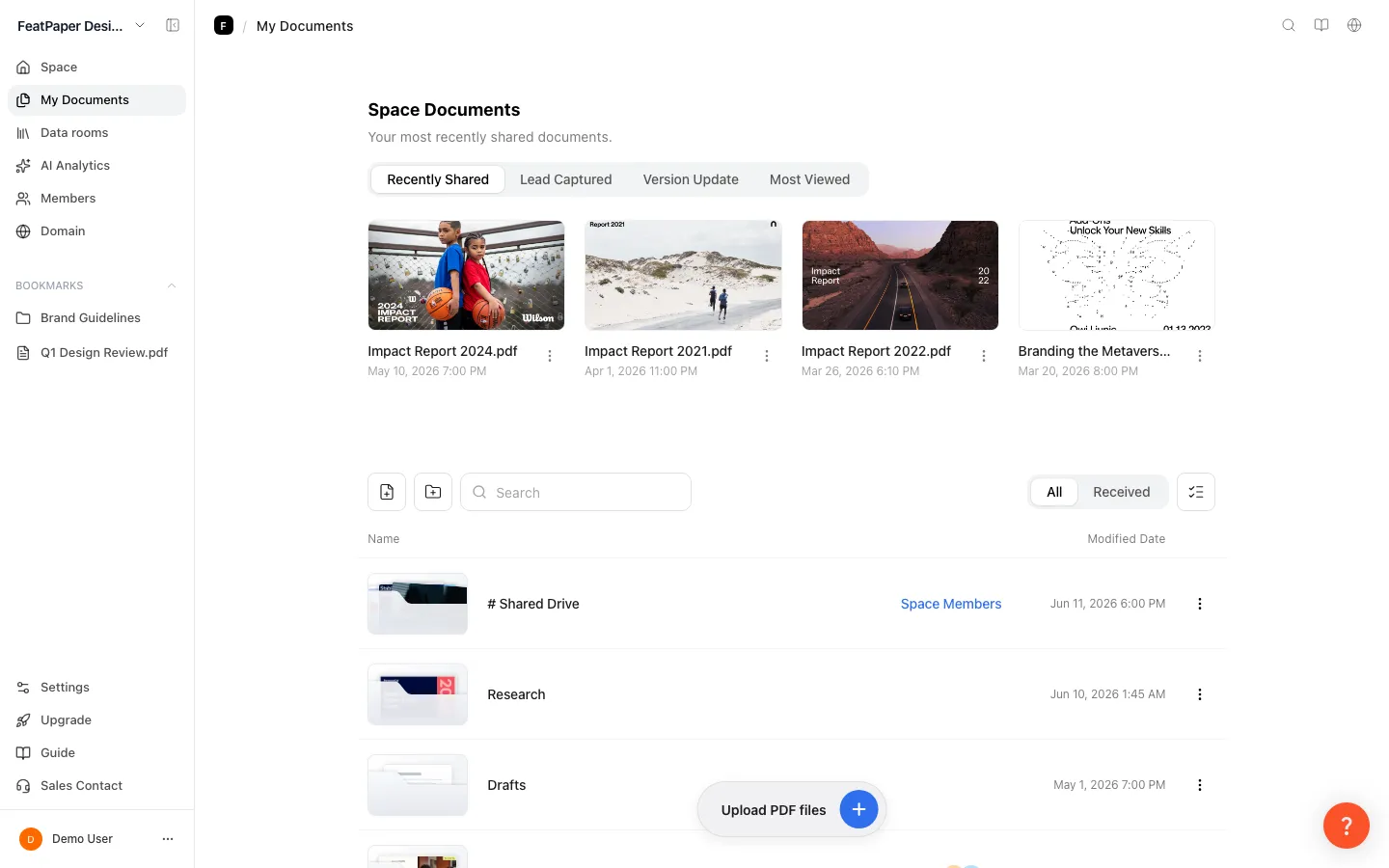
The toolbar above the list holds File Upload (file icon) and New Folder (folder-with-plus icon) on the left — inside a folder, an Invite icon joins them — and a search box, the All / Shared with me tabs, and a Select icon on the right. The Upload or drop a PDF button floats at the bottom center of the screen.
Each row shows its sharing status in a different way. A document (content) row shows the number of share links created for it (its share count), while a shared folder row you invited teammates to shows the avatars of those teammates. A # shared drive folder open to the whole space shows Space Members instead of individual avatars.
Create a folder
Section titled “Create a folder”Go to My Documents
In the sidebar, click My Documents.
Click the New folder icon
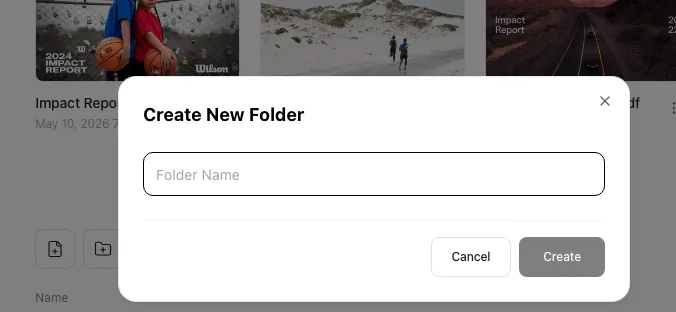
Click the New folder icon (folder-with-plus) on the left of the list toolbar to open a dialog for naming the folder. (The File Upload icon right next to it is for adding a PDF.)
Name it and create
Enter a folder name and click Create.
Confirm the folder
The new folder appears in your list. Click it to go inside.
Subfolders
Section titled “Subfolders”Create subfolders to sort documents more finely. You make one the same way as a top-level folder: go into the subfolder, then click the toolbar’s New folder icon.
Set a folder color
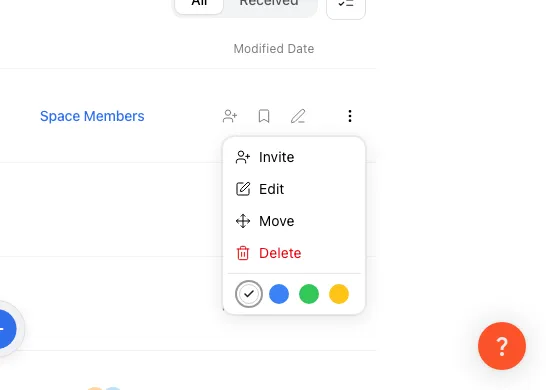
Section titled “Set a folder color”To change a folder’s color, open the more (⋮) menu at the end of the folder’s row in My Documents and click one of the four color chips at the bottom (default, blue, green, yellow). There’s no right-click menu, long-press menu, or swipe action; the more menu is the only place to set a color.
Give a folder a color tint to tell it apart from the rest. The color is saved on the server, so it shows up the same in the list of any teammate looking at that folder.
Open the more menu
Click the more menu (⋮) on a folder row. Below the Invite, Edit, Move, and Delete items — under a divider — are four round color chips.
Pick a color
Click the chip you want. The menu closes and a soft pastel tint of that color is applied to the folder thumbnail’s background right away.
Reset to default
Reopen the more menu and click the first, white (default) chip to clear the color and return the folder to no tint.
| Color | Example use |
|---|---|
| Default (no color) | No color assigned |
| Blue | Projects in progress, etc. |
| Green | Completed or approved material, etc. |
| Yellow | Awaiting review, etc. |
Tag a folder
Section titled “Tag a folder”Attach a short tag (memo) to a folder or a document. Tags appear above the name, comma-separated, showing up to two. Use them for project status, an owner’s name, and the like.
Open the edit dialog
Hover over the right of a folder or document row to reveal the Edit icon (or use more ⋮ → Edit).
Enter a memo (tag) and save
In the edit dialog, enter the name along with a memo (tag) and save. The saved tag appears above the name in the list.
Move documents and folders
Section titled “Move documents and folders”Move documents and folders in two ways.
Move by dragging
Section titled “Move by dragging”Grab a document or folder row and drop it onto a subfolder row currently visible on screen to move it into that folder right away.
Move an individual item
Section titled “Move an individual item”From a document’s or folder’s more menu (⋮), choose Move, then pick the destination folder.
Move or delete several items at once
Section titled “Move or delete several items at once”Move or delete several documents and folders in one go.
Turn on select mode
Click the Select icon on the right of the toolbar to turn on select mode; a selection circle appears on the left of each row. Click rows to select them — documents and folders can be selected together.
Use the bulk action bar
Select one or more items and a floating action bar appears at the bottom center, showing the number selected and Move / Delete buttons.
Pick a destination (when moving)
The move dialog opens in the parent folder where the items currently live. Click My Documents in the breadcrumb at the top to go to the top level. Click into the folder you want, then click Move here.
Invite teammates to a folder
Section titled “Invite teammates to a folder”Folder invites only reach people who are already members of this space. Someone outside the space, such as a client contact, can’t be invited to a folder; send them a document’s share link instead. Bringing new teammates into the space itself requires Business or above.
Hover over the right of a folder row to reveal the Invite icon (person-plus) and click it to open the invite dialog. Invite in the more (⋮) menu opens the same dialog. Only users with admin/owner rights can use it.
Enter emails
Type a space member’s email or name in the field and an autocomplete list appears. Add several people at once as tags.
Choose a permission
Add one or more tags and a permission dropdown appears. Pick can view or can edit — the table below explains the difference. The dropdown labels are in English, with a short description beneath each one.
Send the invite
Click Invite to invite everyone you selected at once.
| Permission | What it means |
|---|---|
| can view | Open folders and documents, and create or copy share links. |
| can edit | Everything in can view, plus uploading documents and editing them. |
Already-invited users appear at the bottom of the dialog. Change anyone’s permission there — except your own — or remove them with the X icon.
How is a folder different from a data room?
Section titled “How is a folder different from a data room?”A folder organizes the inside of your space; a data room builds a public page. A folder sorts documents and lets you invite teammates to manage them together, and a folder is never published as-is. To hand out several documents as one page that opens without a login, use a data room.
| Folder | Data room | |
|---|---|---|
| Purpose | Sort and collaborate inside the space | Gather document links into a public page |
| What it holds | Documents and subfolders (a folder tree) | Share links of documents — a separate tree, unrelated to folders |
| Access | Space members you invite (can view / can edit) | Anyone with the link, no login needed |
| Plan limit | No cap on folders | 1 on Starter, 3 on Pro, unlimited on Business and Enterprise |
Bookmark a folder
Section titled “Bookmark a folder”Bookmark folders you use often to reach them quickly from the sidebar.
Add a bookmark
Hover over the right of a folder or document row (the date column) to reveal the Bookmark icon, and click it to fill it in. Inside a folder, the bookmark icon next to the title bookmarks that folder.
Find it in the sidebar
Bookmarked folders appear in the sidebar’s bookmark area. Click one to jump straight to that folder.
Delete a folder
Section titled “Delete a folder”Delete a folder with Delete in its row’s more (⋮) menu. The documents inside and their share links go with it, and none of it can be recovered, so move anything you want to keep to another folder first.
Select the folder to delete
Choose Delete from a folder’s more menu (⋮). Without admin/owner rights, the item is disabled.
Type the confirmation word
When the confirm dialog opens, you have to type the word “delete” exactly, as prompted, to enable the delete button.
Delete
Click the delete button and the folder is deleted.
Ways to use this
Section titled “Ways to use this”On your own, a folder is a tidying tool. Combine it with invite permissions, data rooms, and bookmarks and it becomes the unit your team runs material through.
Stack files in a shared drive folder and you can’t tell who downloaded what, and sending anything outside still means a file or a separate sharing setup. A FeatPaper folder splits the job: organizing and permissions stay inside, publishing goes through links and data rooms — so you can pick out what leaves without rearranging anything internally.
Button and shortcut reference
Section titled “Button and shortcut reference”The buttons and actions people look for most on the My Documents screen.
| Button / element | Where | What it does |
|---|---|---|
| New folder | Toolbar (needs edit rights) | Opens a dialog for naming a folder. |
| Upload file | Toolbar (needs edit rights) | Opens the PDF upload dialog. |
| Invite | Toolbar, shown only inside a folder (hidden at top-level My Documents), needs edit rights | Opens the current folder’s invite dialog. |
| Search box | Toolbar | Filters items visible in the current folder list by name (it does not reach inside subfolders and it does not search tags or memos). To find documents inside subfolders by name, use the Search magnifying-glass icon in the top-right corner (⌘K / Ctrl K) to search the whole space. |
| All / Shared with me tabs | Right of the toolbar | All shows every item you can access; Shared with me shows only items others shared or invited you to. |
| Select-mode toggle (check icon) | Right of the toolbar, needs edit rights | Adds a checkbox to each row so you can start a multi-selection. |
| Bottom bulk action bar (Move / Delete / Select all) | Bottom center, shown in select mode once 1+ items are selected | Moves or deletes the selected documents and folders at once. |
| Row hover icons (Invite/Share / Bookmark / Edit) | Right of each row, shown on hover over the date column (desktop) | A folder row shows Invite and a document row shows Share (copy link). The bookmark icon toggles a favorite. The edit icon opens a dialog for the name and memo. |
| More (⋮) | End of each row | A folder offers Invite, Edit, Move, Delete plus color chips (default, blue, green, yellow); a document offers Share (copy link), Edit, Duplicate, Move, Delete. |
Shortcut: Open My Documents
Frequently asked questions
Section titled “Frequently asked questions”Where do I change a folder's color?
In My Documents, click the more (⋮) button at the end of the folder’s row. Four color chips sit at the bottom of that menu (default, blue, green, yellow). Click one and the folder thumbnail changes right away; the first chip, default, removes the color. There’s no right-click, long-press, or swipe menu, so use the more button. Pair it with tags (memos) for even finer distinctions.
What permission do I need to invite teammates to a folder?
You need admin or owner rights on that folder to use the Invite button and the Edit/Move/Delete items in the more menu. For a user with only can view, those buttons are disabled.
What's the difference between 'can view' and 'can edit' on a folder invite?
The permission dropdown in the folder invite dialog is labeled in English: can view / can edit. can view (can share links) allows viewing documents and creating/copying share links only — no editing, uploading, moving, deleting documents, or inviting teammates. can edit invites the person as a folder admin, so they can upload and edit documents, invite other teammates to the folder, and move or delete folders and documents. In other words, only can view is limited in folder management (the owner who created the folder has the same admin rights as can edit).
I was invited to the folder as 'can edit', but the edit/delete buttons on one specific document are grayed out. Why?
Because that document was shared with you individually through a share link, separate from the folder invite. When you have a separate permission on a single document, that permission takes precedence over the folder invite. So if that shared permission is view-only (viewer), the Edit/Duplicate/Move/Delete buttons for that document are disabled even though you were invited to the folder as can edit, and clicking them only shows a “No permission” notice. Conversely, if that share permission is editor or higher, you can edit the document. A document follows the folder invite permission only when it carries no separate share of its own.
Can I invite an external user (someone who isn't a space member) to a folder?
No. Email autocomplete in a folder invite only targets members who have joined the space. To share a document with an external user, use that document’s share link.
If I delete a folder, are the documents inside deleted too?
Yes, the documents inside are deleted with no recovery. But a folder with subfolders can’t be deleted — trying to delete one shows “A folder with subfolders can’t be deleted.” and the delete is refused. Delete or move all its subfolders first, then delete the parent folder. To prevent mistakes, you have to type the word “delete” yourself to enable the confirm button.
What happens if I delete a folder holding documents that are in a data room?
The delete confirmation gives no warning that a document sits in a data room, so you can delete it without realizing the room is published. Deleting the folder removes the documents inside it and their share links, so those entries stop opening in the room. Before deleting, check Data rooms for rooms holding those documents, then either unpublish the room or remove the link from it.
If I move a folder or document to another folder, what happens to the access of people I already invited?
A moved item loses the old folder’s permissions and takes on the destination folder’s permissions instead. Check who can access the destination folder before you move anything into it.
Can I move or delete several folders or documents at once?
Yes. Turn on select mode with the Select icon on the right of the toolbar and click rows to select them. An action bar with Move/Delete buttons appears at the bottom center. Select documents and folders together and handle them in one go. Even if your selection includes a folder you don’t have access to, the whole operation doesn’t fail — only permitted items are processed, and you get a success notice for the count handled plus an error-summary notice for any that couldn’t be. The notice does not name the excluded items.
Can I see at a glance whether a folder is shared, or how many times a document has been shared?
Yes. Each item shows its sharing status differently. A document (content) row shows the number of share links created for it (its share count), while a shared folder row you invited teammates to shows their avatars. A # shared drive folder open to the whole space shows Space Members instead of individual avatars.
How far does a folder color reach?
It only tints the folder area’s background with a pastel tone. It shows the same in any teammate’s list of that folder, and it does not affect the color of the documents themselves or of subfolders.
Can someone with only view rights (can view) change a folder color?
Yes. The color chip buttons have no permission restriction, so a user invited as can view can click them. Clicking applies the color on screen right away and tries to save it to the server; if the server rejects it for lack of permission, the color quietly reverts with no error notice.
Can I publish a folder itself as a public page?
No feature publishes a folder as-is. A folder sorts documents and holds teammate invites inside your space, and publishing is what a data room does. A data room works independently of the folder tree: you pick individual share links from documents and turn them into one public page that opens without a login. Create 1 data room on Starter, 3 on Pro, and unlimited on Business and Enterprise.
The book icon that turned a folder into a public gallery is gone from the toolbar.
Publishing a whole folder as a gallery was replaced by data rooms, and that toolbar icon went with it. Inside a folder the toolbar now holds only Invite, File upload, New folder, and Select. To publish several documents behind one link, open the Data rooms menu in the sidebar, create a room, and add the share links you want.
I dragged a document to move it, but it keeps snapping back. Why?
Dragging only succeeds when you drop onto a folder currently visible on screen. Trying to drag up to a parent folder, onto the breadcrumb, or onto a folder that isn’t currently on screen finds no valid drop target, so the item snaps back (no error message). Also, inside a Shared with me (view-only, can view) folder, you have no edit rights, so dragging does nothing. In those cases, use more (⋮) → Move and navigate from My Documents in the breadcrumb to the spot you want in the move dialog.
I typed a name in the top search box but a document inside a subfolder didn't turn up.
The search box above the list filters only the items in the currently open folder, by name. Documents inside subfolders and tags (memos) aren’t included, so their absence is expected. To find a document by name across the whole space, use the Search magnifying-glass icon in the top-right corner (shortcut ⌘K / Ctrl K) — there’s no Search item in the sidebar list. It searches the entire space, folders and documents alike, and clicking a result takes you straight there.
How many folders can I create?
No per-plan cap applies to folders or subfolders. The plan limits that bite are the monthly upload count (10 on Starter, 30 on Pro, 30 per seat on Business, custom on Enterprise) and the number of data rooms (1 / 3 / unlimited / unlimited). See Upload a document for the upload count.
Key points
Section titled “Key points”- Folders sort documents by project or client inside your space, and you invite teammates per folder with can view or can edit.
- A folder is never published as-is. To hand out several documents as one page that opens without a login, add their share links to a data room.
- Folders have no count limit. The plan limits apply to monthly uploads (10 / 30 / 30 per seat / custom) and data rooms (1 / 3 / unlimited / unlimited).
- Moving an item to another folder makes it follow the destination folder’s permissions. Check who has access before you move it.
- A folder with subfolders can’t be deleted, and deleting one requires typing “delete” in the confirmation field.