
Upload a document
Upload a PDF and it becomes a document anyone can open from a single web link — no software to install, no file to download. Instead of emailing a heavy attachment back and forth, you share a link and watch who reads it. This is where that starts.
How to upload a document
Section titled “How to upload a document”Go to the upload area
In the sidebar, click My Documents and open the folder you want. If the folder has no documents yet, a dashed-border upload area appears in the center.
Choose a file
Drag and drop a file onto the upload area, or click the area to pick a file from your file browser.
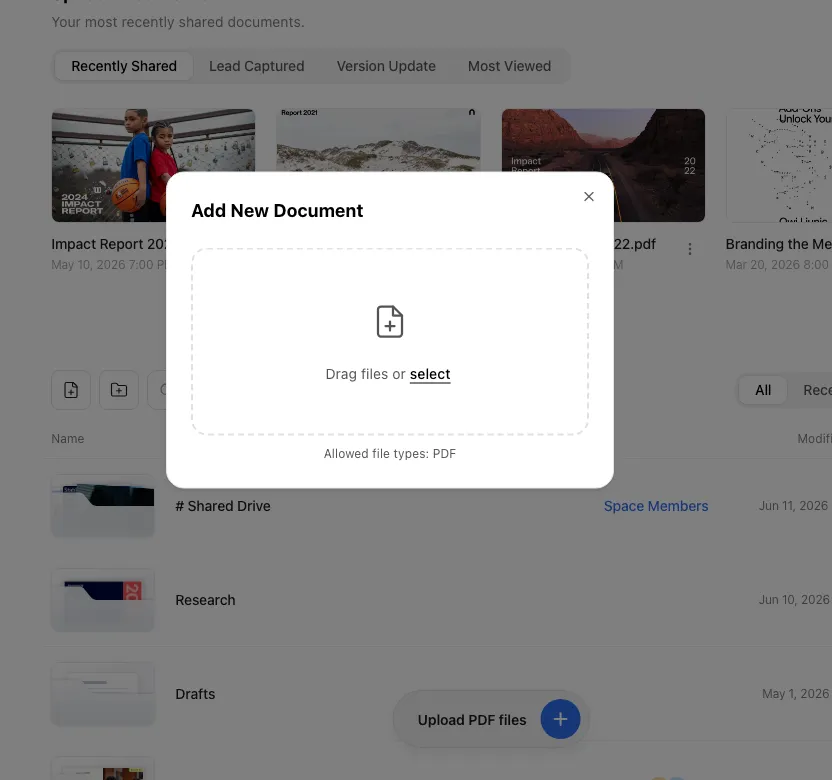
Confirm the upload
Once the upload finishes, the document appears in your list, and when processing is done you land on the document’s Content tab. Switch to the Share links tab next to it to create a share link and distribute it right away.
Supported formats
Section titled “Supported formats”| Format | Extension | Notes |
|---|---|---|
.pdf | Opens in the web viewer as is. The most common document format. |
Upload from a plugin
Section titled “Upload from a plugin”Upload straight into FeatPaper from an external tool. Below the upload area of an empty folder, under Upload via Plugin, the Figma, Adobe Express, and PowerPoint plugin icons sit side by side. Click one to jump to that plugin’s install page.
Upload straight from PowerPoint
Upload directly from the PowerPoint add-in.
Upload straight from Figma
Convert Figma designs to PDF and upload with the Figma plugin.
Upload straight from Adobe Express
Upload quickly with the Adobe Express plugin.
Monthly upload count
Section titled “Monthly upload count”Every plan caps how many uploads you get per month, and new documents and version updates on an existing document draw from the same count.
| Plan | Monthly uploads (new documents + version updates) |
|---|---|
| Starter | 10 |
| Pro | 30 |
| Business | 30 per seat (3 seats included) |
| Enterprise | Custom |
- Check the remaining count and the reset date under Settings > Usage, in the This cycle section. Next to the Uploads label you see what you have used against your monthly limit, such as
3 / 10, and below it the reset date, such as “Resets on October 15, 2026”. - The upload screen warns you in stages as you approach the cap. Early on it says nothing. Later it shows the count. With one upload left it asks you to confirm first (“This is your last upload this month”). Once the cap is reached, uploading is blocked with “You’ve used all uploads for this cycle”.
- Undoing an upload or restoring an earlier version does not give the count back.
- The six sample documents you get at sign-up don’t use your upload count. They were never counted, so deleting them doesn’t free up any uploads.
- Going over the cap never touches documents you already uploaded or the share links you already created. Only new uploads and version updates pause.
- If you aren’t an admin, you can’t raise the cap from the screen. The message reads “Contact your space administrator to increase the limit.”
- On Business, adding a seat raises the upload cap. A seat is capacity rather than a headcount, so you get another 30 uploads a month per seat even without inviting anyone.
File size limits
Section titled “File size limits”The largest PDF you can upload as a document depends on your plan.
| Plan | Max PDF size |
|---|---|
| Starter | 30 MB |
| Pro | 100 MB |
| Business | 300 MB |
| Enterprise | Custom |
What happens after upload
Section titled “What happens after upload”An upload bar at 100% means the file has finished transferring, not that the document is ready. While the document detail page shows Converting Document, conversion is still running. Wait until that notice is gone before you send the share link, or the recipient may land on a page that isn’t ready yet.
File validation
The uploaded file’s format and size are checked.
Page processing
Each page is converted to an image so the viewer loads fast.
Viewer ready
Once processing is complete, you can create a share link and start tracking who reads it.
Ways to use this
Section titled “Ways to use this”Uploading is not the goal in itself — it is the start of sharing, analytics, and version control. Settle on how you upload and everything after it gets easier.
Attach a heavy PDF to an email and you hit a size cap or have to zip it, and once the file lands on someone’s hard drive you learn nothing more. Share it as a link and you show the screen instead of handing over the file — you see who read how far, and changing the content never means resending the address.
Button and shortcut reference
Section titled “Button and shortcut reference”The buttons and actions people look for most on this screen.
| Button / element | Where | What it does |
|---|---|---|
| Upload area | Center of a folder with no documents (dashed border) | Click to open the file browser; drag and drop to start uploading right away. Handles one file at a time, and rejects anything that isn’t a PDF. |
| PowerPoint icon | Plugin icons below the upload area | Opens the PowerPoint plugin install page. |
| Figma icon | Plugin icons below the upload area | Opens the Figma plugin install page. |
| Express icon | Plugin icons below the upload area | Opens the Adobe Express plugin install page. |
Shortcut: Open My Documents
Frequently asked questions
Section titled “Frequently asked questions”Can I upload a PPT or Word file directly?
Direct upload supports PDF files only. Upload a non-PDF file and you see “You can only upload PDF files.”, and nothing uploads. For PowerPoint material, the PowerPoint plugin saves you the save-and-convert round trip: it turns the presentation you have open into a web-viewable document and stores the original PPTX alongside it, which Import pulls back into PowerPoint later.
It says my file is too large — what do I do?
The file is over your plan’s size limit. The check runs before the upload starts at every entry point: dragging into a folder, the toolbar file picker, the empty upload area of a folder with no documents, and the upload card on the home screen. Each one opens a “This file is over your upload limit” dialog, and nothing uploads. PDF limits are 30 MB on Starter, 100 MB on Pro, 300 MB on Business, and custom on Enterprise. Video (MP4) and GIF run on a separate axis they share — 30 MB, 50 MB, 100 MB, custom. A size that passes as a PDF can therefore still be rejected as a video. If you need larger files, upgrade.
If I drag several PDFs at once, do they all go up?
No. You upload one file at a time. Drag several PDFs at once — or a whole folder — and only the first file uploads; the rest are silently ignored. Multi-select in the file browser isn’t supported either. To upload multiple documents, add them one at a time.
What happens if I drag another file mid-upload?
That attempt is ignored rather than queued. While one file is uploading, a newly dragged file has no effect and the first upload keeps going. Upload the second file again once the first one finishes.
If an upload is canceled or fails, does it leave a trace in my list? Does uploading the same file twice create a duplicate?
A cancel only fully takes effect while the file is still being sent to the server, before the progress bar reaches 100%. Cancel then and you see “Upload canceled.”, no document is created, and your list stays clean. But the moment the progress bar hits 100% and the transfer ends, FeatPaper moves straight into registering the document, and that step can’t be canceled. Press cancel at this point and registration still completes: you get “File uploaded successfully.”, the document is created normally, and you land on its detail screen. That leftover document isn’t deleted automatically, so remove it yourself from the list if you don’t need it. When an upload fails outright, registration never happens, so nothing is left behind. Meanwhile, uploading the same PDF twice registers it as a new document each time, giving you two duplicates, with no auto-overwrite and no duplicate detection. To swap in new content, use version management instead of uploading again.
The size and extension look fine, but one specific PDF keeps failing to upload. Why?
A password-protected PDF, an internally corrupted PDF, and a file merely renamed to .pdf are all different causes. The screen shows the same single line for all of them: “File upload failed.” Reading the file’s page count and registering it on the server happen as one step, so whichever stage fails you get the same message. There is no on-screen way to tell them apart. Resolve each cause like this:
- Password-protected PDF: Remove the password (for example, open it and re-save without a password via “Print → Save as PDF”), then upload again.
- Corrupted PDF: Re-export from the original program, or open it in another viewer and “Save As,” then re-upload.
- Renamed non-PDF file: Convert the actual file to a valid PDF, then upload.
If a filename has multiple dots, an uppercase .PDF, or a double extension (like deck.pdf.pdf), how is the document named?
Only the trailing .pdf (case-insensitive) is stripped; dots, spaces, and other characters in the middle stay. So “2026 Proposal_v1.2 final.pdf” becomes “2026 Proposal_v1.2 final”, and “Report.PDF” becomes “Report”. But “deck.pdf.pdf” keeps only the last .pdf removed, leaving “deck.pdf” (the earlier .pdf stays part of the name). That resolved name is saved as the document title and can be shown on your dashboard and to recipients. Renaming the document later from the title at the top of its detail page doesn’t change the share URL. Links work off a separate link key, not the name, so a link you already shared stays valid after a rename.
A Korean filename created on a Mac looks garbled or won't turn up in search. Why?
macOS and Windows store Korean filenames differently (NFD vs. NFC), but FeatPaper normalizes the filename to Unicode NFC at upload time and saves that as the document name. So whether you upload from a Mac or from Windows, a file with the same name shows up identically on the dashboard and is found normally in document search.
The upload hit 100%. Can I send the link right away?
Give it a moment. 100% only means the file reached the server; turning the pages into the document keeps going for a little while. Once the Converting Document notice on the document detail page disappears and the normal screen shows, send the link.
If I delete the six sample documents from sign-up, do I get uploads back?
No, because they never used any. Sample documents don’t count against your monthly upload limit, so removing them doesn’t change your count. To clear them out, use Delete sample docs in the header at the top of the screen; documents you uploaded yourself stay put.
The upload is taking a while — is that normal?
Yes. After the upload itself finishes, each page is still being converted to an image to prepare the web viewer. Larger files with more pages take longer, and you can browse or manage other documents while processing runs.
I don't see the upload area.
The upload area only appears in the center when a folder has no documents. In a folder that already has documents, press the Upload or drop a PDF button floating at the bottom center of the screen, drop a PDF anywhere on the list, or use the File Upload icon in the toolbar above it.
Can I upload files made in Figma or Adobe Express?
Yes. Click the Figma, Adobe Express, or PowerPoint plugin icons below the upload area of an empty folder to open each plugin’s install page and upload straight into FeatPaper from that tool. Each plugin does more than create documents: Update on a document row replaces that document with a new version and leaves its share link untouched.
How many documents can I upload per month?
Starter gets 10 a month, Pro 30, Business 30 per seat with 3 seats included, and Enterprise a limit set by contract. That count covers both new documents and version updates on existing ones. Upload 7 new documents and update 3 versions and you have used all 10 on Starter. Check the remaining count and the reset date under Settings > Usage, in the This cycle section.
It says I've used all my uploads. When can I upload again?
The screen shows “You’ve used all uploads for this cycle” together with the reset date, for example “You can upload again from October 15, 2026.” The cycle runs monthly from your billing date on a paid plan, or from your sign-up date on Starter. To upload sooner, move up a plan — or, on Business, add a seat to widen the cap. If you aren’t an admin, the screen only says “Contact your space administrator to increase the limit.”
If I delete a document I uploaded by mistake, do I get the upload back?
No. Undoing an upload or restoring an earlier version does not return the count you used. To reduce mistakes, FeatPaper asks you to confirm before your last upload of the month with “This is your last upload this month”.
If I hit the cap, do my existing documents and share links stop working?
No. Only new uploads and version updates pause. Documents you already uploaded, links you already created, and the reading data collected so far all stay intact, and viewers open your documents as usual.
Do videos use the same size limit as PDFs?
No. Size limits run on separate axes per file type. PDF is 30 MB on Starter, 100 MB on Pro, 300 MB on Business, custom on Enterprise. Video (MP4) and GIF added through motion effects share one axis: 30 MB, 50 MB, 100 MB, custom. So on Business a 200 MB PDF uploads fine while a 200 MB video is rejected.
Key points
Section titled “Key points”- Direct upload accepts PDF only, one file at a time. For PowerPoint, Figma, or Adobe Express originals, use the plugins.
- The monthly upload count covers new documents and version updates together — 10 on Starter, 30 on Pro, 30 per seat on Business, custom on Enterprise.
- Max PDF size is 30 MB on Starter, 100 MB on Pro, 300 MB on Business, custom on Enterprise. Video and GIF share a limit of their own — 30 / 50 / 100 MB / custom.
- Uploads run on the screen you are on, so refreshing or navigating away before they finish cancels them.
- See the remaining count and the reset date under Settings > Usage.