
AI credits and usage
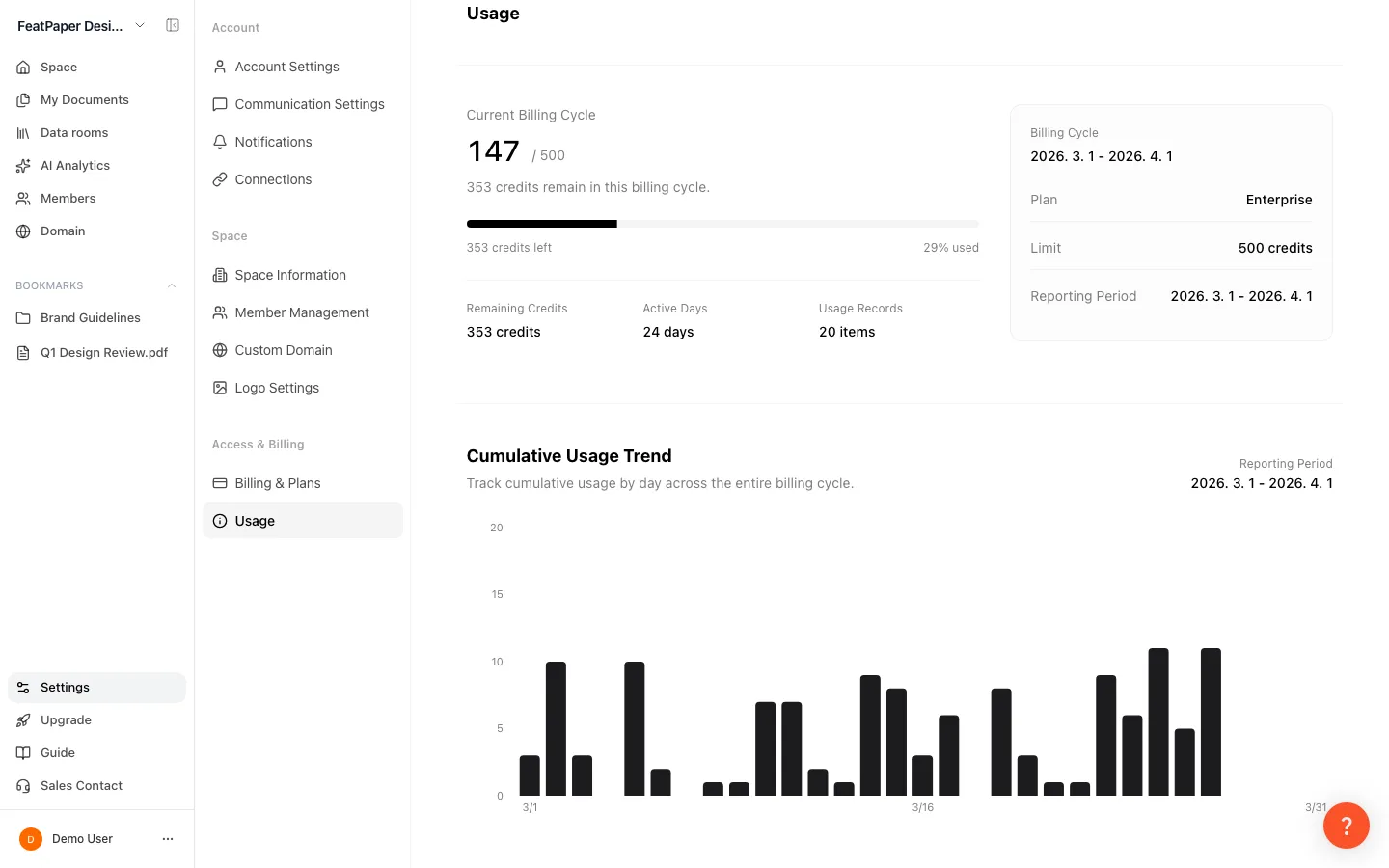
Running an AI feature draws AI credits from your space. Remaining credits, this cycle’s usage, and your upload, file size, and link limits all live on one screen: Settings > Access & Billing > Usage.
What the credit system is
Section titled “What the credit system is”Credits are the unit that measures AI usage. They are pooled per space and reset every month. Each AI request draws what it actually consumed, and when the balance reaches zero, credit-drawing AI features stop for the rest of the cycle. AI interest is the exception to “every run costs credits”: leaving it on doesn’t keep draining them. It only draws credits the first time a viewer is analyzed and again after the document gets a new version; reopening a viewer who’s already been analyzed costs nothing.
- Credits are space-level. Everyone in the space draws from one limit, and there is no per-person allocation.
- Non-AI work costs nothing: uploading documents, creating share links, exporting from a plugin.
- The amount drawn is not a flat number. It comes from the tokens the AI model actually used, so the same feature varies per request.
- Credits can’t be bought on their own. The two ways to get more are upgrading the plan and adding seats on Business. Starter and Pro are fixed at one seat, so seats can’t raise their credits.
How many AI credits does each plan include?
Section titled “How many AI credits does each plan include?”Monthly AI credits are 30 on Starter, 1,000 on Pro, 3,000 on Business, and unlimited on Enterprise. Starter gets credits too, so no plan has credits fully locked.
| Plan | Monthly AI credits |
|---|---|
| Starter | 30 |
| Pro | 1,000 |
| Business | 3,000 |
| Enterprise | Unlimited |
- Credits reset every month. The anchor is your payment date on paid plans and your sign-up date on Starter, and yearly subscriptions are still granted monthly.
- The next reset shows as “Resets on [date].” When the date isn’t known, the line is hidden rather than filled with a placeholder.
- Unused credits do not roll over.
- On Business, adding a seat raises your credits. A seat is capacity rather than a person, so the extra AI usage opens even with nobody invited. For seat pricing and charge timing, see Compare plans and pricing.
- Enterprise has no ceiling, so the summary shows an Unlimited badge and “Your current plan can use credits without a set limit.”
Which features draw credits?
Section titled “Which features draw credits?”Two features draw credits on screen today — AI Analytics Question and AI Content Insights. The other three have deduction rules ready on the server but have not shipped yet.
| Feature | Where you use it | Available now |
|---|---|---|
| AI Analytics Question | AI analytics, where you ask questions about view data (Pro and above) | ✓ |
| AI Content Insights | The AI interest panel on a document’s Viewers tab, summarizing pages each viewer cared about | ✓ (every plan) |
| AI Insight Chat | Follow-up conversation in document AI insights | Not shipped |
| AI Insight Suggestions | Suggested questions generated for document AI insights | Not shipped |
| AI Mobile Transform | Converting a document for mobile viewing | Not shipped |
- Usage by Feature only lists features that have actually run. Features that haven’t shipped yet get no row.
- Deductions from a feature that is not named in the list are grouped under Other, shown as Other Feature in the table.
- Starter draws credits too, because the AI interest panel (AI Content Insights) has no plan gate. The one thing Starter can’t use is AI analytics.
- AI interest draws credits only when a person is analyzed for the first time, or again after a new document version. Results are stored per viewer and reused until the document is updated, and the automatic summary refresh after a Hot/Warm/Cold grade change is free.
Open the Usage screen
Section titled “Open the Usage screen”The Usage tab has no plan gate and no role gate. The summary, per-feature usage, trend chart, and detailed log are shown to admins only.
Open Settings
Click Settings at the bottom of the sidebar.
Select the Usage tab
Under Access & Billing, select Usage. It used to be called “Credit Usage.”
Read the cycle summary
Check Plan, Limit, Billing Cycle, Reporting Period, credits used, Remaining Credits, the percent used, Usage Records, and Active Days. Unlimited plans show an Unlimited badge.
Read This cycle
This cycle holds the Uploads and Credit Usage progress bars. “Resets on [date]” sits above them, and the upload row notes that new documents and version updates are counted together.
Read Your plan limits
Your plan limits shows PDF size, Video, GIF, and Per-recipient links. The Video and GIF rows pack two numbers into one value — the file size and the per-document count, written as 50MB/5 — and a line underneath reads “Videos and GIFs share one per-document count.” That is why the same count sits on both rows. This section lists values only — no progress bars.
This cycle vs. Your plan limits
Section titled “This cycle vs. Your plan limits”This cycle tracks usage that resets each period, shown as progress bars. Your plan limits lists fixed ceilings that do not reset.
| Section | What it shows |
|---|---|
| This cycle | The reset date (“Resets on [date]”), Uploads usage, Credit Usage |
| Your plan limits | PDF size, Video (size / per-document count), GIF (size / per-document count), Per-recipient links |
- The per-document count shows the ceiling only, not usage — it differs from document to document, so a space-wide total would not mean anything. Check actual counts on the document itself.
- Video and GIF show the same count because the two draw on one allowance, which is what the line beneath the rows spells out. Five on Pro is five items in any mix, not five of each.
- A row you already exceeded reads “N / limit N — existing items stay.” What you already created keeps working; only new items are blocked.
- On plans where seats scale a limit, admins get “Adding a user raises your upload limit” and an Add a user link. Members don’t see the hint.
- With a seat reduction scheduled, the section states “A change to N users is scheduled. It applies from your next billing date.”
- On billing methods that can’t add seats in-app (invoice or Payple), the Add a user button is replaced by “We’ll add users for you — just reach out and we’ll take care of it.” plus a Contact us link.
Usage by feature
Section titled “Usage by feature”Usage by Feature lists credits drawn and the real run count side by side. Asking an AI analytics question or generating AI Content Insights on a viewer raises that row.
- Each row carries a short description of the feature, such as “Credits used for document analysis and question-based AI workflows.”
- A feature you haven’t used yet reads No usage recorded.
- Deductions from features that are not named in the list are grouped under Other.
The cumulative usage chart
Section titled “The cumulative usage chart”Cumulative Usage Trend plots daily credit usage from the start of the billing cycle to the end, so you can see which days spiked.
- The card shows the Reporting Period and marks Today. Hovering a bar gives that day’s amount as “Daily +N”.
- With no usage that day, the tooltip reads “No usage that day.”
- Before anything is recorded you see “No usage has been recorded yet. / Once AI features are used, this cycle’s cumulative graph will appear here.”
Daily usage and the detailed log
Section titled “Daily usage and the detailed log”Daily Usage lists only the dates where credits were actually drawn (with a total day count). Detailed Usage Log lists every request in order.
- The log columns are User, Feature, Credits, Created At. A Total N count sits to the right of the section title, and an “N-N / N items” page indicator sits below the table.
- Up to 20 rows show per page, and Previous / Next move between them — within the current cycle only, never into an earlier one.
- Requests rejected for exceeding the limit carry a Denied (limit exceeded) badge. Nothing was drawn, but the attempt is kept.
- Records with no name or email on the requester show as System. They draw from the space limit exactly like any other record.
- With nothing recorded you see “There are no usage records in this billing cycle.”
When credits run out
Section titled “When credits run out”Once credits are gone, credit-drawing AI features stop for the rest of the cycle and the same notice appears everywhere — AI analytics, the AI interest panel, AI insights: “You’ve used up your credits. Upgrade your plan to keep going,” with an Upgrade Plan button.
Upgrade the plan
Credits rise from Starter 30 to Pro 1,000 to Business 3,000 to Enterprise unlimited. Change plans under Settings > Access & Billing > Billing & Plans.
Add a seat on Business
Under Billing & Plans > Seats, use Add one seat then Update seats. Credits and the upload limit rise together, and the addition is charged immediately, prorated for the remaining days.
Ways to use this
Section titled “Ways to use this”There are only two ways to get more credits, but several ways to spend fewer. Find out where they go first, then re-run an analysis only when there is genuinely something new to read.
Credits are granted each cycle rather than bought in advance, and they don’t roll over. So the saving isn’t in using AI less but in not re-running what you already analyzed. Reopening a cached interest result costs nothing, and credits are drawn only when there is new material to read.
Button and shortcut reference
Section titled “Button and shortcut reference”The buttons people look for on this screen, and what each one does.
| Button or element | Where | What it does |
|---|---|---|
| Settings | Bottom of the sidebar | Opens the unified settings screen. |
| Usage tab | Settings > Access & Billing | Shows this cycle’s credit and upload usage plus your plan limits (members can open it; the detailed log is admin-only). |
| Unlimited badge | Summary | Marks a plan with no credit ceiling. |
| Usage is increasing quickly badge | Summary | Appears once usage passes 80% of the limit. |
| Add a user | This cycle > seat hint | Opens the seat flow. Appears only to admins, on plans where seats scale the limit. |
| Contact us | This cycle > seat hint | Appears when your billing method cannot add seats in-app. |
| Upgrade badge | Plan-locked rows under Usage by Feature (e.g. AI Analytics Question on Starter) | Marks a feature your current plan does not open; clicking it opens the plan selection screen. |
| Previous / Next | Below the detailed log | Pages through records 20 at a time, within the current cycle. |
| Denied (limit exceeded) badge | Detailed log row | Marks a request that exceeded the limit and was not processed. |
| Upgrade Plan | Credits-exhausted notice | Opens the plan selection panel. |
Shortcut: Open Settings
Frequently asked questions
Section titled “Frequently asked questions”Which features use credits?
Five features have deduction rules on the server, but only two are live on screen: AI Analytics Question and AI Content Insights (the AI interest panel on the Viewers tab). The other three — AI Insight Chat, AI Insight Suggestions, and AI Mobile Transform — have not shipped, so they never produce a row until they do. The amount drawn is calculated from the tokens the model actually used, so it varies per request. Uploading documents, creating share links, and plugin exports use no credits.
How many AI credits does each plan include?
Starter 30, Pro 1,000, Business 3,000, Enterprise unlimited — per month. On Business, adding a seat raises the number as well.
Can I see the Usage screen on Starter?
Yes. The Usage tab has no plan gate. Starter gets 30 credits a month and draws them through the AI interest panel, so it needs to show how much is left. Member accounts can open it as well; they see this cycle and plan limits only.
When do credits reset?
Every month. The anchor is your payment date on paid plans and your sign-up date on Starter, and yearly subscriptions are granted monthly too. The next date shows as “Resets on [date]” in your browser’s local format.
Do unused credits roll over to next month?
No. Credits reset at the start of every cycle, and whatever is left does not carry forward.
Does adding a seat add credits?
Yes. On Business, adding a seat raises both AI credits and the monthly upload limit. A seat is capacity rather than a person, so the limit opens without inviting anyone. The product doesn’t publish a per-seat credit number, so read the new total from Limit and Remaining Credits on the Usage screen.
If I upgrade or add a seat mid-cycle, does the higher limit apply right away?
The Usage screen always shows the latest limit from the server, so reopening or refreshing the page reflects it. Seat increases apply immediately and are charged immediately; seat decreases apply from your next billing date.
Who do I share credits with?
Credits are managed per space and everyone in the space draws from one limit. There is no per-person allocation, so if one member spends the whole balance mid-cycle, nobody else can use AI features until the cycle resets.
Can I see who used how many credits?
If you’re an admin, yes — Detailed Usage Log records the requesting user, the feature, credits drawn, and the timestamp for every request (members don’t see it). There is no per-member total yet, so you read it request by request.
Can I buy extra credits?
Credits can’t be purchased on their own. Wait for the monthly reset, upgrade the plan, or add a seat on Business.
I'm on Pro. Can I add a seat to get more credits?
No — only Business gets more credits from extra seats. Starter and Pro are fixed at one seat and have no way to add one. To get more credits on Starter or Pro, move up a plan (Starter 30 → Pro 1,000 → Business 3,000). Your remaining balance is under Settings > Access & Billing > Usage on every plan.
What does the 'Denied' badge mean?
The request exceeded your credit limit and was not processed. No credits were drawn, but the attempt is kept so you can see when you hit the ceiling.
If two teammates run AI at almost the same time when credits are nearly gone, what happens?
The limit is enforced on the server. Which of two near-simultaneous requests gets through depends on server ordering, so this guide can’t state it definitively. Either way, a request that goes over the limit lands in the log with a Denied (limit exceeded) badge.
Do credits a teammate just used show up on my screen right away?
No. Usage isn’t live — the screen serves a cached value for a short window of about 30 seconds. Refresh or reopen the page to see a teammate’s latest usage.
What are the 'System' rows in the log?
Deductions where no requester name or email was recorded, rather than a request a teammate made directly. They are included like any other row and draw from the space credit limit the same way.
Can I look at a previous billing cycle?
No. The Usage screen covers the current cycle only, with no picker for earlier ones. After a reset, the previous cycle’s chart, daily usage, and detailed log are no longer available here — capture what you need beforehand.
My Usage Records count doesn't match the credits I actually used. Which number should I trust?
The three figures count different things. Usage Records includes requests denied for exceeding the limit; credits used and the cumulative chart count only credits actually drawn; Active Days counts the days where something was drawn. For real consumption, read credits used and the cumulative chart.
Does reopening the AI interest panel charge me again?
No. Results are stored per viewer and reused until the document is updated. The automatic refresh after a grade change doesn’t cost credits either; you pay for a person’s first analysis and for re-analysis after a new document version.
Key points
Section titled “Key points”- Monthly AI credits: Starter 30 · Pro 1,000 · Business 3,000 · Enterprise unlimited.
- The screen is called Usage (Settings > Access & Billing) and covers credits plus uploads, PDF size, video and GIF size, the per-document count those two share, and per-recipient links.
- The screen has no plan gate, and members can open it — the detailed usage log is admin-only.
- Five features have deduction rules, but only AI Analytics Question and AI Content Insights are live today. The amount comes from the model’s actual token usage.
- Credits reset monthly and do not roll over. On Business, adding a seat raises your credits.
Learn more
Section titled “Learn more”Compare plans and pricing
Compare plan prices, seat pricing, and when seat changes are charged.
See who read your document
Find the AI interest panel and AI analytics that draw credits.
AI Analytics
Ask AI analytics questions about your view data.
Invite your team
Manage seats and roles so the team shares limits sensibly.