
Tour the Home screen (KPI overview)
Home sums up your whole space on one screen. For the range you pick, it tells you how many people opened your documents, how many contacts you captured, which documents are landing, and where viewers came from — without opening documents one by one.
Log in and you land on the screen reached from the Space menu in the sidebar. Admins and members enter the same layout, but the range of documents, KPIs, and notifications on it depends on folder access. A space admin sees figures across the whole space, minus other members’ personal root folders. A non-admin member sees a narrower range: the documents in folders they can access, plus their own personal documents. Documents in folders a member cannot reach, along with their owner details, never appear on that member’s screen.
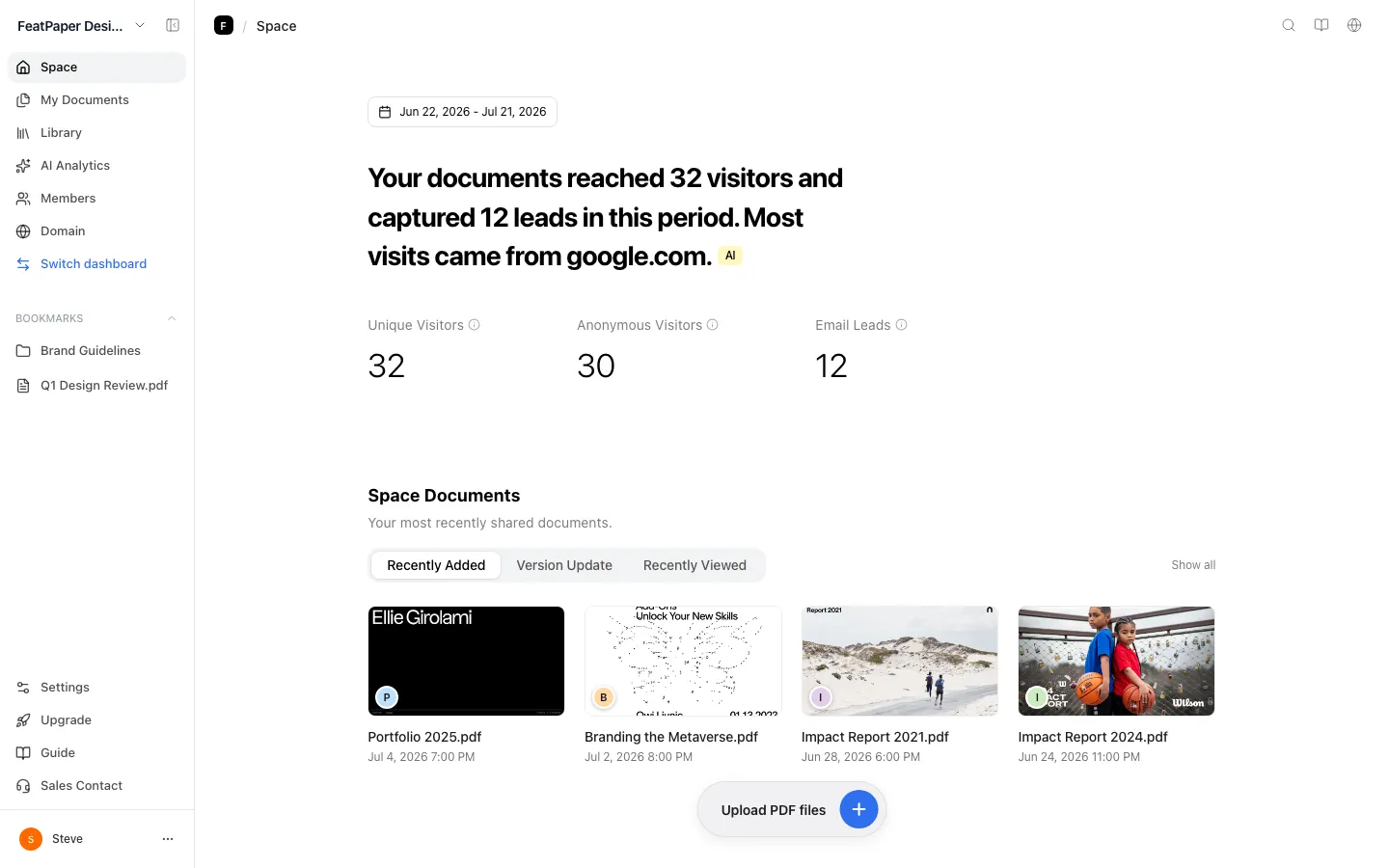
How the screen is laid out
Section titled “How the screen is laid out”Top to bottom, the screen runs date filter → summary headline → KPIs → space documents → contacts and sources → notifications, with a floating PDF-upload button always at the bottom. On Starter the date range is locked to the last 7 days, and if there is more data from before that window, a notice appears at the bottom of the contacts and sources cards.
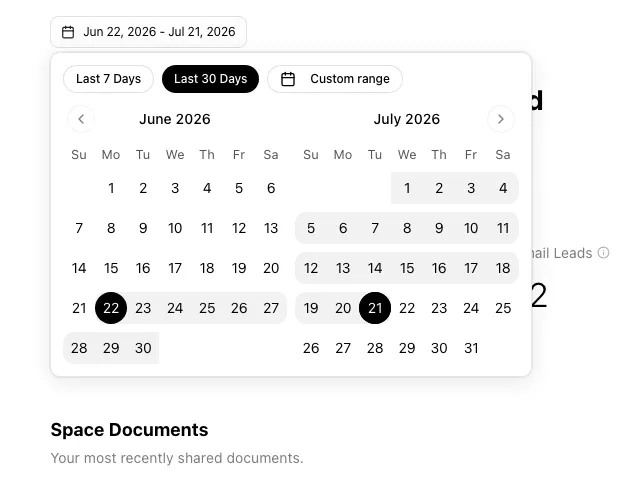
1. Date filter
Section titled “1. Date filter”Click the date button at the top right to change the range. On paid plans the default is Last 30 days.
| Option | What it does |
|---|---|
| Last 7 days | The last 7 days, today included |
| Last 30 days | The last 30 days, today included (default on paid plans) |
| Custom | Pick a start date on the calendar, then an end date, to set the range yourself |
2. Summary headline
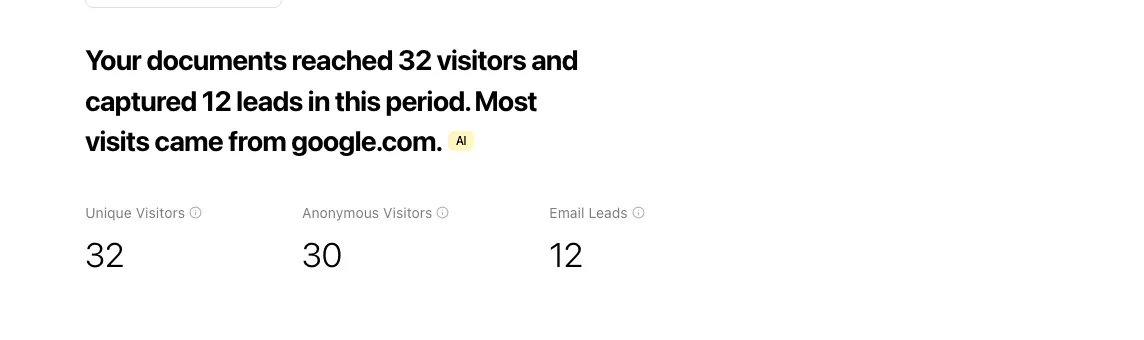
Section titled “2. Summary headline”A one-line summary, generated from your period stats, appears in bold with a yellow AI badge beside it. The wording changes with the situation.
- Nothing shared yet — it asks you to upload your first PDF and share the link.
- Documents shared but no views in this period — it suggests re-sharing the links of the documents you have out.
- Views but no contacts yet — it gives the viewer count and suggests turning on a lead form.
- Views and contacts both present — it gives both counts, and appends the top referrer when there is one.
- On Starter with hidden viewers before the 7-day window — it leads with the hidden viewer count and notes that Pro opens the full history.
3. The three KPIs
Section titled “3. The three KPIs”Three numbers sit side by side below the headline. All three count people, so the same person opening a document several times in the range still counts once.
| KPI | What the screen says |
|---|---|
| Unique viewers | The number of unique people who opened your documents. Repeat visits by the same person count once. |
| Anonymous viewers | People whose contact info is not identified. They are included in unique viewers. |
| Email leads | People who submitted contact info such as email or phone through the lead form. The same person counts once even across several submissions. |
Identity is matched on email, with case and spaces ignored, and on phone number, compared by digits only. Viewers with no email or phone at all are distinguished by browser and device, so one person using two devices can appear as two viewers.
Numbers under 10 show as two digits like 03, and numbers over 1,000 are abbreviated like 1.2K. While heavy engagement data is still being aggregated in the background, the number shows a faint shimmer.
4. Space documents
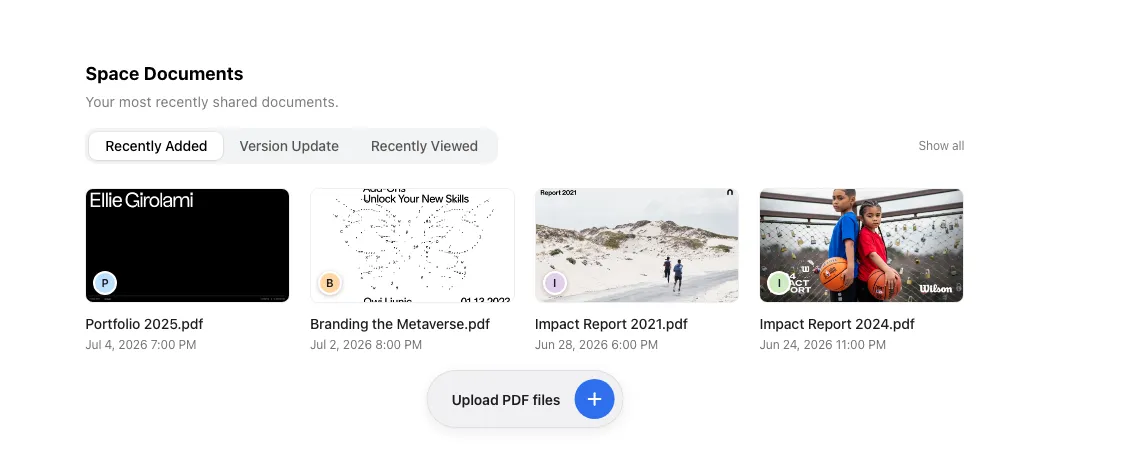
Section titled “4. Space documents”The Space documents section shows the documents you shared most recently, for the selected range.
Recently added
Sorted by newly added within the period.
Version update
Only documents with a new version uploaded in the period, newest first.
Recently viewed
Documents opened in the period, sorted by most recently viewed.
By default it is a carousel — 4 cards on desktop, 2 on mobile, with arrows on either side. Click Show all on the right to lay them out in a grid, up to 10, and Collapse to go back. If no documents match the period, you see a notice instead.
Each card shows a thumbnail, an owner avatar at the bottom-left (hover for the email), the document name, and the added date. The more menu — edit, duplicate, move, delete — appears only on documents you own. Click a card to open that document’s document analytics. Cards for documents other teammates uploaded appear only for folders you can access, and owner emails show only within that range.
5. Contacts and sources
Section titled “5. Contacts and sources”Two cards sit side by side.
Leads
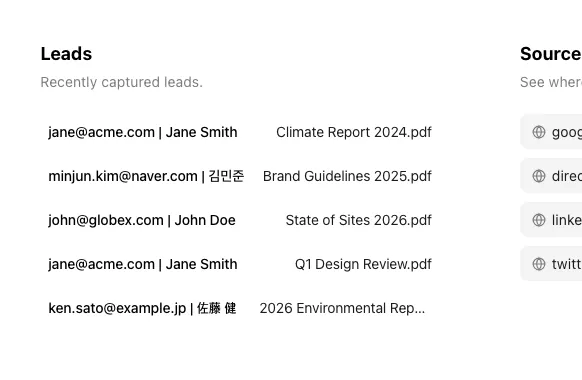
Under the subtitle Recently captured leads, this shows up to 5 people who left contact details through a lead form in the selected range. Each row pairs the details they left with the document they opened, and clicking it jumps to that document’s analytics. With no contacts in the period, faded sample rows appear instead and are not clickable.
Sources
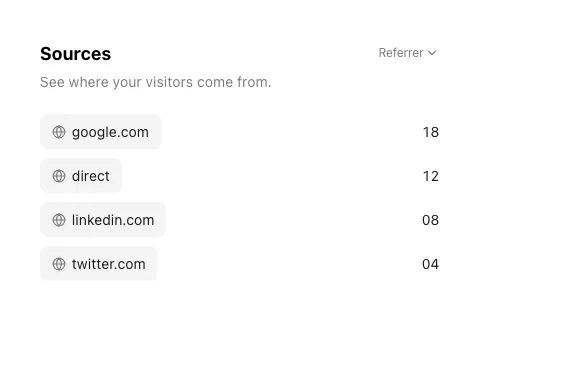
Shows where viewers come from, as chips, up to 5. Use the dropdown at the top right to switch between Referrer / OS / Browser / Country. With no engagement in the period, faded samples appear.
6. Hidden data notice on Starter
Section titled “6. Hidden data notice on Starter”On a Starter space the range is always locked to the last 7 days. There is no banner at the top of the screen. Instead, when there is more data from before that window, a notice with a lock icon appears at the bottom of the Leads and Sources cards.
- Bottom of the Leads card — if contacts arrived before the last 7 days, it gives the additional count that is not already shown on screen.
- Bottom of the Sources card — it only notes that more traffic data exists from before the last 7 days, with no specific count.
Click the notice and an upgrade dialog opens. It lists what upgrading unlocks — all viewers, all leads, pages of interest, and referrers — and the upgrade button opens the plan selection screen.
7. Notifications
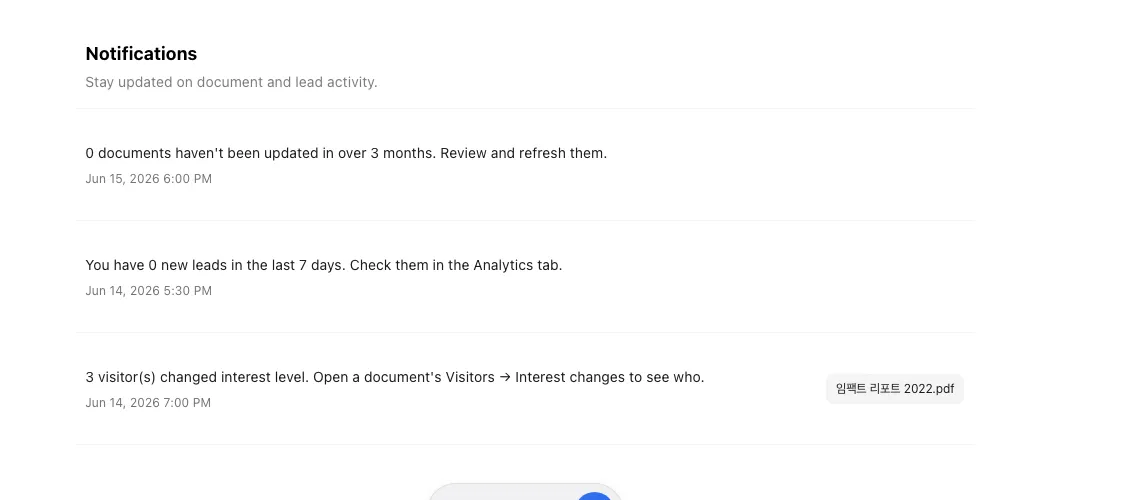
Section titled “7. Notifications”Stay updated on document and lead activity. This section shows up to 3 recent notices, plus one line about documents not updated in over 30 days and one line introducing CRM integration — five lines at most. If nobody has opened a document in over three months, a notice appears with the document’s tag, and clicking the tag opens that document’s analytics. If unchecked contacts are piling up, it tells you how many. When a viewer’s interest level shifts, an interest-change notice can appear, and clicking it opens that document’s Viewers tab on the interest-changes view. The CRM line (sending contacts to Google Sheets or Notion) is always there, whether or not other notices exist, and clicking it opens the Visitors tab of your most recently uploaded document.
The notification scope follows folder access, exactly like documents and KPIs. Admins are computed across the whole space, members against the documents they can access, so notices for documents outside their access never appear.
8. Upload a PDF (floating button)
Section titled “8. Upload a PDF (floating button)”An Upload PDF button always floats at the bottom-center of the screen. Click it to open the file picker, then pick a PDF and it uploads straight into the top-level (root) folder of My Documents. Dragging a PDF onto any other part of the screen uploads it the same way.
Ways to use this
Section titled “Ways to use this”Home earns its keep less as a “what happened” screen and more as a “who do I contact today” screen. Nothing here is cached, so views and contacts from last night or this morning are already on it.
Opening documents one at a time answers “how many people read this document” but never “who should I contact today.” Home totals the whole space per person, so you pick the person first and open their document second.
Button and shortcut reference
Section titled “Button and shortcut reference”The buttons and actions people reach for most on this screen.
| Button / element | Where | What it does |
|---|---|---|
| Date filter (calendar icon button) | Top of the screen | Opens a popover to change the range with the Last 7 days / Last 30 days presets or a Custom range (click start, then end). KPIs, documents, contacts, and sources recalculate instantly. On Starter, picking anything outside the last 7 days opens an upgrade dialog. |
| Document sort tabs (Recently added / Version update / Recently viewed) | Top of the Space documents section | Re-filters and re-sorts the document list, and resets the carousel to the start. |
| Prev/next arrows (‹ ›) | Ends of the Space documents carousel | Moves cards 4 at a time on desktop, 2 on mobile. The arrow in a direction with no more cards is hidden automatically. |
| Show all / Collapse | Right-side text button next to the sort tabs | Switches the carousel to a grid of up to 10, and back on a second click. |
| Sources dimension switch (dropdown) | Top-right of the Sources card | Pick Referrer / OS / Browser / Country to change what the list is grouped by. |
| Hidden data notice (lock icon) | Bottom of the Leads and Sources cards, on Starter | Opens the upgrade dialog. |
| Delete sample docs | Header, on new accounts that still have samples | Removes the sample documents added at sign-up. Documents you uploaded stay. |
| Upload PDF (floating button) | Fixed at the bottom-center | Opens the file picker; pick a PDF and it uploads into the top-level (root) folder of My Documents. |
Shortcut: Open your space Home
Frequently asked questions
Section titled “Frequently asked questions”What do the numbers on the Home screen mean?
Unique viewers is how many people opened your documents, counting a repeat visit once. Anonymous viewers is how many of those had no contact details identified. Email leads is how many people submitted an email, phone number, or other detail through the lead form. Anonymous viewers are included in unique viewers, so do not add the two together. All three follow the selected date range.
When I change the range, what else changes with it?
The summary headline, all three KPIs, the sort results in Space documents, contacts, and sources all recalculate for the selected range. The notifications section is the exception — it always shows the latest data.
I pressed 'Last 30 days' in the date filter on Starter, but the range didn't change.
Starter locks the Home date range to the last 7 days, so pressing the Last 30 days preset — or picking a date earlier than 7 days back — opens an upgrade dialog instead of changing the range. Upgrade to Pro or above and you can pick any range you like.
What's the hidden-data notice at the bottom of the Leads and Sources cards?
Starter locks the range to the last 7 days, so contacts and traffic data from before that window are not shown directly. Instead a lock icon appears: at the bottom of the Leads card with the count of hidden contacts, and at the bottom of the Sources card noting that hidden data exists. Clicking the notice opens an upgrade dialog, and on Pro and above both the restriction and the notice disappear.
What time zone are 'Last 7/30 days' based on? Will a teammate abroad see the same result?
“Today” for the Last 7 days / Last 30 days presets is calculated in each person’s local browser time zone. Two teammates in different time zones can press the same preset and query date ranges a day apart. Views near midnight can also land on a different date depending on the aggregation rule, making numbers on boundary days differ.
Do admins and members always see the same document and KPI numbers?
No, they can differ. Both roles enter the same layout, but the aggregation range depends on folder access. An admin’s figures cover the whole space, except other members’ personal root folders. A non-admin member — regardless of can-edit or can-view — sees only the documents in folders they can access plus their own personal documents. Documents outside that reach, and their numbers, never appear on a member’s screen, which is why two members can see different totals.
Is the headline's AI badge really a sentence written by AI?
It is a summary generated from the selected period’s stats — viewer count, contact count, referrers, and so on. Hover the badge and you see “Summary generated from your period stats.” To ask free-form questions of your engagement data, use the sidebar’s separate AI Analytics feature.
Why do the KPI numbers shimmer faintly?
That is the effect while the server fetches heavy engagement data in chunks. Most of the time the shimmer stops and the number locks to its final value. In spaces with very heavy data, a notice may appear saying not everything could be loaded, and in that case the totals are lower than the real figures.
Do views and contacts that just happened show up here right away?
Yes. This screen does not cache its results, so new activity appears as soon as you reload the screen. Earlier it could lag by up to five minutes. Home does total the whole space by unique viewers while document analytics counts per document (link), so the two screens can still differ because of how they aggregate.
If the same person views a document several times, do they count multiple times?
No. Unique viewers, anonymous viewers, and email leads all count a repeat view once. Identity is matched on email and phone number, so the same person on two devices still collapses into one. Viewers with no email or phone at all are distinguished by browser and device, so one person using two browsers can be counted separately.
If I set 'Custom' to a wide range far in the past, does the whole range get aggregated?
The calendar lets you pick a range as far back as a year ago, but actual aggregation has a server-side cap. Query too old a range and you may get results covering only a recent slice, and the screen does not mark whether it was truncated.
Leads or sources show items even though there's no data.
When there is no real data for the period, faded sample data appears instead. It is non-clickable illustration data and is replaced automatically once real values come in.
What does 'direct visits' mean in Sources?
It covers views where no referrer was recorded — opened straight from a mail app or messenger, or with the address pasted in. Sources are totalled by domain rather than full URL, so views from several pages of the same site collapse into one row.
Some documents in the Space documents section don't show a more button.
The more menu — edit, duplicate, move, delete — shows only to the account that owns the document. For documents other teammates uploaded, you can only click the card to open the analytics screen.
How many documents does 'Show all' display in the Space documents section?
Up to 10, laid out in a grid. Click Collapse to return to the carousel view.
I just signed up and Home already shows documents and engagement I don't recognize.
New accounts receive sample documents with sample engagement records so the screen is not empty, which is why the KPIs, contacts, and sources look populated from the start. Click Delete sample docs in the header to clear them in one go. Documents you uploaded yourself are not removed.
Where do documents uploaded via the Upload PDF button go?
Always into the top-level (root) folder of My Documents. To upload straight into a specific subfolder, open My Documents in the sidebar and upload from inside that folder.
Where does clicking a document tag in a notification take me?
Straight to the document analytics screen for the tagged document.
Can I mark a notification as read or dismiss it? Does the access range apply to notifications too?
There is no button to mark a notification as read or dismiss it. Until the underlying condition clears — you re-share or update the document, or check the contacts — the same notice shows again each time you return. The notification scope also follows folder access: admins are computed against the whole space, members against the documents they can access, so notices for documents outside their access never appear.
Key points
Section titled “Key points”- Home has three KPIs — unique viewers, anonymous viewers, and email leads — and all three count people.
- Anonymous viewers are included in unique viewers, so never add the two numbers together.
- The default range is Last 30 days on paid plans and locked to the last 7 days on Starter.
- Starter shows view counts and summaries with no time limit, and per-viewer detail for 7 days after upload.
- Nothing here is cached, so new views and new contacts appear right away.
Learn more
Section titled “Learn more”Upload your first document
Follow the flow from folder to upload to a ready share link.
See who read your document
See how to work with per-document engagement data and AI insights.
How FeatPaper works — the whole flow at a glance
Get the whole flow from upload to alerts and integrations.
Compare plans and pricing
Check the date ranges and limits for Starter, Pro, Business, and Enterprise.