
Connections
Settings > Connections has exactly two things you can connect: Slack (view notifications) and Notion (your account). Gmail is marked Coming soon. Zapier and Google Sheets are not on this screen. The Notion database or Google Sheet a document sends contacts to is picked per document on its Viewers tab, and Zapier is hooked up from the Zapier side by building a Zap with the FeatPaper app.
Account connections and document integrations are two layers
Section titled “Account connections and document integrations are two layers”Integrations live on two layers. Notifications belong to your account; data delivery belongs to each document.
| Layer | Where | What it covers |
|---|---|---|
| Notifications (account) | Settings > Connections | Slack view notifications and your Notion account token. One set per account. |
| Delivery (per document) | Document detail, Viewers tab | Where contacts go: Notion, Google Sheets, Zapier. One set per document. |
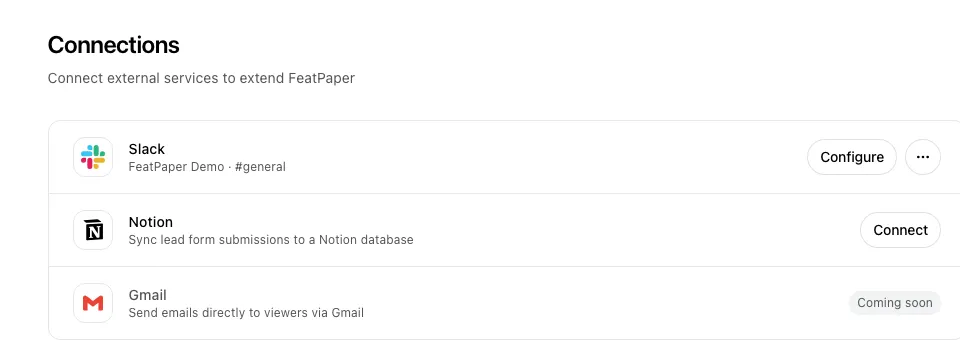
The screen has three cards.
| Card | Status | What it does |
|---|---|---|
| Slack | Available | Sends document-view notifications to the channel you pick. |
| Notion | Available | Connects your Notion account with an integration token. The database is chosen per document. |
| Gmail | Coming soon | Emailing viewers straight from Gmail. The card shows a Coming soon badge and cannot be connected yet. |
Connect Slack
Section titled “Connect Slack”Open the Connections tab
Click Settings in the sidebar, then open Connections in the Account section.
Add to Slack
Click Add to Slack on the Slack card. Slack’s authorization page opens.
Authorize the workspace
Pick the workspace to install the FeatPaper app in and click Allow. You return to the Connections tab automatically.
Pick a notification channel
Click Configure and choose the channel that receives notifications.
Once connected, the card shows your Slack team name and the selected channel as #channel.
Pick a notification channel
Section titled “Pick a notification channel”You choose the Slack channel on the Slack card in Settings > Account > Connections, by clicking Configure. The Notification channels section on the Settings > Notifications tab doesn’t pick a channel — it only switches delivery by Email and Slack on or off.
Click Configure to open the Select notification channel dropdown. Type into Search channels… to find one fast.
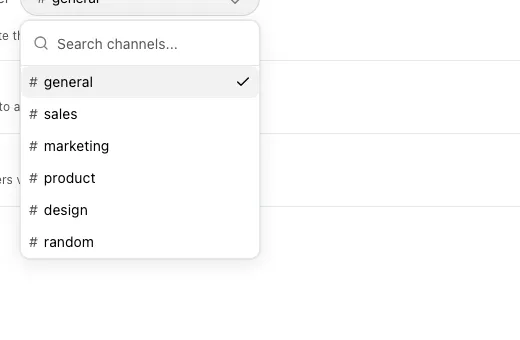
- If a channel is missing, invite the FeatPaper bot to it in Slack, then reopen the dropdown. The screen says the same thing under the picker.
- Very large workspaces can be cut off. Only then does the notice Showing the first 2,000 channels only appear.
- Picking a channel saves right away and shows a Channel updated toast.
Send a test notification
Section titled “Send a test notification”Open the more menu
Click the ··· button on the Slack card.
Send test notification
Choose Send test notification. A message goes to the selected channel and a Test message sent toast appears.
Disconnect Slack
Section titled “Disconnect Slack”Open the more menu
Click the ··· button on the Slack card.
Disconnect
Click Disconnect.
Confirm
In the “Disconnect Slack?” dialog, click Disconnect. Notifications stop immediately.
Connect your Notion account
Section titled “Connect your Notion account”Register an integration token on the Notion card and your documents can send contacts into a Notion database. You connect the account once. The target database is chosen per document.
Click Connect on the Notion card
Click Connect. A token guide and an Integration token field unfold below the card.
Create the token in Notion
Open the guide’s Notion connections page link in a new tab.
- Click New connection.
- Name it — for example,
featpaper. - Choose Access token as the authentication method.
- Pick the workspace to install it in.
- Click Create connection.
- Copy the generated token (Internal Integration Secret).
Paste the token and connect
Paste it into Integration token and click Connect. The card then reads “Connected · ••••(last digits of the token).”
Disconnect Notion
Section titled “Disconnect Notion”Click Disconnect
On a connected Notion card, click Disconnect.
Confirm
In the “Disconnect Notion?” dialog, click Disconnect.
Send contacts per document — Notion, Google Sheets, Zapier
Section titled “Send contacts per document — Notion, Google Sheets, Zapier”Where contacts actually go is set on the document detail page’s Viewers tab toolbar. The toolbar carries Notion, Sheets, and Zapier buttons, followed by Download (CSV).
Open the document
Open a document from My Documents and switch to the tab that lists who read it.
Click an integration button
Click Notion or Sheets in the toolbar. The Zapier button only shows connection status, so you don’t turn Zapier on here (see Zapier connection status).
Set the target
For Notion, enter the Database URL or ID. For Google Sheets, enter the Spreadsheet URL or ID and, if you want, a Sheet name. New contacts are sent in real time from then on.
Rules worth knowing
- Only contacts are sent. The screen states it too: Sends contacts who submitted the lead form only. Recipient rows and viewers who never submitted the form are not sent.
- That is why the connected check mark lights up on the Contacts sub-tab only. Seeing it grey elsewhere does not mean the integration broke.
- Contacts are sent per individual submission. The same-person grouping toggle on screen changes the display only and never the integration.
- An integration target is one set per document. You cannot attach different integrations to different links.
- The toolbar is not rendered at all on the Interest changes sub-tab.
- Google Sheets needs a service account as an editor on the spreadsheet. The connect dialog shows the Service account email to add.
- If you see Google integration is not configured on the server, that is a server-side configuration issue rather than your permissions. Contact support.
Google Sheets column headers — what lands in the spreadsheet
Section titled “Google Sheets column headers — what lands in the spreadsheet”One submission creates exactly one row. The row is written after engagement scoring finishes. If reading continues, only the cumulative cells in that same row are rewritten to the latest values.
The layout is 27 fixed columns plus one column per information-form field. Headers are Korean, so here they are verbatim, left to right:
관심도 → (information-form fields, in form order) → 열람 횟수 → AI 요약 → AI 관심도 →체류시간 → 제출일시 → 관심 페이지 1 → 관심 페이지 2 → 관심 페이지 3 → 유입 경로 →utm_source → utm_medium → utm_campaign → utm_content → utm_term → 정보 입력 여부 →관심도 점수 → 총 체류시간 → 완료율 → 최초 열람 일시 → 최근 열람 일시 → 수신자 →접근 URL → 공유 링크 → 디바이스 → 브라우저 → 위치What each fixed column holds, in the same order:
| # | Column | Value |
|---|---|---|
| 1 | Engagement | Hot, Warm, or Cold. Blank until scoring runs. |
| — | Form fields | One column per field you defined, in form order (email, name, company, and so on). |
| 2 | View count | Total views by this person. |
| 3 | AI summary | AI-written reading summary. Filled in after AI analysis. |
| 4 | AI interest | AI interest insight. Filled in after AI analysis. |
| 5 | Dwell time | Dwell time of the representative session. |
| 6 | Submitted at | When the lead form was submitted. |
| 7 | Top page 1 | Page number with the most attention. |
| 8 | Top page 2 | Second page by attention. |
| 9 | Top page 3 | Third page by attention. |
| 10 | Referrer | Referring domain, for example naver.com. |
| 11 | utm_source | UTM parameter. |
| 12 | utm_medium | UTM parameter. |
| 13 | utm_campaign | UTM parameter. |
| 14 | utm_content | UTM parameter. |
| 15 | utm_term | UTM parameter. |
| 16 | Form submitted | Whether the form was completed. |
| 17 | Engagement score | Numeric score behind the level. |
| 18 | Total dwell time | Dwell time summed over all sessions. |
| 19 | Completion | Share of the document’s pages that were read. |
| 20 | First viewed | First time this person opened the document. |
| 21 | Last viewed | Most recent open. |
| 22 | Recipient | Recipient of a per-recipient tracking link. |
| 23 | Access URL | The address actually opened. |
| 24 | Share link | Which link the viewer came through. |
| 25 | Device | Operating system, for example Mac OS. |
| 26 | Browser | Browser, for example Chrome. |
| 27 | Location | City and country, for example Seoul, South Korea. |
| Behavior | Columns |
|---|---|
| Rewritten as reading continues | Engagement, view count, dwell time, top pages 1–3, engagement score, total dwell time, completion, last viewed |
| Fixed at submission or arrival | Form field values, submitted at, first viewed, referrer, all utm_*, form submitted, share link, recipient, access URL, device, browser, location, AI summary, AI interest |
- On the first write, dwell time, engagement score, and top pages are nearly empty. The row is created before reading ends so that no contact is lost. Later views update the same row.
- Blank means “not measured yet” — empty cells are never written as
0, so your averages stay clean. - Columns you added yourself are never touched. New FeatPaper columns are appended only at the far right of the header row.
- Share link is derived from the access URL, so a view outside a per-recipient link falls back to the default label.
Zapier connection status
Section titled “Zapier connection status”You don’t switch Zapier on inside FeatPaper. Build a Zap in Zapier with the FeatPaper app and pick this document — that’s the whole connection. There’s no Zapier card in Settings > Connections, and the Zapier button on the Viewers tab opens a read-only status view. Turning Zaps on or off and setting send filters all happen in Zapier’s Zap editor (Business and above).
- Three triggers: New viewer, New recipient view, New contact
- Status labels: On and Off (turned off in Zapier)
- With no Zaps attached you see: Create a Zap with the FeatPaper app in Zapier and pick this document.
- If the space has a long history, This workspace is still being prepared appears first. Events start sending once past reading data finishes processing.
Ways to use this
Section titled “Ways to use this”Integrations sit on two layers — notifications on the account, delivery on the document — so the flow you want depends on switching the right thing on the right layer. Three combinations come up most often.
Downloading a CSV on a schedule freezes the data at that moment, so the lead table and the real reaction drift apart quickly. An integration creates the row on submission and rewrites the same row as reading continues, so the spreadsheet is current whenever you open it. Two limits to plan around: only contacts who submitted the lead form are sent, and column names in the spreadsheet or database are always Korean regardless of your dashboard language.
Button and shortcut reference
Section titled “Button and shortcut reference”The buttons people look for most on this screen.
| Button / element | Where | What it does |
|---|---|---|
| Add to Slack | Slack card, before connecting | Opens Slack authorization to connect a workspace. |
| Configure | Slack card, after connecting | Opens the dropdown for the Slack channel that receives notifications. |
| ··· (more) | Slack card, after connecting | Opens Send test notification and Disconnect. |
| Send test notification | Slack card ··· menu | Sends a test message to the selected channel. Disabled until a channel is picked. |
| Disconnect (Slack) | Slack card ··· menu, then confirm dialog | Stops Slack notifications at once. Document contact integrations are unaffected. |
| Connect (Notion) | Notion card | Unfolds the token guide and field. Paste a token and click Connect again to link the account. |
| Disconnect (Notion) | Notion card, then confirm dialog | Stops Notion sync for every document using this account connection. |
| Coming soon (Gmail) | Gmail card | Badge marking a feature you cannot connect yet. |
| Notion · Sheets · Zapier | Document detail, Viewers tab toolbar | Sets per-document contact delivery. Zapier is status only. |
| Disconnect this document | Integration dialog on a document | Stops sync for that one document and keeps the account connection. |
Shortcut: Open Settings
Frequently asked questions
Section titled “Frequently asked questions”Can I get form submissions in Slack, or collect my leads there?
No. Slack is for view notifications only. There’s no way to send contacts or form submissions to Slack on their own, keep them there as a table, or export them to Slack from the Viewers tab. A view notification can include what that viewer typed into the form, such as company, email, and phone (hidden on the free plan once a document is more than 7 days past upload). To collect contacts row by row, use Notion or Sheets in the toolbar of the document’s Viewers tab.
Can I send a document's contacts to a Slack channel?
No. Per-document Slack integration was removed. Slack now serves account-level view notifications only, and a document has no Slack button in its integration toolbar — just Notion, Sheets, and Zapier. Use Notion or Google Sheets when you want contacts in a table. A Slack message cannot be updated after posting, so it is not used for data delivery.
The channel I want isn't in the notification-channel list.
The FeatPaper bot has not been invited to it. Invite the bot in Slack, then reopen Select notification channel. Very large workspaces can be cut off at the first 2,000 channels, and the notice appears when that happens. If the channel is still missing after inviting the bot, contact support.
The Send test notification button won't click.
No channel is selected yet. Pick one under Configure and the menu item becomes active.
I want to stop Slack notifications. Can I just change the channel?
To change where they land, pick a different channel under Configure. To stop them, you have two options. Turning off the Slack toggle on the Notifications tab keeps the workspace connected but stops delivery. Disconnect in the ··· menu ends the workspace connection itself.
If I disconnect Slack, do contact integrations stop too?
No. Contacts go to Notion, Google Sheets, or Zapier, and Slack only carries notifications. Document integrations keep working, and only the view notifications stop.
Does disconnecting also erase the channel I set?
Yes. Disconnecting ends the Slack integration itself, so the saved channel choice does not survive. To get notifications again, start from Add to Slack and pick the channel again.
Can I connect services other than Slack?
This screen connects Slack and Notion only; Gmail shows a Coming soon badge. Google Sheets is set per document from Sheets in the Viewers tab toolbar, and Zapier is connected by building a Zap with the FeatPaper app in Zapier.
Do I connect Zapier or Google Sheets under Settings > Connections?
No. Settings > Connections has no Zapier or Google Sheets card — only Slack, Notion, and Gmail (Coming soon). For Zapier, create a Zap in Zapier with the FeatPaper app, choose a trigger (New viewer, New recipient view, or New contact) and the document; there’s no token or API key to paste into FeatPaper. For Google Sheets, open the document’s Viewers tab and enter the spreadsheet address under Sheets. Both need Business or above.
I renamed a Slack channel but the card still shows the old name. Is delivery broken?
No. Channels are stored and delivered by ID, not by name. A rename keeps the ID, so notifications keep arriving and only the saved label looks stale.
If I kick the bot out of a channel or archive it, do I find out right away?
No, there is no warning. The Slack card shows the workspace and channel names you saved and never re-checks whether the bot is still in that channel. So the card still reads as connected after you remove the bot. If notifications stop arriving, use Send test notification to confirm actual delivery.
Why can't I click the Gmail card?
Gmail is still Coming soon — the card shows a badge and no connect button. To reach viewers today, use the communication channel links shown in the web viewer. See Settings tour.
Where do I issue a Notion integration token?
Click Connect on the Notion card, follow the Notion connections page link, create a new integration, and choose Access token as the authentication method. Copy the generated token (Internal Integration Secret) into the Integration token field. Then share the target database with that integration in Notion, under ••• (More) → Connections.
Can I send to a different Notion database per document?
Yes. The account connection in settings is done once, and the database is chosen per document on its integration dialog. Document A can feed a sales database while document B feeds a recruiting one.
What happens if I disconnect Notion?
Notion sync stops for every document that used the connection. To resume, register the token again and re-pick each document’s database. To stop just one document instead, use Disconnect this document in that document’s integration dialog — the account token stays intact.
Where do I turn on Notion or Google Sheets for a document?
On the document detail page, open the tab that lists who read the document and use the Notion or Sheets button in the toolbar (the Zapier button is status only). Settings > Connections handles only the Notion account; the target database or spreadsheet is per document.
Can I set an integration per link?
No. An integration is one set per document. There is no way to attach different integrations to a document’s open-access link and its information-form link.
Do recipients and anonymous viewers show up in Notion or Sheets?
No. Only contacts who submitted the lead form are sent. Recipients who arrived through a per-recipient tracking link, and viewers who never submitted the form, are excluded. For the full data set, use Download (CSV).
Why are my Google Sheets column headers in Korean? Can I switch them to English?
Not today. Sheet headers and Notion property names are fixed Korean regardless of dashboard language. Since columns you create yourself are never touched, you can keep English headers in adjacent columns and reference the Korean ones with a formula.
The same person appears twice in my sheet.
One submission is one row. If someone submits the lead form more than once, each submission gets its own row. The same-person grouping toggle affects the on-screen table only, not integrations. To count people instead of submissions, use the contact count on screen.
Dwell time and engagement score are near zero in my sheet.
The first write happens before reading ends, on purpose, so that no contact is lost. As reading continues, engagement, view count, dwell time, top pages, score, total dwell time, completion, and last viewed are rewritten in the same row.
A new column appeared. Will it shift the columns I added?
No. New FeatPaper columns are appended only at the far right of the header row, and your own columns stay where they are.
Where do I turn a Zap on or off?
In Zapier’s Zap editor. The Zapier button in FeatPaper is a read-only status view of current subscriptions and send filters. The triggers are New viewer, New recipient view, and New contact, shown as On or Off (turned off in Zapier).
Which plan do Notion, Google Sheets, and Zapier integrations need?
The plan comparison table lists them under Business and above. See Compare plans and pricing for the row-by-row labeling. For reference, the lead form itself works on every plan including Starter, and CSV export of reading data starts at Pro.
Google Sheets says 'Google integration is not configured on the server.'
That is not about your account or your permissions. It appears when Google integration has not been set up on the FeatPaper server side, and settings cannot fix it. It is unrelated to Notion and Slack working fine, so contact support.
A colleague already connected Notion. What if I reconnect with my own token?
Nothing gets overwritten. A Notion connection belongs to each account, not to the space, and Settings > Connections only shows yours. A document’s contacts go out through its owner’s Notion connection, so a colleague connecting their own token has no effect on your documents. The catch: any database you pick for your document has to be shared with your Notion integration. If it isn’t, delivery fails and the Viewers tab shows a Sync failed badge.
Can only admins disconnect?
There’s no admin restriction. Settings > Connections only shows your own connections, so disconnecting affects only your Slack and Notion. Disconnecting your Notion stops Notion delivery for every document you own — if some of them feed a database your team relies on, check before you disconnect.
Where do I build the lead form that collects contacts?
Not here — on the document’s Share links tab. Open the information-form link’s share settings, then Lead form settings, and choose the fields you collect. See Set up a lead form.
Can I keep using my own form, like a website form or Typeform?
Yes. On the document’s Share links tab, open External form in the Integrations section and generate an API key scoped to that document. Your form posts the email and fields, FeatPaper returns a view link, and reads through that link accumulate as contacts. Available on Business and above. See Set up a lead form.
Key points
Section titled “Key points”- Settings > Connections is account level: Slack for view notifications, Notion for the account token, Gmail coming soon.
- There is no per-document Slack integration. Contact delivery is Notion, Google Sheets, and Zapier only.
- Integrations are one set per document, and Notion and Google Sheets send only contacts who submitted the lead form.
- A spreadsheet gets 27 fixed columns plus one per form field, with headers fixed in Korean no matter the dashboard language.
- Zapier is read-only status. Triggers and send filters live in the Zap editor.
- Per the plan comparison table, Notion, Google Sheets, and Zapier integrations are Business and above.
Learn more
Section titled “Learn more”Settings tour
Tune notifications with audience, interest level, and cooldown.
See who read your document
Review contacts and reading data, and export CSV.
Set up a lead form
Configure the form that collects contacts, plus form integration.
Customize your brand
Put your logo on the viewer and data room pages.