
Get started with FeatPaper
New to FeatPaper? This page is all you need. Create an account, log in, land in your space, then follow the flow end to end — upload your first PDF and walk away with a share link.
What is FeatPaper?
Section titled “What is FeatPaper?”FeatPaper is a document sharing and engagement analytics SaaS. Share PDFs as links, then see who opened which page, and when.
- Upload a document and create the links that fit each purpose.
- Track how viewers behave — pages, dwell time, and return visits.
- Capture contacts with a lead form and read interest levels from AI insights.
- Manage everything with your team inside a shared space.
This guide follows the flow: sign up → log in → tour Home → upload your first document. To see how the product fits together first, read How FeatPaper works.
See the whole flow at a glance
Section titled “See the whole flow at a glance”Sign up and log in
Start with an email and password, or a Google account.
Tour the Home screen
You land on Home, a space-wide KPI overview, the moment you log in. Get oriented with the sidebar and the main menus here.
Upload your first document
Create a folder, upload a document, and pick up its share link.
1. Sign up and log in
Section titled “1. Sign up and log in”Open FeatPaper
Head to featpaper.com in your browser.
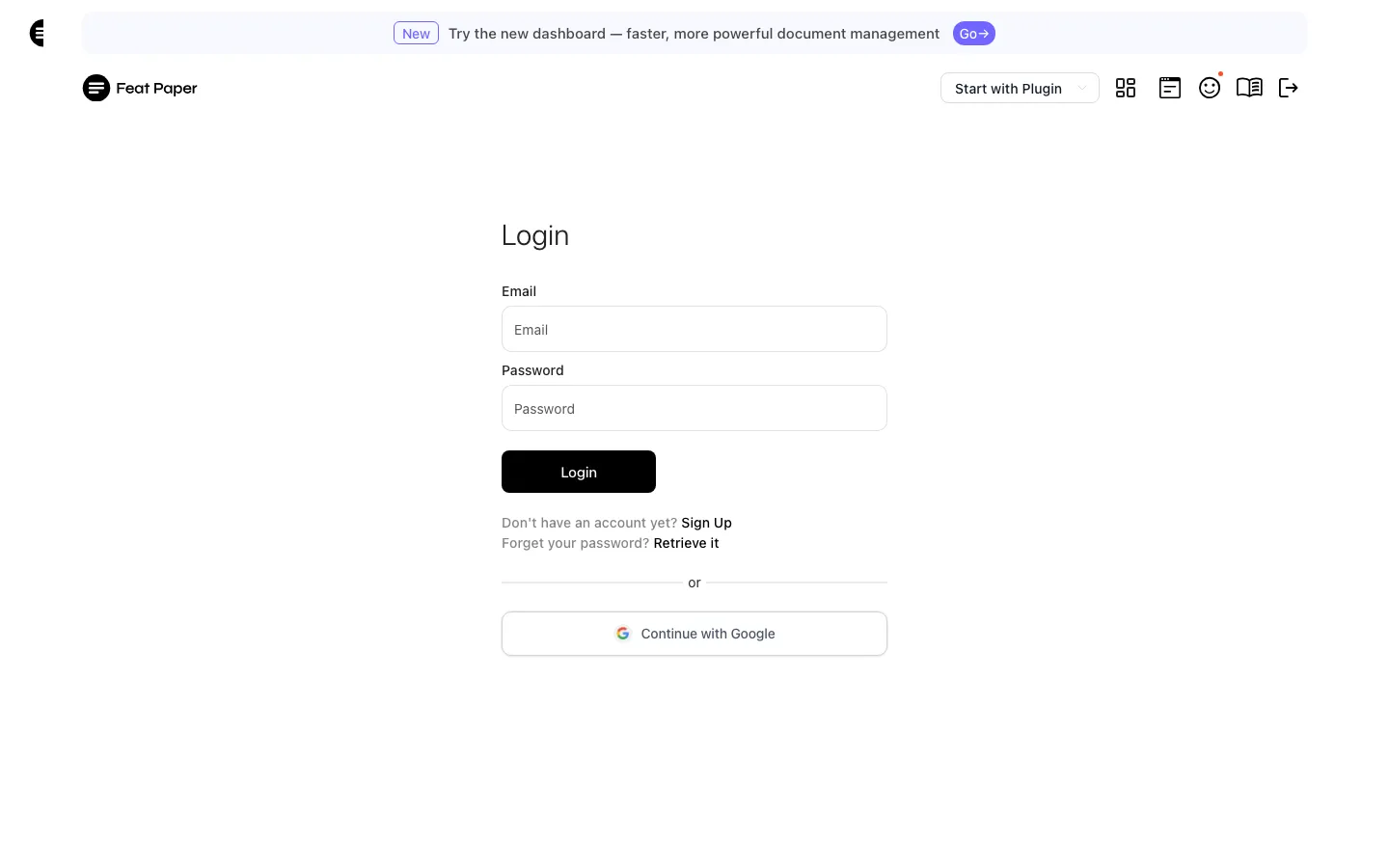
Choose how to log in
Enter your email and password to log in, or click Continue with Google to sign up and log in at once. No account yet? Use the Sign up link on the login screen.
Create a space
On your first login, you create a space. A space is where a team or project keeps its documents together.
2. Tour Home and the sidebar
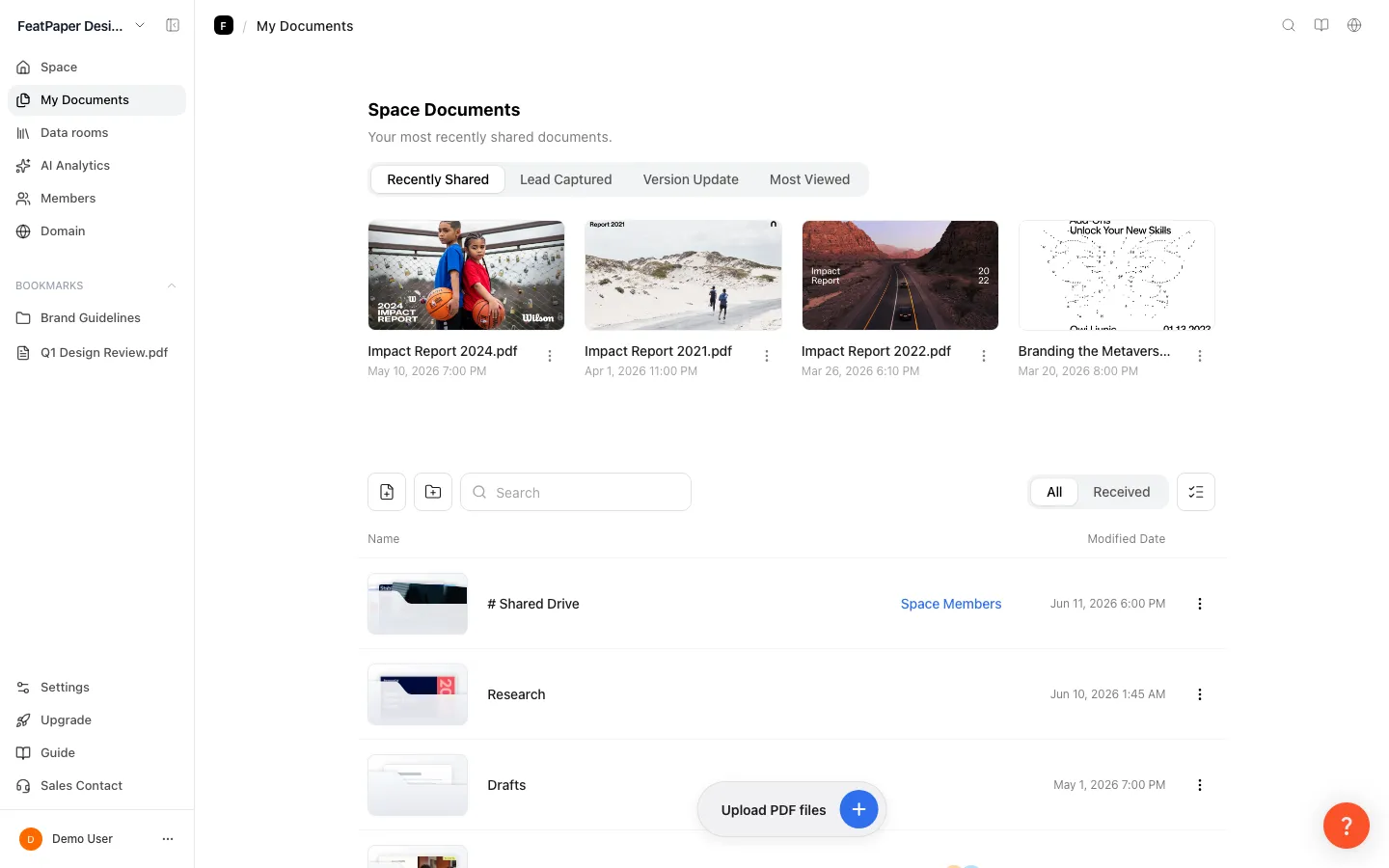
Section titled “2. Tour Home and the sidebar”Log in and you do not land on a folder list. You land on Home, a screen that sums up your whole space with KPIs. The left sidebar gets you to every feature.
How the sidebar is laid out
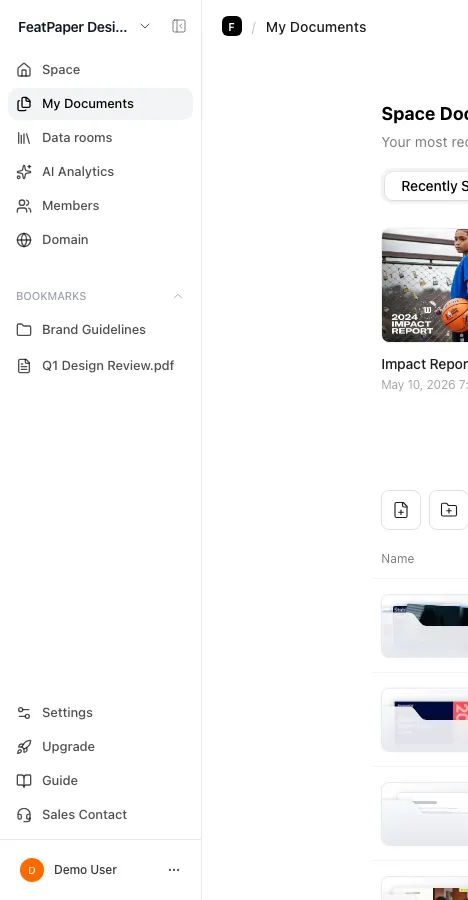
Section titled “How the sidebar is laid out”Top to bottom, the main menus run Space → My Documents → Data rooms → AI Analytics → Members. Bookmarks sits below them, and a pinned area at the very bottom holds Settings → Upgrade → Guide → Sales Contact. Every menu stays visible no matter your role or plan. Only what happens when you click changes with your role and plan.
| Area | Menu | What it is |
|---|---|---|
| Top-left | Workspace switcher | Shows your current space and plan, such as Starter. Opens Space Information or switches to another space. Admins also get an Invite Members button here. |
| Top icons | Search · Guide · Language | Icon buttons at the top of the screen, not sidebar items. Search finds folders and documents — click it or press ⌘K (Mac) / Ctrl K (Windows) — with the Guide and Language buttons alongside. |
| Main | Space | Opens the space KPI overview, the first screen after login. |
| Main | My Documents | Manage uploaded documents by folder. |
| Main | Data rooms | Pick links from several documents and publish them together as one page. |
| Main | AI Analytics | Ask AI about your space’s engagement data in plain language. |
| Main | Members | Opens the member list and invite screen (Settings > Member Management). |
| Below main | Switch dashboard | Appears only for accounts still on the old dashboard (1.0). The switch is permanent — see What’s new in Dashboard 2.0. |
| Bookmarks | Bookmarks | Pin your go-to folders and documents — up to 6 shown, with the rest behind an expand control. |
| Pinned bottom | Settings | The unified settings screen for account, space, permissions, and billing. |
| Pinned bottom | Upgrade | Opens the plan-selection screen. |
| Pinned bottom | Guide / Sales Contact | Opens this user guide and the sales inquiry page. |
How menus open — role and plan gating
Section titled “How menus open — role and plan gating”Every menu stays in the sidebar at all times, with no Pro-style badges attached. FeatPaper checks your role and plan when you click an item.
- The role gate comes before the plan gate. When a member tries to open an admin-only screen, such as Custom Domain, the admin-access notice comes first, not a plan prompt.
- Clear the role check but click a feature your current plan does not include, and a short upgrade pop-up explaining that feature appears first. Press Upgrade in it to reach the plan-selection screen.
- If an admin has turned a feature off for the space, you see a notice asking you to contact them, with no upgrade button.
| Feature | Plan required |
|---|---|
| Custom domain | Enterprise |
| Member invites · Notion, Google Sheets, and Zapier integrations · form integration | Business and above |
| PDF download control · viewing period · logo (branding) · data export (CSV) | Pro and above |
| AI Analytics (conversational queries) | Pro and above |
| Lead form customization · document version history · AI search optimization | All plans, Starter included |
What each role can access
Section titled “What each role can access”Among the main menus, Space · My Documents · Data rooms · AI Analytics · Members look the same and are clickable for admins and members alike. Custom Domain is not in the sidebar; it lives in Settings as an admin-only tab. The tabs inside Settings also differ by role.
Admin
Reaches every main menu and every Settings tab: Account Settings, Communication Settings, Notifications, Connections, Space Information, Logo Settings, Lead Form, Member Management, Analytics Exclusion, Custom Domain, Pricing, Billing & Plans, and Usage.
Member
Can use Space, My Documents, Data rooms, AI Analytics, and Members. In Settings, members get Account Settings, Communication Settings, Notifications, Connections, Member Management, and Usage — though the line-by-line usage history inside Usage is for admins only. Space Information, Logo Settings, Lead Form, Analytics Exclusion, Custom Domain, Pricing, and Billing & Plans stay admin only.
| Settings tab | Admin | Member | Note |
|---|---|---|---|
| Account Settings | ✅ | ✅ | Account deletion also happens here |
| Communication Settings | ✅ | ✅ | |
| Notifications | ✅ | ✅ | Alert audience, minimum interest level, repeat cooldown |
| Connections | ✅ | ✅ | Slack and Notion account connections |
| Space Information | ✅ | ❌ | |
| Logo Settings | ✅ | ❌ | Pro and above |
| Lead Form | ✅ | ❌ | The space’s lead form templates |
| Member Management | ✅ | ✅ | |
| Analytics Exclusion | ✅ | ❌ | Rules that keep internal views out of your numbers |
| Custom Domain | ✅ | ❌ | Enterprise plan only |
| Pricing | ✅ | ❌ | A summary of your current plan |
| Billing & Plans | ✅ | ❌ | Plan, seats, and invoices |
| Usage | ✅ | ✅ | This cycle’s usage and your plan limits (formerly “Credit usage”). Only admins see the itemized history |
3. Upload your first document
Section titled “3. Upload your first document”Create a folder
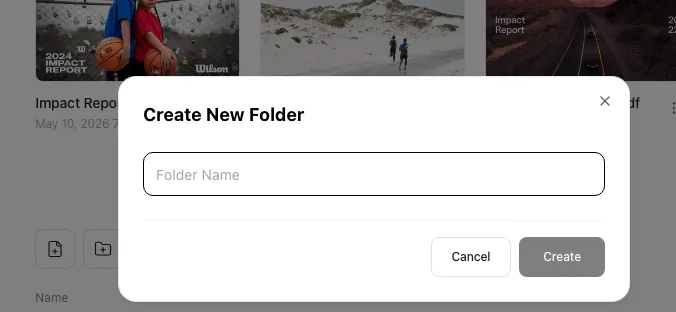
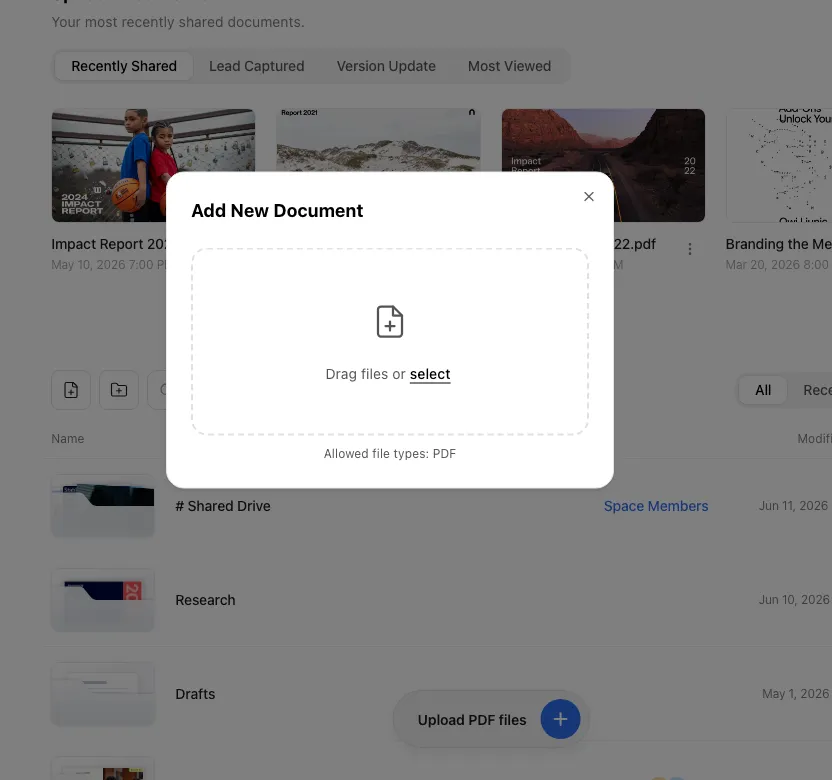
Go to My Documents in the sidebar, click the New Folder icon (a folder with a +) in the list toolbar, and type a folder name. The File Upload icon to its left is for uploading files.
Upload a document
Open the folder, then upload a PDF with the File Upload icon in the toolbar. If the folder is empty, drag and drop a file onto the upload area in the center.
Supported format: PDF
Upload complete
When the upload finishes you land on the Content tab of the new document. Check that it looks right, then switch to the Share links tab to copy the link and set per-link options.
Shortcut: Open your space Home
Frequently asked questions
Section titled “Frequently asked questions”When I log in, do I still get the Home screen (KPI summary) like before?
Yes. Log in and you land on Home, which shows your whole space’s KPIs — unique viewers, anonymous viewers, email leads — alongside recent documents, contacts, and referrers. For the full layout, see Tour the Home screen.
Can I log in with a Google account and no password?
Yes. Continue with Google on the login screen signs you up and logs you in at once. If you signed up with an email and password, those work too.
I signed up and there are six documents I don't recognize. Can I delete them?
Those are the sample documents given to new accounts — five inside two folders and one outside them. They ship with sample engagement records so you can see how Home fills up with KPIs, viewers, contacts, and referrers. Click Delete sample docs in the header to clear them in one go; your own uploads are untouched.
The Library menu is gone from the sidebar — is it Data rooms now?
Library, the gallery of public folders, has been replaced by Data rooms. Instead of publishing a whole folder, you now pick share links from several documents and publish them together as one page. Recipients open it without logging in, and each link keeps its original settings.
Where do I set up a custom domain? I can't find a Domain menu in the sidebar.
There isn’t one. An admin sets up custom domains under Settings > Space > Custom Domain, and the feature needs the Enterprise plan. Members can’t use that tab, so ask an admin to handle it. The Members menu works for both roles.
I clicked an admin menu and got a permissions notice, not a plan prompt.
FeatPaper checks your role before your plan. When a member tries to open an admin-only screen such as Custom Domain, the admin-access notice comes first. The plan prompt appears only when an admin clicks a feature their current plan does not include.
The AI Analytics menu won't open.
AI Analytics shows for admins and members alike, but using it needs Pro or above. Click it on Starter and you do not reach the page. An upgrade pop-up appears instead, and its Upgrade button takes you to the plan-selection screen.
I can't find the tab I want in Settings.
Which Settings tabs appear depends on your role and plan. Space Information, Logo Settings, Lead Form, Analytics Exclusion, Custom Domain, Pricing, and Billing & Plans are admin only; members can still open Usage. Custom Domain needs Enterprise, and Logo Settings needs Pro or above. The old Credit usage tab is now Usage, and it covers uploads and seats as well as credits.
How do I create a new space?
You cannot create one from the screen right now. The workspace switcher moves you between spaces you already belong to, opens Space Information, and lets admins invite members. If you need an additional space, contact support.
Is there a fast way to find a document or folder? I don't see Search in the sidebar.
Search is not a sidebar item. It is the magnifying-glass icon in the top-right corner, just left of the Guide and Language buttons (it doesn’t appear on phone-sized screens). Click it or press ⌘K (Mac) / Ctrl K (Windows) to open the search dialog, then search by folder or document name.
What happens if I have a lot of items in my sidebar Bookmarks?
Bookmarks shows up to 6 items by default, and you can expand the list to see the rest.
What file formats and sizes can I upload, and how many per month?
Direct uploads support PDF only. File size caps at 30 MB on Starter, 100 MB on Pro, and 300 MB on Business, with Enterprise set per contract. A monthly upload count applies on top: 10 on Starter, 30 on Pro, and 30 per seat on Business, counting new documents and version updates together. For PPT originals, use the PowerPoint plugin.
Key points
Section titled “Key points”- Logging in takes you to Home, a space KPI overview, not a folder list.
- The main menus are Space, My Documents, Data rooms, AI Analytics, and Members.
- Every menu is visible, and the check happens on click — role first, then plan.
- New accounts arrive with sample documents, so Home starts out populated.
- Uploads respect a monthly count and a file size limit — Starter gets 10 uploads and 30 MB.
Learn more
Section titled “Learn more”How FeatPaper works — the whole flow at a glance
Get the whole flow from upload to alerts and integrations first.
Upload your first document
Follow the flow from folder to upload to a ready share link.
Tour the Home screen (KPI overview)
Explore the layout of Home, the first screen after login.
Share with a link
Compare the four link types and their per-link settings.
Compare plans and pricing
Check prices and limits for Starter, Pro, Business, and Enterprise.