
Customize your brand
Logo Settings puts your own logo on the web viewer. With it in place, viewers see your company’s material instead of FeatPaper’s, so every link you send carries your own mark.
What branding covers
Section titled “What branding covers”Upload the logo under Settings > Space > Logo Settings. It is stored per space, not per account, so several spaces can each carry their own mark.
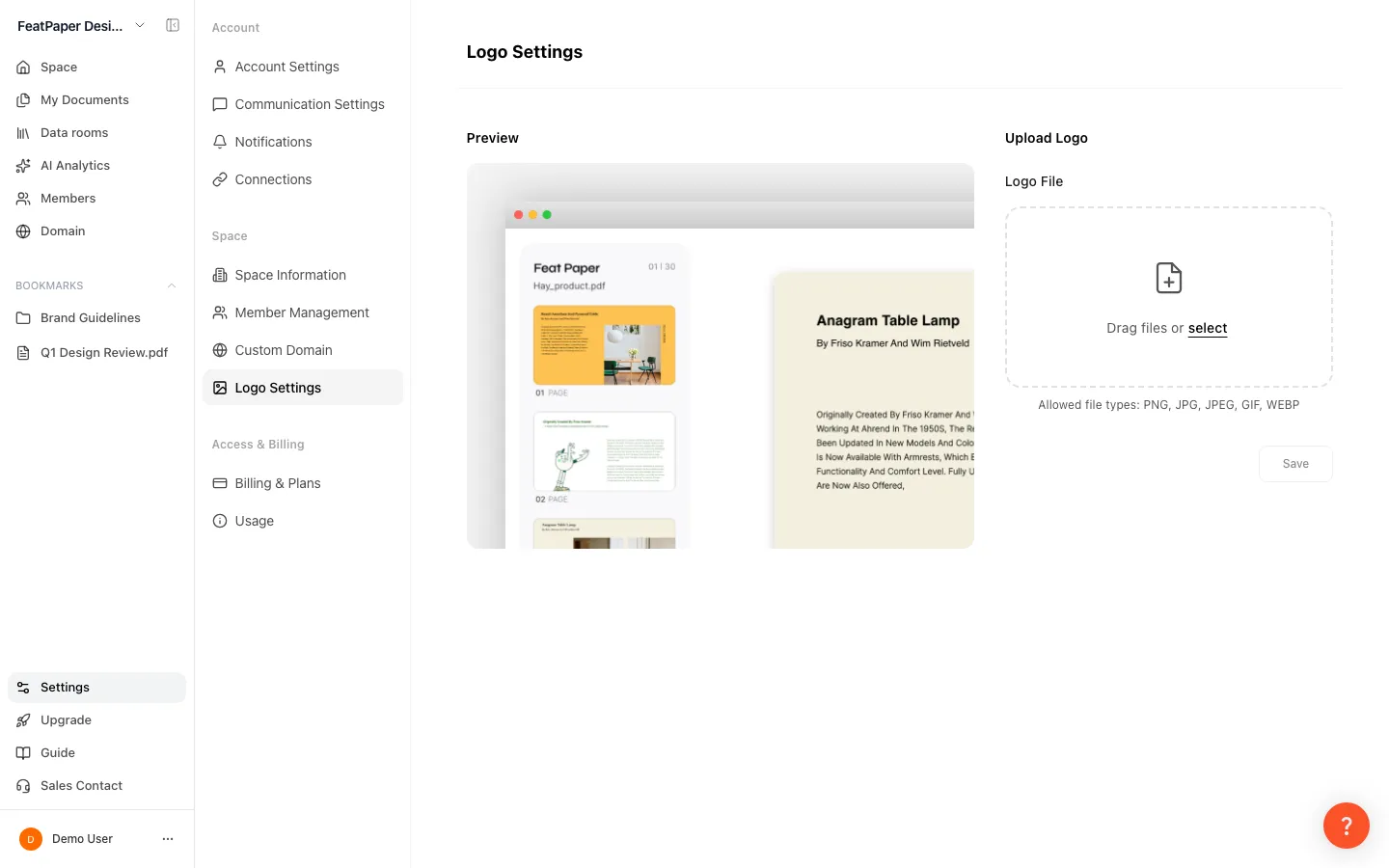
The logo shows up in three places.
| Where | Notes |
|---|---|
| Document viewer | When someone opens a share link |
| Lead form | The screen that collects contact details before the document opens |
| Data room public page | At the top, next to the space Company Name |
Upload a logo
Section titled “Upload a logo”Open Settings
Click Settings at the bottom of the sidebar, then open Logo Settings in the Space section.
Pick a file
Drag an image onto the Logo file area or click to browse. PNG, JPG (JPEG), GIF, and WEBP are supported. A non-image file is rejected with a message saying only image files can be uploaded.
Crop the area
Choose a file and the crop window opens. Drag to select the area you want to show, then click Apply. Cancel takes you back so you can choose a different file.
Save
Check the preview and click Save. Because the logo belongs to the space, links you already sent show the new logo the next time they are opened.
Change or delete a logo
Section titled “Change or delete a logo”Once a logo is saved, two buttons appear under the preview. Change is always there; the one beside it is Revert while you have unsaved changes and Delete otherwise — the two never show at the same time.
| Action | What it does |
|---|---|
| Change | Opens the Change Logo window (“Upload a new logo file to replace the current logo.”) so you can pick a new image and crop it; nothing reaches the viewer until you Save. |
| Revert | Restores the last saved logo while you have unsaved changes. |
| Delete | Removes the saved logo after you confirm in the “Delete the logo?” dialog. |
Where do the other branding elements live?
Section titled “Where do the other branding elements live?”Everything other than the logo has moved to its own screen.
| Element | Where it lives now | Plan |
|---|---|---|
| Lead form | Settings > Space > Lead Form tab (admins), or the document detail Share links tab → the information-form link’s share settings → Lead form settings (Set up a lead form) | Every plan |
| CTA and contact channels | Communication Settings in the Account section. Build several channels and show a different one per link (Settings tour) | 3 channels on Starter and Pro, 5 on Business, unlimited on Enterprise |
| Viewer type (For Presentation / For Report) | Per link, in that link’s share settings (Share with a link) | Every plan |
| Block PDF download · viewing period | Per link, in that link’s share settings | Pro and above |
| Custom domain | Settings > Space > Custom Domain (Connect a custom domain) | Enterprise |
Ways to use this
Section titled “Ways to use this”Save the logo once and it lands in all three places at the same time — the web viewer, the lead form, and data room public pages. That is why it pays off most when you pair it with whatever else your recipients see.
Send a file directly and the cover design is the only place your brand can appear; opened in an outside viewer, the service’s own screen comes first. Because the logo is stored on the space rather than set per link, changing it once also changes links you already sent, from their next open onward.
Button and shortcut reference
Section titled “Button and shortcut reference”The buttons people look for most on this screen.
| Button / element | Where | What it does |
|---|---|---|
| Logo file area | Logo Settings screen | Drag or click to choose an image (PNG, JPG, JPEG, GIF, WEBP). |
| Apply | Crop window | Confirms the area you dragged and returns to the preview, with nothing live yet. |
| Save | Bottom of Logo Settings | Applies the cropped logo to this space, including links you already sent, from their next open onward. |
| Change | Under the preview | Opens the Change Logo window so you can upload a new image and crop it again. |
| Revert | Under the preview | Restores the last saved logo, discarding unsaved changes. |
| Delete | Under the preview, then confirm dialog | Removes the saved logo so the viewer falls back to the default mark. |
Shortcut: Open Settings
Frequently asked questions
Section titled “Frequently asked questions”The Logo settings tab is locked.
Logo Settings needs Pro and above and admin rights. On Starter, opening the tab shows an upgrade notice, and member accounts don’t see the tab at all.
Can I remove 'Powered by FeatPaper' from the viewer?
Yes. In the plan comparison table, removing “Powered by FeatPaper” sits at Pro and above, the same band as branding settings. See Compare plans and pricing for the row-by-row labeling.
Does my logo appear on data room public pages too?
Yes. A data room’s public page shows the space logo and company name at the top. The logo comes from Logo Settings and the name from Company Name in Space settings. There is no per-room logo.
Can I preview a logo before saving it?
Yes. The preview updates as soon as you crop. The web viewer updates only after you click Save.
I clicked Apply but not Save, then navigated away. What happens?
An unsaved changes dialog asks whether to leave or stay, and refreshing or closing the tab triggers the browser warning as well. If you do leave and return, the cropped image is gone and the last saved logo is shown.
What image formats can I upload?
PNG, JPG (JPEG), GIF, and WEBP. The recommended size is 200×50px with a transparent background. Non-image files are rejected.
If I delete the logo, does it vanish from the viewer right away?
Yes. Confirming saves immediately, so share links opened afterward fall back to the default FeatPaper mark.
Does the new logo apply to links I've already sent?
Yes. The logo belongs to the space rather than to individual links. Saving, changing, or deleting it changes both new links and links you sent earlier, from their next open onward.
Can I use a different logo per space?
Yes. Logos are stored per space, so register one in each space. The Pro requirement is also judged by that space’s plan.
Can someone who isn't an admin set the logo?
No. Logo Settings is an admin-only tab, and member accounts don’t see it. Ask a space admin.
I uploaded an animated GIF logo but it's frozen in the web viewer.
Clicking Apply captures a single frame, so the stored file is a still image. Animated logos aren’t supported.
I put a colored background on my logo and it looks dark in the web viewer.
The viewer blends the logo with the panel background, so a dark, non-white background inside the image can read darker than the original. The settings preview uses the same treatment, so what you see before saving is what viewers get. A transparent background avoids the shift.
My old lead form and CTA settings aren't in the branding menu anymore.
The screens were reorganized. The lead form now has its own Lead Form tab under Settings > Space (admins), and you can still reach it from the document’s Share links tab, under the information-form link’s share settings. CTA and contact channels moved to Communication Settings in the Account section. Logo Settings now covers the logo only.
Where do I change the viewer type (For Presentation / For Report)?
It is a per-link setting rather than a space-wide one. On the document’s Share links tab, open that link’s share settings and pick For Presentation or For Report. One document can use different types on different links. See Share with a link.
Do CTA and contact details apply space-wide like the logo does?
No. The logo is stored per space and applies to every viewer in it, while CTA and contact details are managed as channels so each link can show a different one. Build channels in Communication Settings and pick one per link in its share settings (Settings tour).
Key points
Section titled “Key points”- Logo Settings is Pro and above, admin-only, and the logo is stored per space.
- The logo appears in the viewer, on the lead form, and on data room public pages.
- PNG, JPG, GIF, and WEBP are supported at a recommended 200×50px, and animated files are flattened to one frame.
- Apply confirms the crop; Save is what goes live, including for links you already sent.
- The lead form (every plan), communication channels, and viewer type now live on Settings > Space > Lead Form (or the document Share links tab), Account settings, and per-link share settings.