
Track your deck per investor with unique links
Issue a separate per-recipient link for each investor and you can track which investor opened the deck and which pages they lingered on, link by link. Unlike passing one file around, each investor’s engagement stays separate — and you learn who opened it without asking anyone for a name or an email.
When to use it
Section titled “When to use it”- A fundraising round — send the deck to 20 firms and use who opened it twice to order your follow-up meetings.
- Sales proposals — send the same proposal to several stakeholders and read their responses separately.
- Hiring or partnerships — a short, known list of recipients, where a form would be friction.
- Any audience where a lead form is awkward (executives, investors) but you still need to know who read it.
How to set it up
Section titled “How to set it up”Create per-recipient links on the Share links tab
Upload the deck, open the document detail, and go to the Share links tab. Click Add link on the right of the All links label. Enter a recipient name in the Create per-recipient links pop-up and that person’s own link is issued. Use Add row to enter several names and create them all at once. A new document also comes with a sample link, “To: Jane Doe (sample)” — use Rename (the pencil) to give it your first investor’s name and send it as is.
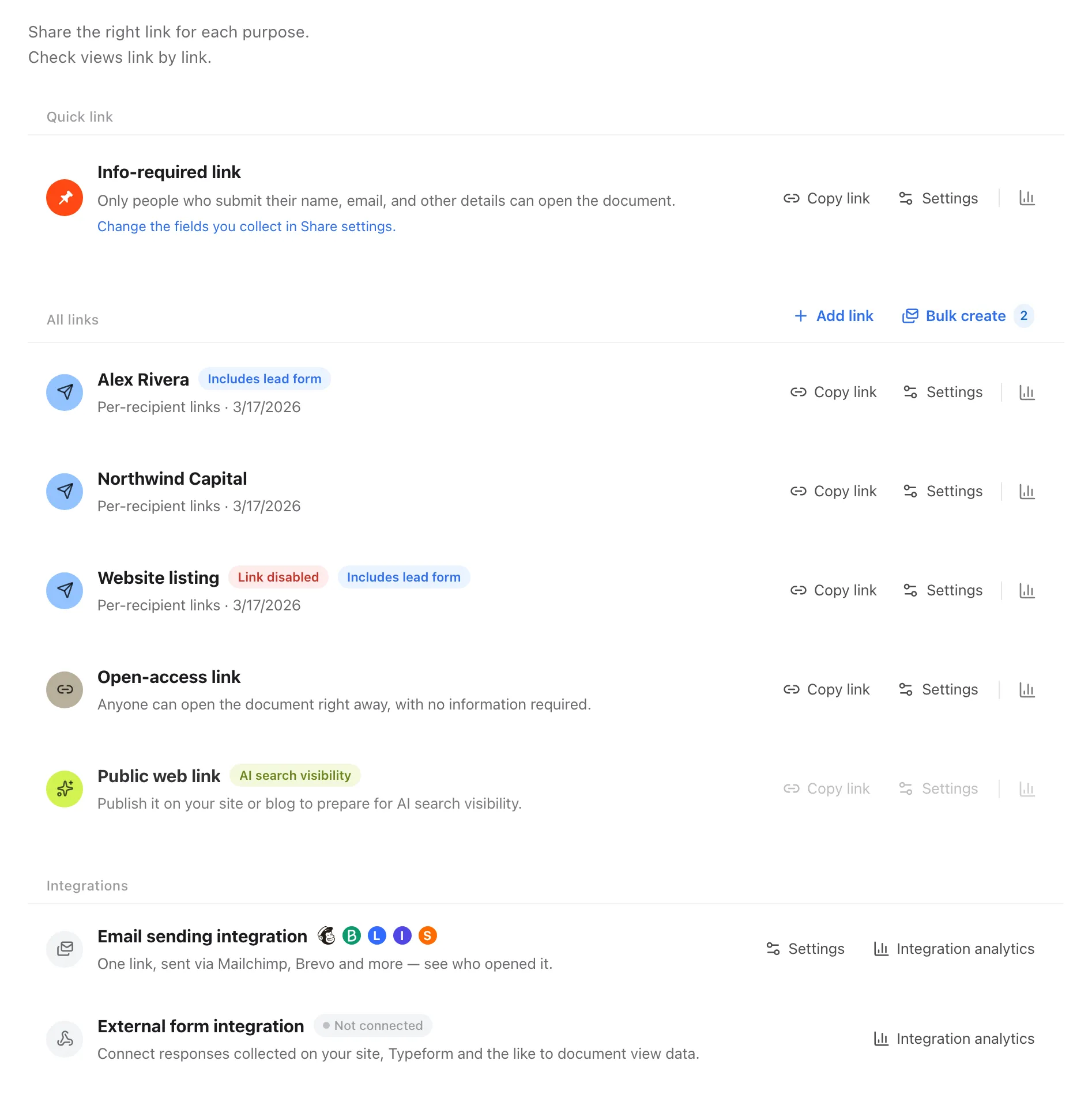
Send a different link to each investor
Use Copy link on each row and send them out individually. Anyone arriving through a per-recipient link opens the document directly, with no lead form, even when the form is on. Click the icon (pin) on the left of the link you use most to make it your quick link, and Copy share link at the top of the page will copy that one.
Add access limits per link (optional)
Each link’s share settings can carry its own conditions: turn off PDF Download (Pro and above), set a viewing period (Pro and above), or add an email allow list or a password.
Check engagement per investor
Open Viewers > Recipients to see which investor read how much and where they stayed. Interest (Hot/Warm/Cold), Share link, Views, Pages of interest, Referrer, Stay time, and Last viewed are all broken out per link.
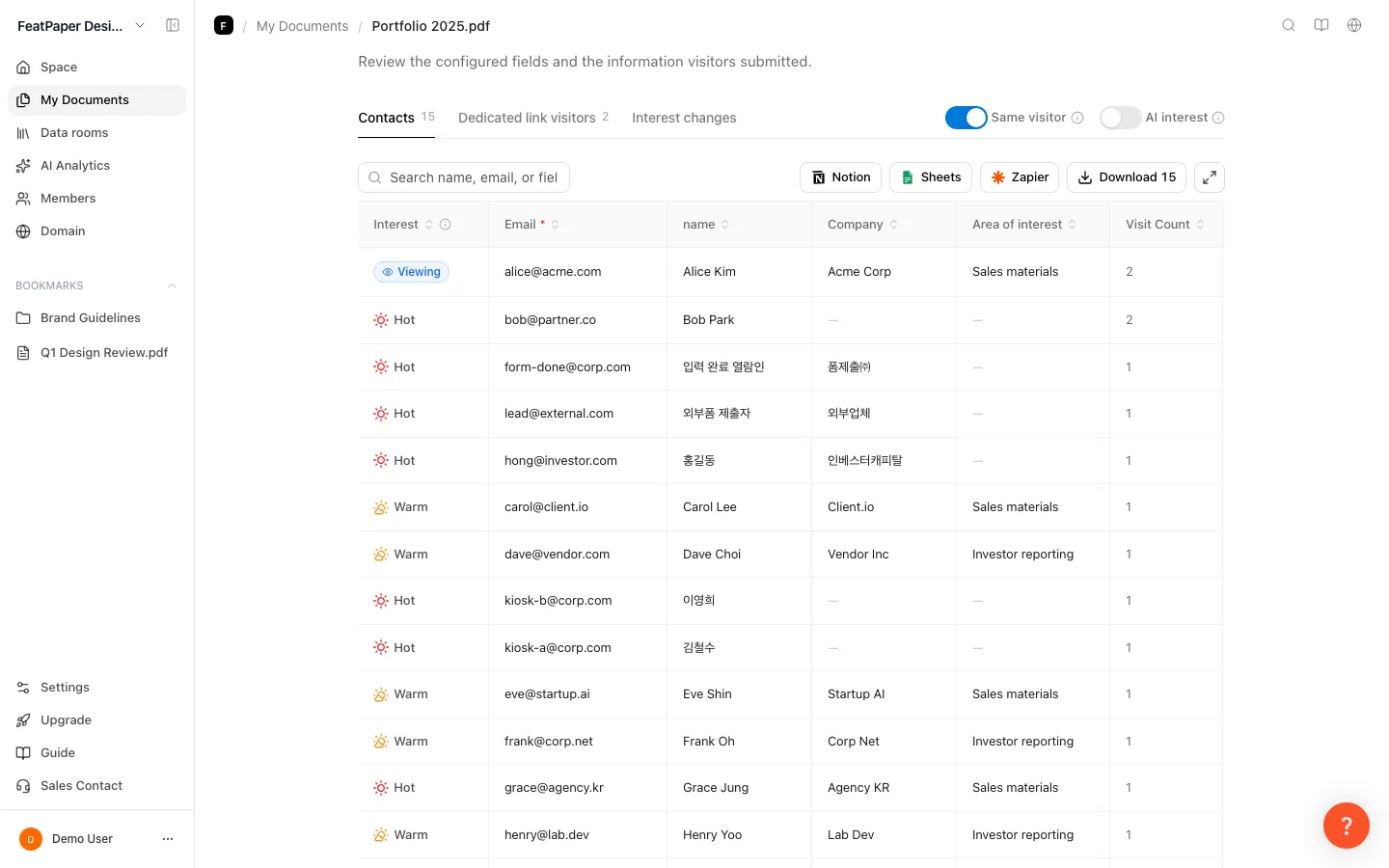
Filter to compare links
On Insights, filter by Share Link to isolate one investor’s response. You can also narrow by period, version, referrer, device, OS, browser, country, and parameter. Reset Filters appears with a count once there is something to undo.

What the link list gives you
Section titled “What the link list gives you”On the Share links tab, your Quick link (if you set one) sits at the top, followed by the All links list. It runs top to bottom as the per-recipient links (one row each, the latest 5 plus a show-more control), the lead capture link, the open-access link, and the Public web link. Each row offers the following.
| Element | Where | What it does |
|---|---|---|
| Add link | Right of the All links label | Opens Create per-recipient links. Issues one link per recipient name, several at once. |
| Copy link | Link row (clicking the row works too) | Copies that link address to the clipboard. |
| View analytics | Link row | Opens a view filtered to that link (the Viewers tab for a per-recipient link). |
| Link icon (pin) | Left end of the link row | Click to make this your quick link, so Copy share link at the top copies it. |
| Rename (pencil) | Per-recipient link row, next to the name | Changes the name and keeps the URL. Insights and Viewers show the new name. |
| Settings | Link row | Sets downloads, viewing period, email allow list, and password per link. The view notification toggle (also per link) lives here too. |
| Delete link | Bottom of share settings | Only per-recipient links can be deleted. |
| Summary badge | Link row | Flags three states: link disabled, email required with no one allowed, and expired with a date. |
Plan limits
Section titled “Plan limits”The number of investors decides the plan you need. More than 3 links means Pro; more than 10 means Business.
| Item | Starter | Pro | Business and above |
|---|---|---|---|
| Per-recipient links per document | 3 | 10 | Unlimited |
| Per-viewer detail | 7 days after upload | Full history | Full history |
| Share link filter | Not available | Available | Available |
| CSV export | Not available | Available | Available |
| Download blocking and viewing period | Not available | Available | Available |
Ways to use this
Section titled “Ways to use this”A per-recipient link only tells you who read it. It becomes a way to run a whole round once you pair it with alerts, access limits, and version updates.
Mail the same PDF to a dozen firms and every response arrives as one undifferentiated pile, with no way to tell how far the file travelled. Split the link per recipient and the data separates by person inside a single document, and you can cut off exactly one link when you need to.
Good to know
Section titled “Good to know”- A per-recipient link names the recipient, not the person holding it. If an investor forwards the link, that read is recorded against the same investor. Add an email allow list or a password to prevent it.
- The link name is an internal note and never shows on the viewer’s screen.
- Open-access links, lead capture links, and Public web links are issued automatically and cannot be deleted. Only per-recipient links can.
- To pause a link, use Disable this link now rather than deleting it. A deleted link can never be reopened.
- The share link filter and CSV export start at Pro. On Starter, compare links by eye on screen.
- Viewer tables render 200 people at a time, with Show more for the next 200. Counts, search, and CSV always cover the full set.
Frequently asked questions
Section titled “Frequently asked questions”Can I see which investor opened my deck?
Yes. Issue a per-recipient link for each investor and Viewers > Recipients separates them link by link. Put the investor’s name on the link and you can read the list at a glance.
How many links can I create?
3 per document on Starter, 10 on Pro, unlimited on Business and above. At the limit, the create button tells you so. See Compare plans and pricing.
Do investors have to enter a name or an email?
No. A per-recipient link identifies the recipient by itself, so they open the document with no input. When you do not know who will open it — a site, a newsletter — use a lead capture link to collect a name and email instead.
Can I create links for several people at once?
Yes. Click Add link on the Share links tab to open Create per-recipient links, then use Add row to enter several recipient names and each one gets its own link in a single step.
Can I delete a link later?
Per-recipient links can be deleted from the bottom of their share settings. The automatically issued general share, lead capture, and Public web links have no delete button. To pause a link instead, use Disable this link now.
What happens if an investor forwards the deck?
The forwarded read is recorded against that same link. To keep it to the intended viewer, add an email allow list or a password to that link.
If I update the deck, do I have to resend the links?
No. Upload a new PDF from the Manage versions card on the Content tab and click Publish. The link addresses stay the same, and every investor’s link shows the new version. See How to update a PDF without changing the link.
How do I tell which investor is most interested?
Sort the Recipients table by its first column, Interest (Hot/Warm/Cold). Switch on the AI interest toggle and the AI summary and AI interest columns help you decide what to lead with for each investor — available on every plan, charged in AI credits.
Key points
Section titled “Key points”- A per-recipient link per investor separates deck engagement investor by investor.
- Create them on the document’s Share links tab with Add link, several at a time, and fix a name later with Rename.
- Read the results in Viewers > Recipients, and compare links with the Share Link filter on Insights (Pro and above).
- Limits are 3 per document on Starter, 10 on Pro, and unlimited on Business and above.
- Link names are internal notes, and forwarded reads count against the same recipient — add an allow list or password when that matters.