
What's new in Dashboard 2.0
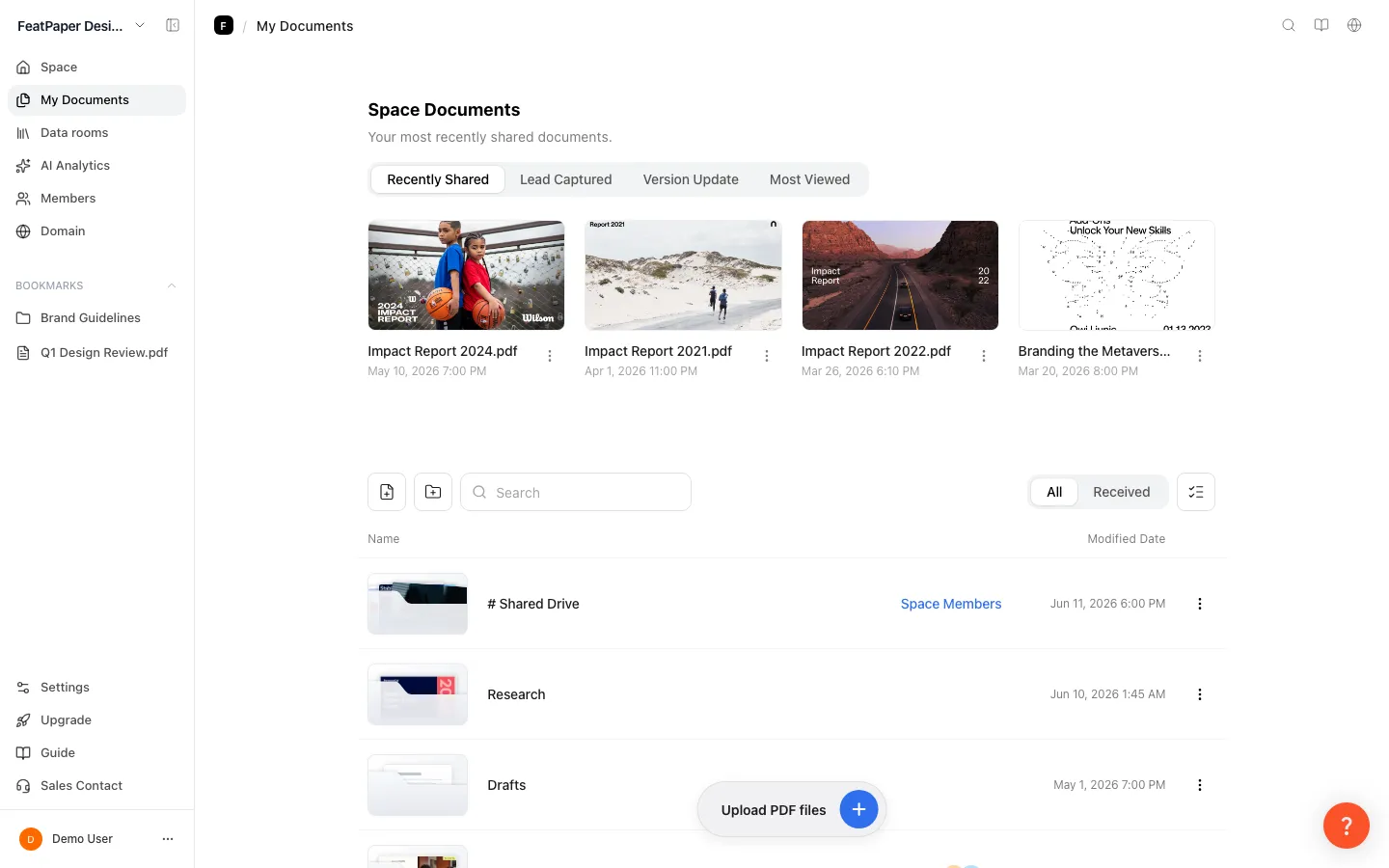
Dashboard 2.0 is the new FeatPaper screen: user accounts give way to spaces, and the center of sharing and analytics moves from the document to the link. Been using the old dashboard? Skim this page and you get what changed, and why. Your data carries over automatically — there is no “move” button to press.
At a glance
Section titled “At a glance”| Area | Old (1.0) | New dashboard (2.0) |
|---|---|---|
| Sharing | One link per document | Several purpose-built links (Open-access link, Lead capture link, Public web link, Per-recipient links) plus per-link share settings |
| Analytics | Per-document performance | Insights and Viewers tabs, filters for link, referrer, and date, plus AI interest analysis |
| Lead form | User-level, applied globally | Per-document setup with space-level templates, available on every plan |
| Team collaboration | User-based | Space-based, with member invites and two roles (Admin / Member) |
| Folder permissions | None | Split into can-edit and can-view |
| Public pages | A gallery that published a whole folder | Data rooms — pick links from several documents and publish them together |
| AI | None | AI Analytics (conversational) plus AI interest analysis |
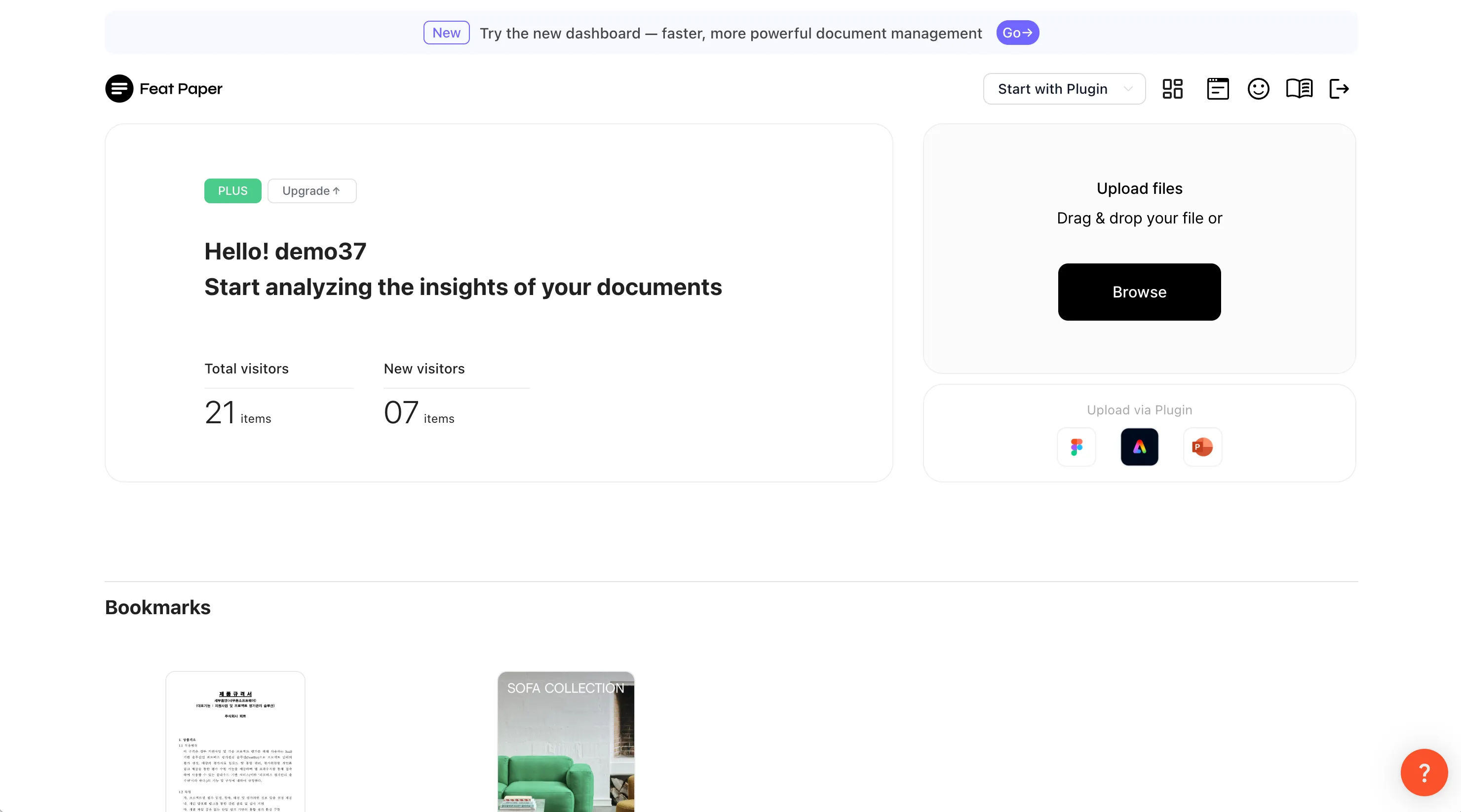
Old dashboard
New dashboard
Your data carries over automatically
Section titled “Your data carries over automatically”The 1.0 to 2.0 migration is switched over in bulk by the operations team. You do not press a “move” button or do anything special. At the moment of switchover, the items below carry over to your new space as they are.
- Documents and folders — folder structure included
- Your plan and billing status
- Lead forms — the default form and every custom form you built, carried over as space templates
- Logo and branding
- Communication channels (CTA channels)
- Past analytics data — the last 24 months
- Document version history
Switching to the new dashboard — a one-way move
Section titled “Switching to the new dashboard — a one-way move”Operators move your documents and data to the new dashboard ahead of time, and you confirm the switch yourself. Click the dashboard-switch icon (the first icon) in the top header of the old dashboard. A notice appears — “Your documents and data have been moved to the new dashboard, and the old dashboard is being retired. Switching is permanent — you can’t return to the old dashboard.” — along with the Use the new dashboard button.
What’s new
Section titled “What’s new”Link-centered sharing
Section titled “Link-centered sharing”You no longer send the document itself. You share a link that points to it. One document can carry several purpose-built links — Open-access link, Lead capture link, Public web link, and Per-recipient links. In each link’s share settings, you configure viewer type, PDF download, viewing period, communication channels, view notification, and access restrictions such as an email allow list or password, independently for every link.
For details, see Share with a link.
Insights and Viewers tabs
Section titled “Insights and Viewers tabs”The document detail tabs are now Content / Share / Insights / Viewers. The Insights tab shows every shared link’s performance at a glance — view counts, viewers, completion rate, return views, dwell time — with filters for link, referrer, and date range. The Viewers tab splits into contacts, dedicated-link viewers, and interest changes.
For details, see document analytics.
AI interest analysis
Section titled “AI interest analysis”Turn on AI interest analysis in the Viewers tab and FeatPaper reads the pages someone lingered on to generate an interest level (Cold, Warm, Hot) and content insights automatically. When the interest level changes, that person’s AI summary is regenerated at no credit cost, and rows already sent to Notion or Google Sheets are refreshed as well.
Data rooms
Section titled “Data rooms”Pick share links from several documents and publish them together as one page. Recipients open it without logging in, and each link keeps its original settings, including its lead form and tracking. Data rooms replace the folder gallery (Library) from 1.0.
Other changes
Section titled “Other changes”Set up a lead form
Moved from a user-level global setting to per-document setup, with your go-to configurations saved as space templates. Available on every plan.
Understand access permissions
Grant can-edit or can-view permissions per folder. How much engagement data someone sees depends on their permission.
AI Analytics
Ask your whole space’s data in plain language from the sidebar’s AI Analytics. Pro and above, credits deducted.
Invite your team
Invite teammates per space and give each one a role: Admin or Member.
Compare plans and pricing
Billing moved to per-space subscriptions, and the free plan is now called Starter. Business can raise and lower seats directly.
Bookmarks
Bookmark your go-to documents in the sidebar and find them fast with the top search icon (⌘K).
Ways to use this — coming from 1.0, start here
Section titled “Ways to use this — coming from 1.0, start here”The migration is automatic, so there is nothing to move. But two habits from 1.0 have to change before 2.0 pays off — duplicating documents, and publishing folders whole.
Links you already sent can stay exactly as they are. /l/, /v/, and /n/ addresses keep opening after the migration, so apply the new approach starting with the next thing you send.
Button and shortcut reference
Section titled “Button and shortcut reference”The buttons and actions people reach for most on this page.
| Button / element | Where | What it does |
|---|---|---|
| Dashboard-switch icon (the first icon) | Header of the old dashboard (1.0) | Opens the switch notice and the Use the new dashboard button. A red dot appears if you have not switched yet. |
| Use the new dashboard | The switch-notice dialog | Switches to the new dashboard (2.0) permanently. There is no returning to 1.0 afterwards. |
| AI Analytics | Main sidebar menu of the new dashboard | Opens the screen where you ask questions of your whole space’s data (Pro and above). |
| Data rooms | Main sidebar menu of the new dashboard | Opens the screen where you gather links from several documents and publish them as one page. |
Shortcut: Open your space Home
Frequently asked questions
Section titled “Frequently asked questions”What do I press to move my old documents to the new dashboard?
Nothing to press. The 1.0 to 2.0 migration is switched over in bulk by the operations team. At the moment of switchover, your documents, folders, plan, lead forms including custom forms, logo, communication channels, the last 24 months of analytics data, and version history all carry over automatically.
Do links I shared before still open after the move?
Yes. Every share link you distributed before (/l/, /v/, /n/) keeps working after the migration. There is no need to re-share a link you already sent someone or replace it with a new one.
Can I go back to the old dashboard after I switch?
No. Switching to the new dashboard is permanent. Click the switch icon in the old dashboard’s top header, read the notice, and confirm with Use the new dashboard — after that, 1.0 is not reachable. Make sure your documents look right on the new dashboard before you confirm.
Can I keep using the old dashboard (1.0)?
Your documents and data are already on the new dashboard, and the old dashboard is being retired soon. You can keep using the old one until you switch. The moment you click Use the new dashboard, though, you move over permanently, so get familiar with the new screens ahead of time. Migration and link behavior are maintained automatically, so there is nothing separate to prepare.
Does past analytics data come over too?
Yes. The last 24 months of analytics data carries over, and document version history comes with it.
Are the custom lead forms I built earlier still around?
Yes. Not only the default form but every custom form you built carries over as a space lead form template, so you can load and reuse it across documents. See Set up a lead form.
The tabs on the document detail screen look different from before.
The document detail tabs are now Content / Share / Insights / Viewers. For sharing, see Share with a link. For performance and viewers, see document analytics.
The link names changed. What became what?
Link names are now consistent across the product. The default link is the Open-access link, and the lead form link is the Lead capture link. Recipient-specific or dedicated links are Per-recipient links. A new Public web link was added for posting a document on your site or blog so AI search can cite it.
Where did Library go — is it Data rooms now?
Library, which published a whole folder as a gallery, has been replaced by Data rooms. You now pick individual share links from several documents and publish them together as one page. Recipients open it without logging in, and each link keeps its original settings.
Is AI Analytics admins-only?
No. The sidebar’s AI Analytics menu is visible to both admins and members, and using it requires Pro or above. To ask questions about a single document, use that document’s document analytics screen instead.
The Credit usage menu is missing from Settings.
It was renamed Usage. Alongside credits it now shows this cycle’s upload count, file size limits, and seats, so you can read your plan limits in one place. Members can open it too; only admins see the itemized usage history.
Key points
Section titled “Key points”- 2.0 is space-based and link-centered. One document carries several purpose-built links.
- Migration is automatic, and the
/l/,/v/, and/n/links you already sent keep working. - Clicking Use the new dashboard is permanent — 1.0 is not reachable afterwards.
- Document detail has four tabs: Content, Share, Insights, and Viewers.
- Library became Data rooms, and the Credit usage menu became Usage.
Learn more
Section titled “Learn more”How FeatPaper works — the whole flow at a glance
See how links, alerts, and integrations fit together.
What's new
Check what shipped month by month.
Tour the Home screen (KPI overview)
See your whole space summarized on one screen.
Compare plans and pricing
Check the differences between Starter, Pro, Business, and Enterprise.