
How to collect emails with a document lead form
Build a lead form on a document and share it through the lead capture link, and only people who enter their name, email, and whatever else you ask for can open it. Anonymous viewers who would otherwise pass through become reachable contacts, and you see how far each one read in the same table. Lead forms work on every plan.
When to use it
Section titled “When to use it”- White papers and reports posted on your site, where you want a contact instead of a silent download.
- Ads and newsletters, where you need to know who actually arrived.
- Trading access to material for sales leads, then ranking them by how far they read.
- Connecting your existing site form or Typeform responses to reading data (form integration, Business and above).
How to set it up
Section titled “How to set it up”Build the lead form
On the document detail’s Share links tab, open share settings on the lead capture link, then choose Open under Lead form settings at the top. In the editor, use + Lead form above the page list on the left to drop a marker, then configure the fields in the settings panel.
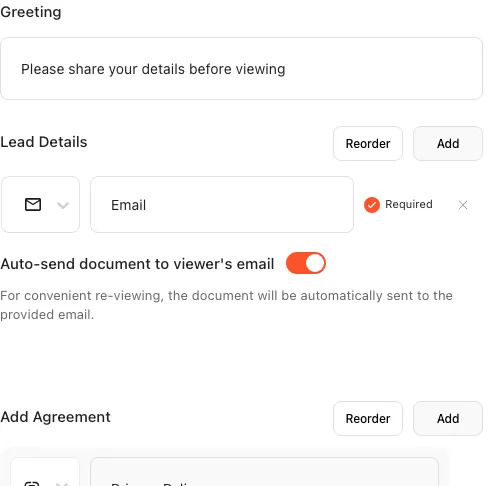
Configure the fields and save
Add as many text, email, checkbox, and radio fields as you need and set their order. The same panel holds the form language, the privacy policy link, and the option to email the document to whoever submits. Press Save at the bottom of the panel, then SAVE & EXIT at the top right of the editor — both are needed for the change to take effect.
Share the lead capture link
Saving the form activates the lead capture link. Until then it stays in a state that says it turns on once a lead form is configured. Put the active link on your site, in a newsletter, or in an ad, and everyone who arrives enters their details before the document opens.
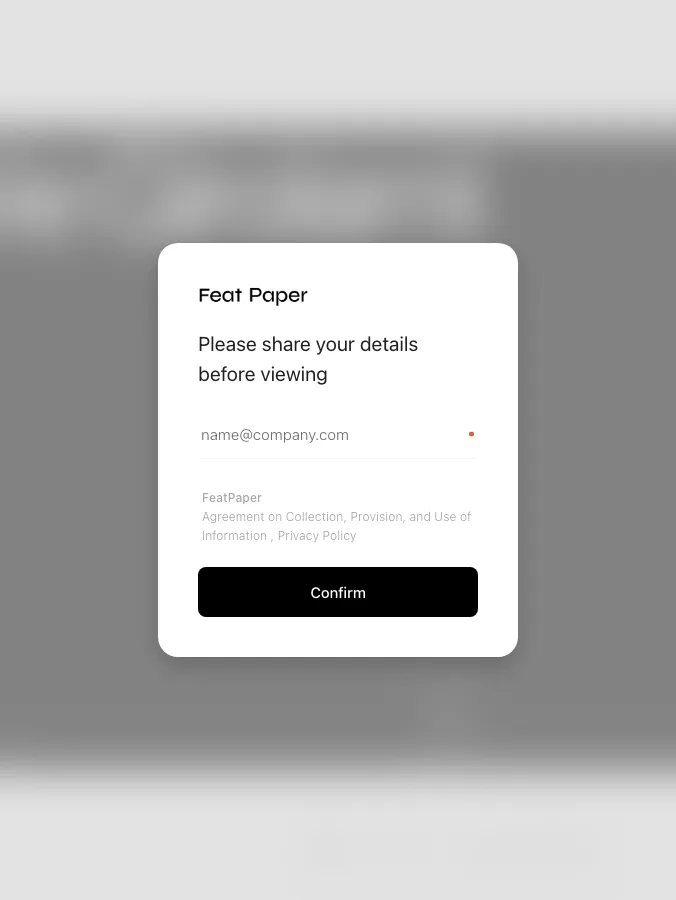
Read the contacts you collect
Submitted contacts land in Viewers > Contacts on the document detail and roll up into the contacts total on the home overview. Interest, each form field, Views, AI summary, Referrer, Stay time, and Submitted at all sit in the same table.
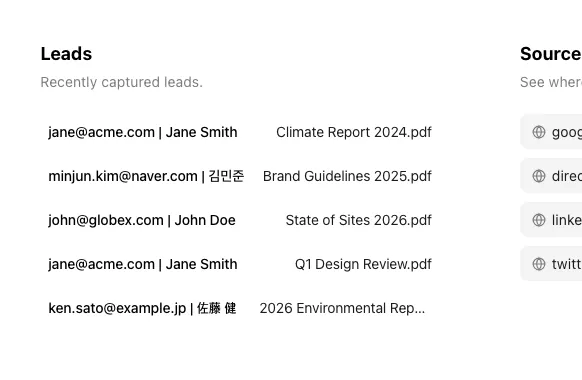
Which links show the form
Section titled “Which links show the form”The form appears on the lead capture link only. The same document opens differently depending on which link you send.
| Link | Does the form appear? | When to use it |
|---|---|---|
| Lead capture link | Yes — details are required before the document opens | Your site, a newsletter, an ad — anywhere the audience is unknown |
| Open-access link | No — it opens right away | Anyone should be able to read it |
| Per-recipient link | No — you already know who they are, so they are not asked again | Sending to one named person |
| Public web link | No — a lead form cannot be attached | Publishing on your site or blog so AI search can surface it |
How one contact is counted
Section titled “How one contact is counted”One contact is one person, not one submission. Someone who submits several times still counts once. The field used to tell people apart is chosen automatically from the form you built.
Email decides it when the form has one
Case and surrounding spaces are ignored, so Kim@Example.com and kim@example.com are the same person.
Phone number decides it when there is no email
Only the digits are compared, so 010-1234-5678 and 01012345678 are the same person.
The first required field decides it when there is neither
Forms that collect no email and no phone number still count correctly. Placeholder values such as unknown and anonymous are not counted as people.
Uploading a new version does not reset the contact count, because the count belongs to the document — the original of the version chain.
What changes by plan
Section titled “What changes by plan”The lead form itself is on every plan. What differs is where your contacts can go and how long you can read them.
| Item | Starter | Pro | Business and above |
|---|---|---|---|
| Collect contacts with a lead form | Yes | Yes | Yes |
| Customize the lead form | Yes | Yes | Yes |
| Auto-send the document to whoever submits (needs a required email field) | Yes | Yes | Yes |
| Contact detail window | 7 days after upload | Full history | Full history |
| Contact CSV export (Download N in the Viewers toolbar) | No | Yes | Yes |
| Notion, Google Sheets, Zapier | No | No | Yes |
| Form integration (site form, Typeform, and so on) | No | No | Yes |
Create in bulk from an email list, which builds per-recipient links from a list of addresses and hands you the link list as a CSV, is a Business and above feature. It belongs to sharing, not to the contact export in the table.
On Starter, contacts older than 7 days show the number only, with the details hidden. The records keep accumulating, so moving to Pro opens the earlier contacts all at once.
Ways to use this
Section titled “Ways to use this”A lead form is worth more than the contact it captures once you connect it to how far that person read and where the contact should land next.
Capture a contact in a form tool and you never learn whether they read the material; email the file and the trail ends there. A lead capture link keeps the contact and the reading record attached to one person, so the evidence for prioritizing them arrives with the lead.
Good to know
Section titled “Good to know”- The lead capture link stays inactive until the form is saved.
- Save in the panel is not the end — press SAVE & EXIT in the editor to apply the change.
- There is currently no button to remove a form marker you have placed. To stop using the form, share the open-access link instead of the lead capture link.
- Notion, Google Sheets, and Zapier integrations are per document. You cannot set them per link.
- Only contacts who submitted the lead form are sent through an integration. Recipients and other viewers are not.
- There is no per-document Slack integration for storing data. Slack is an account-level notification channel only.
- Google Sheets headers are fixed in Korean regardless of interface language. An English or Japanese dashboard still produces Korean sheet headers.
- Checkbox values appear as
Yes/Noin the table, in CSV, and in integrations.
Frequently asked questions
Section titled “Frequently asked questions”Can I collect the email address of anyone who views my document?
Yes. Build a lead form on the document detail’s Share links tab and share the lead capture link. Anyone arriving through that link has to submit the form before the document opens.
Which plan do lead forms start on?
Every plan. Free Starter collects contacts with a lead form too. Only form integration and the Notion, Google Sheets, and Zapier integrations start at Business. See Compare plans and pricing.
Where do I see the contacts I collect?
In Viewers > Contacts on the document detail, and in the contacts total on the home overview. The table pairs each form field with Interest, Views, Pages of interest, Stay time, and Referrer. On Pro and above you can export it to CSV.
If the same person submits several times, how many contacts is that?
One. The identifier is chosen automatically — email, then phone number if there is no email, then the first required field if there is neither. Email ignores case and spaces; phone numbers are compared by digits only.
Can I ask for a phone number instead of an email?
Yes. With only a phone field on the form, the phone number becomes the identifier. An email field is still needed if you want people to re-enter through the link in the email they receive without filling the form again.
Does a returning viewer have to fill the form again?
No. Reopening in the same browser, or arriving through the link in the email they received after submitting, skips the form and goes straight to the document.
Can I use my existing site form or Typeform instead?
Use form integration (Business and above). In the Integrations section of the Share links tab, click the Form integration row and choose Generate key to issue an API key for that document. When the form is submitted, send the email and the fields to FeatPaper and you get a reading link back. That link opens without a form, and the submitted details are stored with the analytics. Have the form collect an email — that is what identifies the viewer. Zapier or Make can wire it up without code.
Can submitted contacts go to Notion or Google Sheets automatically?
On Business and above you can attach Notion, Google Sheets, and Zapier integrations per document. Notion and Google Sheets are set up from the Notion and Sheets buttons in the Viewers tab toolbar, and a connection made on the Contacts sub-tab sends only people who submitted the lead form. Zapier works the other way round: you create a Zap with the FeatPaper app in Zapier and pick the document, and the toolbar’s Zapier button just shows the status. Google Sheets writes one row per submission, and running totals such as Interest, Views, and Stay time are updated on that same row as reading continues.
Can the document be emailed to whoever submits the form?
Yes, on every plan. Turn on Auto-send document to viewer’s email in the lead form settings panel and the document goes to the address they entered. The toggle needs at least one required email field, so if it’s greyed out, check the email field’s Required box rather than your plan. See Set up a lead form for the details.
I saved the form but it is not showing in the web viewer view
Pressing Save in the settings panel and leaving the editor is not enough. Press SAVE & EXIT at the top right to commit the change.
Key points
Section titled “Key points”- Build a lead form on the document detail’s Share links tab and share the lead capture link, and only people who enter their name and email open the document.
- Lead forms are available on every plan. Form integration and the Notion, Google Sheets, and Zapier integrations start at Business; CSV export starts at Pro.
- Collected contacts sit in Viewers > Contacts and in the contacts total on the home overview, alongside reading data.
- One contact is one person, not one submission — identified by email, then phone number, then the first required field.
- The form appears on the lead capture link only. Per-recipient links and Public web links open without it.