
Invite your team
Invite teammates and you manage documents and reading data together instead of alone. An invite takes one email and a role (Admin or Member), and when you run out of seats you raise the seat count yourself in Settings.
Member invites need Business or above
Section titled “Member invites need Business or above”Member invites map to the Space and team invites row of the plan comparison table and run on Business and Enterprise.
- On Starter or Pro, clicking Invite Member opens “Manage documents together with your team / Business includes 3 seats.” instead of the invite dialog.
- The Invite Member button is visible to admins only. With the Member role it never appears.
Invite a member
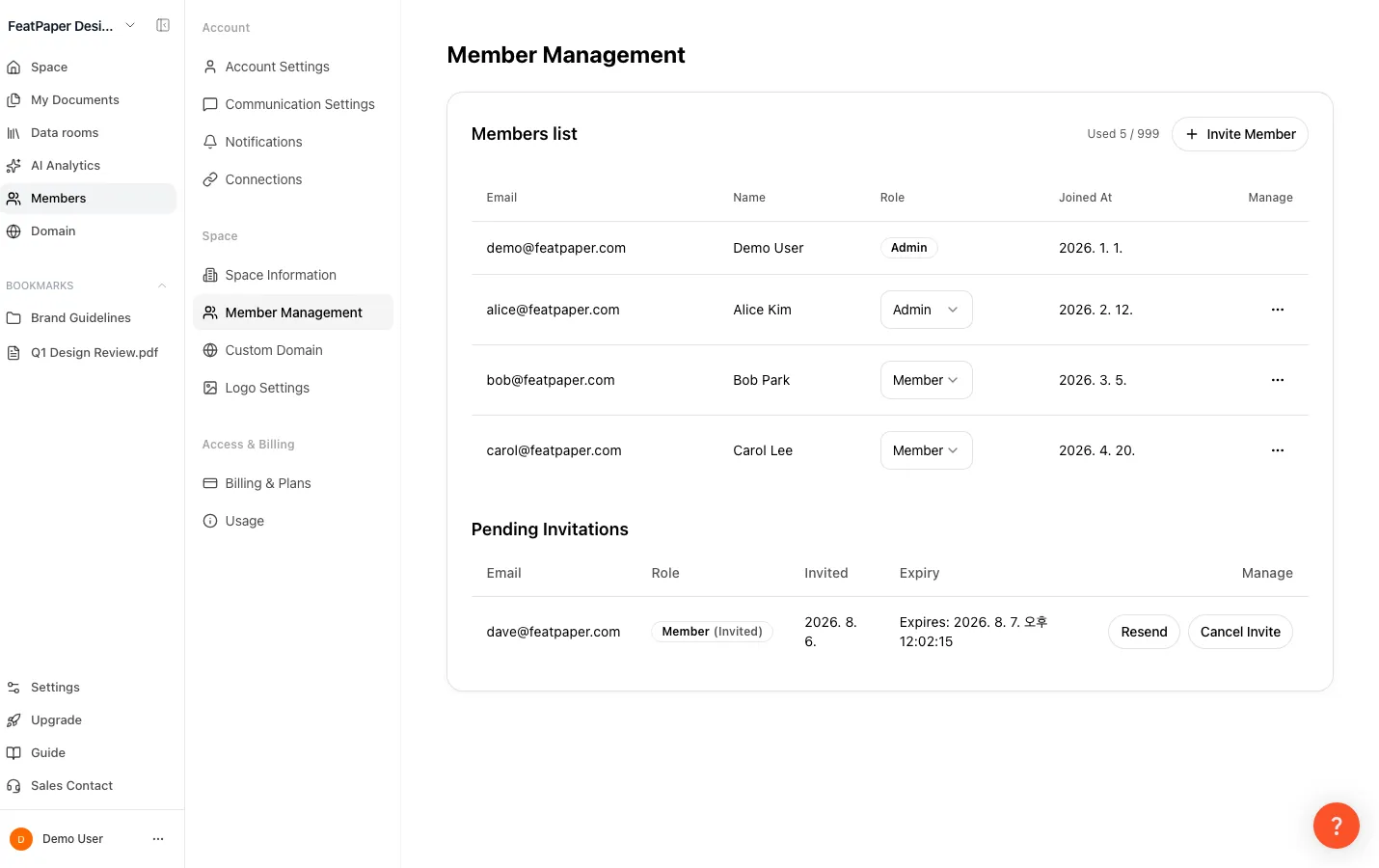
Section titled “Invite a member”Members live under the sidebar Members menu or Settings > Member Management. The list shows email, name, role, join date, and management actions.
Go to the Members screen
Click Members in the sidebar. The Settings > Member Management tab opens the same screen.
Open the invite dialog
Click Invite Member to open Invite Space Member. It reads “Enter the email and role of the user to invite. Invitations are valid for 24 hours.” On a paid plan, current seat usage appears as “Used N / M.”
Enter an email and a role
Type the email, then pick Member (the default) or Admin in the Role dropdown.
Send the invite
Click Send Invite to send an invite link to that address. Cancel closes the dialog without sending.
Have them accept
The recipient opens the link, logs in or signs up, and accepts to join the space. Invites last 24 hours and expire after that.
Manage pending invites
Section titled “Manage pending invites”Invites that nobody has accepted yet sit in the Pending Invitations list, which has Email, Role, Invited, Expiry, and Manage columns.
- Resend — renews the expiry and sends the invite email again. Use it when an invite expired or the email never arrived.
- Cancel Invite — withdraws a pending invite and returns the seat it was holding.
Notices you may see while inviting
Section titled “Notices you may see while inviting”| Situation | What the screen does |
|---|---|
| Already a member | A notice says they are already in the space and cannot be invited again. |
| Already invited | A notice says a pending invite exists for that email. Use Resend in the Pending Invitations list. |
| Seats full, paying by card | The invite goes through. One seat is added and the prorated amount is charged right away; the dialog shows Additional billing beforehand. |
| Seats full and the seat can’t be added automatically | If the subscription is scheduled to end or the charge for the extra seat fails, the invite stops and “You’ve used all your seats” opens: “Add a user and invite more members — your upload limit and AI usage go up too.” The button is Manage billing. |
| Seats full, payment past due or paused | Seats can’t change, so the invite stops with a notice saying so. Update your payment method, or try again after billing resumes. |
| Seats full, invoice contract | Nothing is added automatically. You see “All users on your invoice plan are in use. Please contact us to add more.” |
| Seats full, Payple billing | ”Change your payment method?” opens instead. Switch payment methods to add seats and keep inviting. |
| Seat cap reached (49 on Business) | No more seats can be added: “This exceeds the maximum number of seats your current plan allows. Change your plan to add more.” |
| Plan does not allow invites | On Starter or Pro, “Manage documents together with your team” opens instead. |
| Email delivery failed | The invite itself is created, so use Resend in the Pending Invitations list to send the email again. |
What each role can do
Section titled “What each role can do”Space roles are Admin and Member. The role decides which menus appear and which features work.
| Permission | Admin | Member |
|---|---|---|
| Upload and manage documents | Yes | Yes |
| Create share links | Yes | Yes |
| Invite, change roles, remove members | Yes | No |
| Logo Settings (branding) | Yes | No |
| Custom Domain | Yes | No |
| Pricing, Billing & Plans | Yes | No |
| Usage | Yes | This cycle and plan limits only |
Change a role
Section titled “Change a role”Open the member list
Go to Members in the sidebar or Settings > Member Management.
Switch the role
Open the role dropdown on that member’s row and pick Admin or Member. The change applies immediately.
Remove a member and cancel an invite
Section titled “Remove a member and cancel an invite”Remove a member
Open the more menu (…) at the end of the member’s row, choose Remove from Space, and confirm. Other admins apart from the owner can also be removed this way, so proceed carefully.
Cancel an invite
Invites nobody has accepted sit in Pending Invitations. Use Cancel Invite to withdraw one and return its seat.
Seats by plan — base seats and the cap
Section titled “Seats by plan — base seats and the cap”Each plan has a base seat count (included in the price) and a seat cap (the most you can raise it to).
| Plan | Base seats | Seat cap | Extra seats |
|---|---|---|---|
| Starter | 1 | 1 | Not available |
| Pro | 1 | 1 | Not available |
| Business | 3 | 49 | $12/mo per seat ($10/mo per seat on annual billing) |
| Enterprise | Custom | By contract | Contact us |
Add or remove seats
Section titled “Add or remove seats”Seat changes live in the Seats section of Settings > Billing & Plans. Admins only.
Open the Seats section
Go to Settings > Billing & Plans. The Seats section shows “Used N of M in use · K included in your plan” and “$12 per additional seat”.
Adjust the number
Use + and − to change the count one seat at a time.
Apply or schedule
Raise the number and the button becomes Update seats; lower it and the button becomes Schedule change. Click it and confirm.
Raising and lowering bill at different times.
| Direction | When it applies | Payment |
|---|---|---|
| Raise | Available right away | Prorated for the remaining days and charged to your card now |
| Lower | From your next billing date | This period is not refunded. Your current seats stay usable until then. |
- On screen: raising says “New seats are available right away, and your card is charged now for the remaining days of this period.” Lowering says “The reduction is scheduled and takes effect on your next billing date. Until then your current seats stay available.”
- Once a reduction is scheduled you see “Your seat count changes to 3 on 2026. 11. 1.” (your next billing date and the new count) with a Cancel scheduled change button under it. Cancelling reports “The scheduled seat change was canceled. Nothing was charged.”
Inviting someone who belongs to another space
Section titled “Inviting someone who belongs to another space”Space membership is independent per space. Someone who already belongs to another company’s space joins yours normally, and their original space is unaffected. One person can hold a different role in each space.
Ways to use this
Section titled “Ways to use this”Inviting a member is not the end of the job. Set the space role, folder permissions, and bookmarks together and a new hire stops guessing on day one.
Share one account across a team and you can’t tell who uploaded or changed what. Split it into seats and you can give each person different permissions, while the seat itself doubles as upload and AI capacity.
Button and shortcut reference
Section titled “Button and shortcut reference”| Button or element | Where it is | What it does |
|---|---|---|
| Invite Member | Top of the Members screen | Opens Invite Space Member — visible to admins only, and sending works on Business and above. |
| Role dropdown | Invite dialog | Sets the invitee’s role to Member (default) or Admin. |
| Send Invite | Invite dialog | Sends an invite link valid for 24 hours. |
| Cancel | Invite dialog | Closes the dialog without sending. |
| Resend | Each row of Pending Invitations | Renews the expiry and sends the invite email again. |
| Cancel Invite | Each row of Pending Invitations | Withdraws a pending invite and returns its seat. |
| Role dropdown | Each member row (owner excluded, admins only) | Changes an existing member’s role immediately. |
| More menu (…) → Remove from Space | End of a member row (owner excluded, admins only) | Removes that member from the space after confirmation. |
| + / − stepper | Settings > Billing & Plans > Seats | Changes the seat count one at a time. |
| Update seats / Schedule change | Seats section | Applies a raise and charges it now, or schedules a reduction for the next billing date. |
| Cancel scheduled change | Seats section, when a reduction is scheduled | Reverses the scheduled reduction at no charge. |
Shortcut: Open Members
Frequently asked questions — invites and roles
Section titled “Frequently asked questions — invites and roles”How do I invite a teammate?
Open Members in the sidebar (or Settings > Member Management), click Invite Member, enter the email, pick Member or Admin, and click Send Invite. The link is valid for 24 hours. Member invites run on Business and above, and the button is visible to admins only.
Can I set someone's role to admin right when I invite them?
Yes. Pick Admin in the role dropdown and they join with that role. You can also switch it later from the role dropdown in the member list.
They said the invite email never arrived — how do I resend it?
Click Resend on that invite in the Pending Invitations list. The expiry is renewed and the email goes out again. This also covers invites that were created but whose email failed.
The invite expired — how do I invite them again?
Invites last 24 hours. Use Resend in Pending Invitations to renew the expiry, or Cancel Invite and enter the email again as a fresh invite.
Can I invite members on Starter or Pro?
No. Member invites need Business or above. Trying on Starter or Pro opens “Manage documents together with your team / Business includes 3 seats.”
What shows up when a member clicks an admin menu?
An Admin-only page card takes the place of that screen, reading “This page is only accessible to space admins. Please contact an admin if you need access.” with a Go to home button. The role gate applies before the plan gate, so a sufficient plan does not help a Member.
Can I invite someone who's in another company's space?
Yes. Space membership is independent per space, so they join normally and their original space is unaffected. One person can hold a different role in each space.
Can I hand a departing owner's rights to another admin?
Not today. The space owner is fixed to the account that created the space, and no screen hands that over to someone else. There is no per-folder or per-document owner change either — the highest permission you can grant by sharing is can edit. The owner’s row shows no role selector and no more menu, so the role cannot be changed or removed. When you need a real handover, promote the successor to admin and share the folders they need as can edit.
If I remove a member, what happens to their documents, share links, and collected viewer data?
Removing a member ends their access to the space. The folders and documents they owned, the links they distributed, and the viewer and contact data collected are not deleted, and none of it transfers to another admin. Links already out in the world keep opening. Removing an admin works the same way; the only difference is that removal is blocked when they are the last admin in the space (“The last admin of a space cannot be removed or have their role changed.”). Because removal also clears every folder permission that person held, a folder shared only with them cannot be opened by any remaining admin, and its links cannot be switched off. Share important folders with another admin as can edit before you remove them.
Frequently asked questions — seats and billing
Section titled “Frequently asked questions — seats and billing”How much does an extra seat cost?
$12 per seat per month on Business, or $10 per seat per month on annual billing. The Seats section shows it as “$12 per additional seat”. Business costs $59 with 3 seats included, so the extra charge starts at the fourth seat. Starter and Pro cannot add seats.
How many seats can I have?
Business goes up to 49 seats. Starter and Pro are fixed at 1, and Enterprise is set by contract. Past 49 on Business, talk to Enterprise sales.
When am I charged for adding a seat?
Right away. New seats work immediately, and the remaining days of the period are prorated and charged to your card at once.
When does removing a seat take effect?
On your next billing date. A reduction is a schedule, so your current seats stay usable until then and this period is not refunded. You see “Your seat count changes to 3 on 2026. 11. 1.”, showing your next billing date and the new count.
Can I cancel a scheduled seat reduction?
Yes. Click Cancel scheduled change under the schedule notice in the Seats section and your current count stays. Nothing extra is charged.
It won't let me lower the seat count.
One of two floors is holding it. If seats are in use, you get “Seats that are in use have to be freed up first.” — remove a member or cancel a pending invite. If the plan’s base seats are the floor, you get “This plan includes N seats — you can’t go below that.” Business stays at 3 or more no matter what.
Does adding a member raise my bill right away?
Not while a seat is free. Only when every seat is taken does an invite add one seat, prorated for the rest of the period and charged immediately. In that case the invite dialog also shows Additional billing.
What happens if I invite someone when all seats are used?
On Business paid by card, the invite still goes through: one seat is added and the prorated amount for the rest of the period is charged right away. The invite dialog shows Additional billing before you send. “You’ve used all your seats” only appears when the seat can’t be added automatically — the subscription is scheduled to end, or the extra-seat charge failed. On an invoice contract, ask your contact to add seats. To avoid a new charge, cancel pending invites you no longer need; each one holds a seat.
Is there a reason to add seats if I'm not inviting anyone?
Yes. A seat is capacity rather than a headcount, and the screen says so: “Each user you add opens up 30 more uploads a month.” AI usage scales with the seat count as well.
The seat button won't respond.
Seat changes are blocked while a subscription is scheduled to end or a payment is outstanding. You get “Resume the subscription to change them again.” and “Update your payment method first.” respectively. When the plan or payment method has no on-screen path, the panel points you to support or your administrator.
Do pending invites take up seats?
Yes. An invite nobody has accepted still holds a seat. Cancel it in Pending Invitations and the seat returns at once.
Key points
Section titled “Key points”- Member invites need Business or above, the Invite Member button is visible to admins only, and links last 24 hours.
- Space roles are Admin and Member. Reading and editing inside a folder is set separately as viewer or editor.
- Base seats and the seat cap differ. Business includes 3 and caps at 49, with extra seats at $12/mo per seat.
- Adding seats applies and charges immediately; removing seats is scheduled for the next billing date and can be reversed with Cancel scheduled change.
- Inviting a member while a seat is free costs nothing. A seat is both a person and upload and AI capacity.