
Understand access permissions
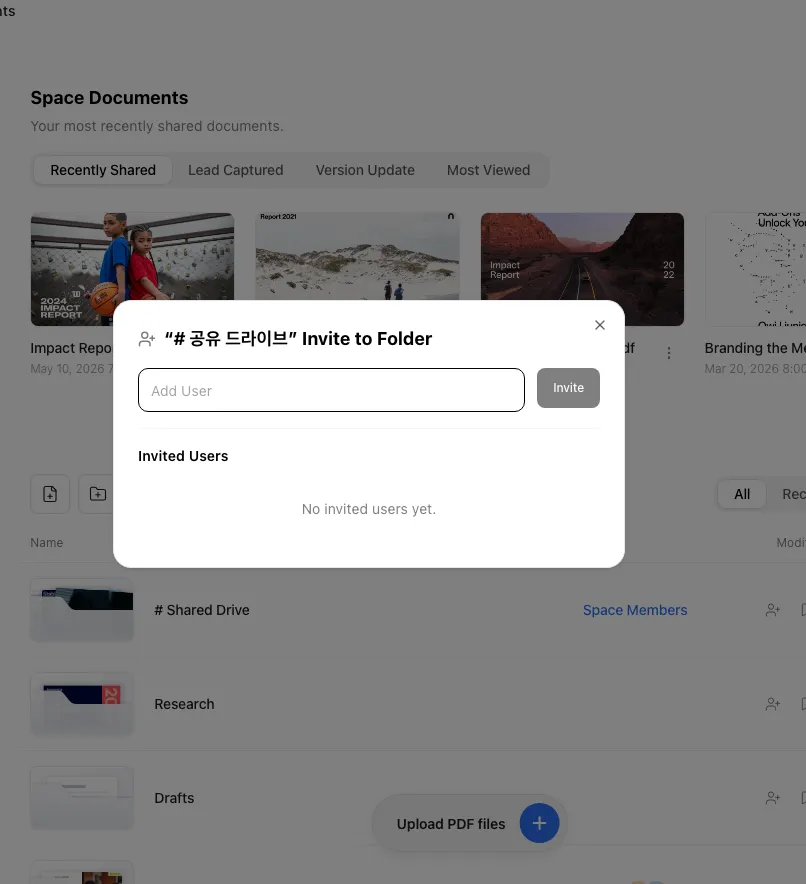
Access in FeatPaper is granted per folder, not per document, and comes in three levels: Viewer, Editor, and Admin. You grant Viewer and Editor in the folder invitation dialog, where they appear as can view and can edit. Admin is a space role, set once for everyone.
Choose between Viewer, Editor, and Admin
Section titled “Choose between Viewer, Editor, and Admin”There are three levels. You grant Viewer and Editor folder by folder, and Admin once for the whole space.
| Level | Where you set it | What the screen says | Scope |
|---|---|---|---|
| Viewer | Folder invitation dialog | can view (Can share links) | That one folder |
| Editor | Folder invitation dialog | can edit (Can upload and edit documents) | That one folder |
| Admin | Settings > Member Management (Role) | Admin | The whole space |
- The owner who created a folder holds exactly the same permissions as an Editor. No higher tier separates the two.
- The other space role is Member. A member uploads and shares documents but cannot invite people, change billing, set branding, or configure a domain.
- The plan comparison table lists this as Role permissions (Viewer / Editor / Admin) and marks it available on Business and Enterprise. See Invite your team.
Compare what a Viewer and an Editor can do
Section titled “Compare what a Viewer and an Editor can do”In one line: someone with can view opens documents and copies links. Someone with can edit changes documents and link settings.
| Action | Viewer (can view) | Editor (can edit) |
|---|---|---|
| Open documents in the folder | Yes | Yes |
| Copy the Open-access link | Yes | Yes |
| Copy the Lead capture link | Yes | Yes |
| Create a new Per-recipient link | No | Yes |
| Copy the Public web link (once it has been issued) | Yes | Yes |
| Change per-link share settings | No | Yes |
| Upload a new version | No | Yes |
| Edit, move, or delete a document | No | Yes |
| Rename, move, or delete the folder | No | Yes |
| Invite people to the folder | No | Yes |
How folder permissions are inherited
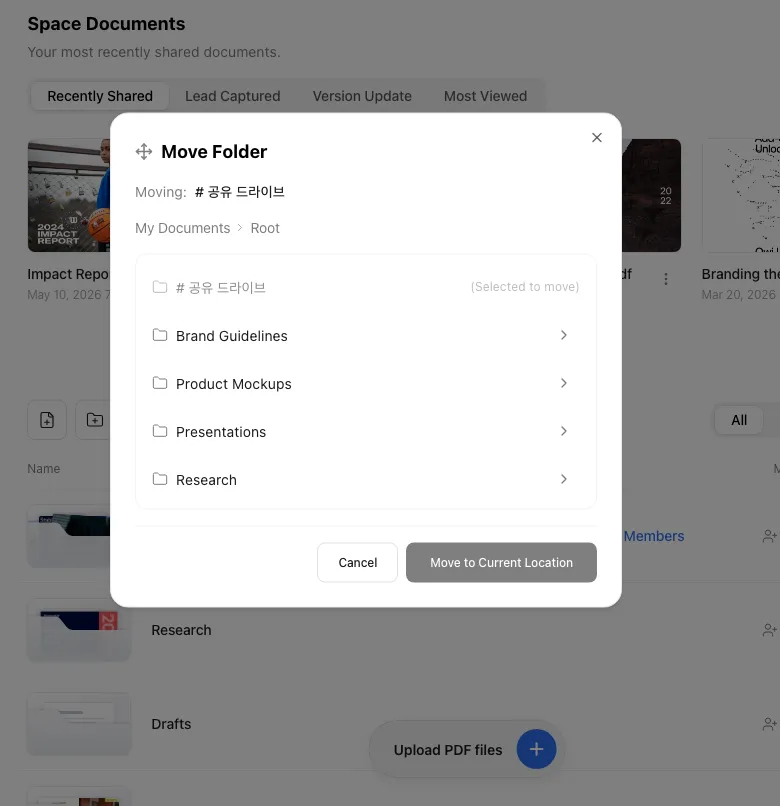
Section titled “How folder permissions are inherited”Documents have no permissions of their own. A document always follows the folder it sits in.
| Structure | How it behaves |
|---|---|
| Folder permissions | Everyone invited to the folder can open every document inside it. |
| Subfolders | A subfolder inherits from its parent. Invite someone to the subfolder alone and they gain extra access to that subfolder only. |
| Moving a document | After the move, the destination folder’s permissions apply. |
| Unsharing a folder | Access to that folder and everything beneath it is revoked at once. |
Folder permissions and per-link share settings are two different axes
Section titled “Folder permissions and per-link share settings are two different axes”Folder permissions govern the dashboard. Per-link share settings govern whoever opens a link. Neither one inherits from the other.
- Folder permissions decide whether a space member can find, open, edit, and manage that document in the dashboard.
- Per-link share settings decide what the person holding that link sees. Click Share settings on the right of a link row — a slider icon with a text label — to open the share settings dialog titled with that link’s name (for example “Investor A Share Settings”), which slides in from the right of the screen.
You control these per link: Viewer Type, PDF Download, and Viewing Period Settings (expiry). View Notification in the same dialog is saved per link as well, and is shared by everyone who manages that link. The same dialog holds the communication channels, the access restrictions (Email allow list and Password), and Disable this link now.
Ways to use this
Section titled “Ways to use this”Permissions land where you want them once you pair them with your folder structure and with per-link share settings. Three combinations people reach for most.
Tighten folder permissions alone and the links you already sent keep opening; lock the links alone and dashboard access stays. FeatPaper keeps these deliberately on separate axes, so you can adjust internal reach and external reading conditions without one disturbing the other.
Frequently asked questions — folder permissions
Section titled “Frequently asked questions — folder permissions”Can I give one document a different permission?
No. There are no per-document permissions. A document always follows its folder, so move it into a separate folder and invite only the people you want to that folder.
What is the difference between can edit and can view?
can edit (the Editor level) covers uploading and editing documents, uploading new versions, creating per-recipient links, changing per-link share settings, deleting the folder, and inviting people. can view (the Viewer level) covers opening documents in the folder and copying the Open-access link and the Lead capture link. Someone with can view cannot change share settings, upload a version, or edit a document.
Can a Viewer create share links and send them out?
Someone with can view can copy the Open-access link, the Lead capture link, and — once it has been issued — the Public web link. What they do not get is the create button for Per-recipient links or the Integrations section with the email-tool links. Ask an Editor or the folder owner when you need one of those.
What is the difference between a folder owner and an Editor?
Nothing functional. The owner who created the folder and anyone invited with can edit both manage documents and links, invite people, and delete the folder.
Can I set a different permission on a subfolder?
Yes. A subfolder inherits from its parent by default, but inviting someone to the subfolder grants extra access to that subfolder only.
If I remove someone from the parent folder, do they lose subfolder access too?
Yes. Unsharing a folder revokes access to everything beneath it right away. To keep one subfolder open for that person, invite them to the subfolder before you remove them from the parent.
What happens to invited teammates when I move a document to another folder?
The document follows the destination folder. Anyone whose access came only from the original folder loses it, and only people with access to the destination folder can see it.
If I downgrade someone to Viewer, does their screen update right away?
No. A permission change or a removal does not reach a screen the other person already has open. They have to refresh or reopen the folder before the new permission applies.
Nobody was invited to the folder my space created automatically, so why can the whole team see it?
The # Shared drive folder created with your space is not invited person by person. It is open to every space member. An empty invited-users list is normal there, and the list shows Space Members instead of avatars. You cannot exclude one person from it, so move the document to another folder when you need to narrow access.
What happens to the documents and links inside a folder I delete?
Deleting a folder deletes its subfolders and every document inside, permanently. Access granted through that folder disappears with the documents. Share links you already sent no longer point at anything and stop opening. There is no undo, so delete carefully. Moving a document between folders keeps its links and its accumulated view count intact.
Frequently asked questions — links and share settings
Section titled “Frequently asked questions — links and share settings”I set different share settings on each link — how does that relate to folder permissions?
They are two different axes. Folder permissions decide whether a space member can find and manage that document in the dashboard (open or edit). Per-link share settings decide what happens to whoever opens that one link: Viewer Type, PDF Download, viewing period, View Notification, and access restriction (Email allow list, Password). Each link carries its own copy of those settings. To change them you need owner or can edit permission on the folder holding the document. Someone with can view can copy a link but cannot open its share settings.
Do the Email allow list and Password apply to folder permissions too?
No. Both are access restrictions on that one link, and neither inherits to the folder or to other links. If a document has several links, set the restriction on each one. The Email allow list also accepts a whole domain in the @example.com form.
Can a Viewer open a document that was shared through a link?
Yes. Opening a share link has nothing to do with folder permissions. Anyone holding the link can open the document whether or not they are a space member. Folder permissions only govern finding and managing documents in the dashboard.
If I move a document that already has share links out there, do the links break?
No. Link addresses stay the same through a folder move, and the accumulated view count is not reset. All that changes is which teammates can reach the document in the dashboard.
If I remove a Viewer from a folder invitation, do the per-recipient links they sent stop working?
No. Per-recipient links belong to the document, not to the folder invitation. Removing someone from the invited-users list only cuts their tie to the folder, and links they already sent keep working. The view counts, viewer records, and contact data collected through those links stay on the document, so the owner and the remaining Editors still see them per link in the Insights tab. Removing someone from the space itself is a separate action.
I can't find the Performance tab on the document detail page.
It was renamed Insights. The document detail page now has Content, Share, Insights, and Viewers tabs. Everything from the old Performance tab — view counts, completion, viewer records — lives in Insights. For per-link results, press View analytics on a link row in the Share links tab. The open-access link and the Public web link open Insights. The lead capture link and the form integration open Viewers > Contacts, and per-recipient links open Viewers > Dedicated link visitors.
Why does it say Admin-only page?
Because your space role is Member. Admin-only screens such as Billing & Plans, Usage, Custom Domain, and Logo Settings show an Admin-only page card instead. The text reads “This page is only accessible to space admins. Please contact an admin if you need access.” and a Go to home button appears with it. Ask a space admin to change your role.
Key points
Section titled “Key points”- Permissions come in three levels: Viewer, Editor, and Admin. Viewer and Editor come from folder invitations, and Admin is a space role.
- Documents have no permissions of their own. A document follows its folder, and a move hands it to the destination folder’s permissions.
- Someone with can view opens documents and copies the Open-access link and the Lead capture link. Someone with can edit changes share settings, uploads versions, and creates per-recipient links.
- Folder permissions and per-link share settings are separate axes. The Email allow list and Password never inherit — they bind to one link.
- Role permissions are a Business and above feature in the plan comparison table.