
Settings tour
Settings keeps account, space, and billing controls in one place. Two of them shape everyday work: view-notification rules, which decide what reaches your inbox, and communication channels, which put a contact link in front of the person reading your document.
How the settings page is organized
Section titled “How the settings page is organized”Clicking Settings in the sidebar opens Account Settings first, with three sections listed on the left: Account, Space, and Access & Billing.
| Section | Tab | What it holds | Access |
|---|---|---|---|
| Account | Account Settings | Email, name, position, phone, notification email, account deletion | Everyone |
| Account | Communication Settings | Channels shown in the web viewer (CTA title and contact links) | Everyone |
| Account | Notifications | Default view-notification rules and the cooldown | Everyone |
| Account | Connections | Slack notifications and your Notion account → Connections | Everyone |
| Space | Space Information | Space name, description, company name → Space settings | Admin |
| Space | Member Management | Invites and roles → Invite your team | Admin and member |
| Space | Custom Domain | Your own domain → Connect a custom domain | Admin, Enterprise |
| Space | Analytics Exclusion | Leave internal views out of your totals → Keep internal views out of your analytics | Admin |
| Space | Logo Settings | Logo in the web viewer → Customize your brand | Admin, Pro and above |
| Space | Lead Form | Edit the space’s default lead form → Set up a lead form | Admin |
| Access & Billing | Pricing | Plan cards, billing cycle, and checkout → Compare plans and pricing | Admin |
| Access & Billing | Billing & Plans | Current plan, payment method, invoices, users → Compare plans and pricing | Admin |
| Access & Billing | Usage | Uploads, file sizes, and AI credits for this cycle → AI credits and usage | Admin and member (members see this cycle and plan limits only) |
The three tabs without a page of their own — Account Settings, Communication Settings, and Notifications — are covered below.
Account Settings
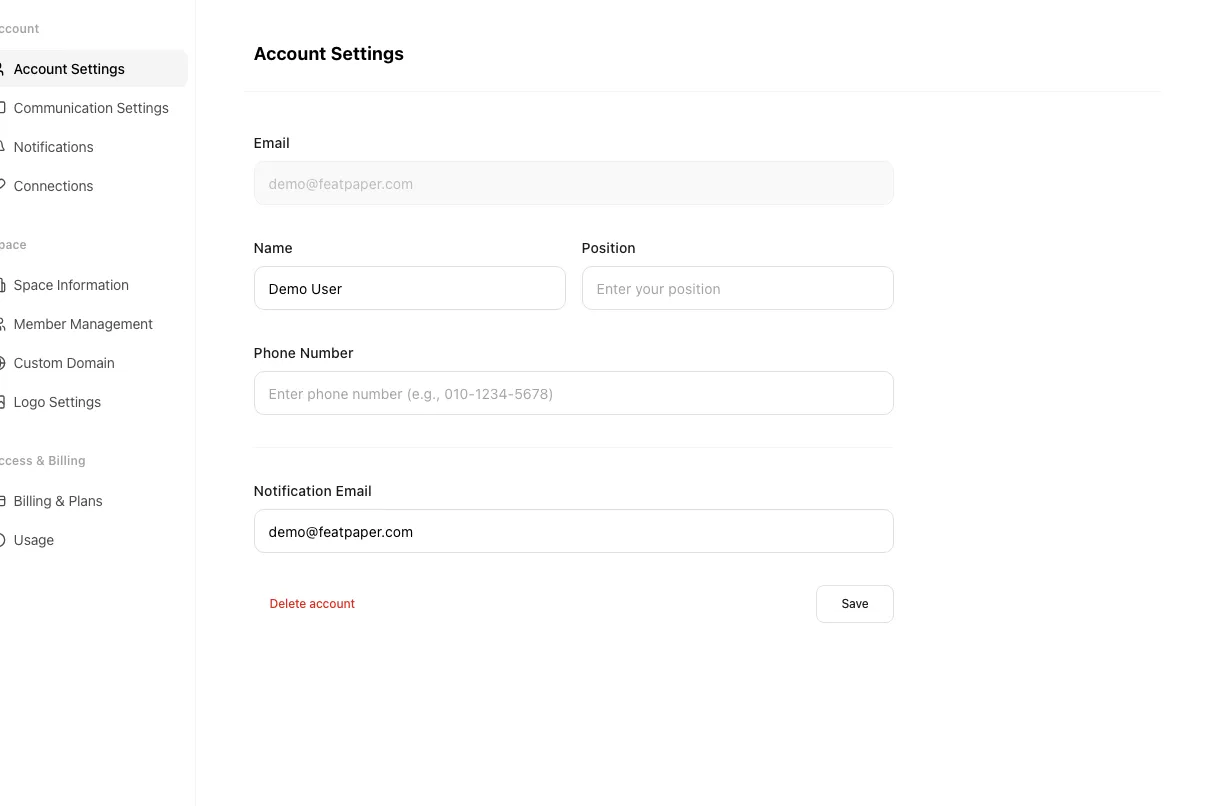
Section titled “Account Settings”This tab holds your personal profile.
| Field | Notes |
|---|---|
| Your login email. Read-only here. | |
| Name · Position · Phone Number | Profile details. Hyphens in a phone number are accepted, as in 010-1234-5678. |
| Notification Email | Where view notifications are sent. It can differ from your login email. |
Click Save to apply changes.
Delete your account
Section titled “Delete your account”The Delete account button sits at the bottom of the tab, to the left of Save.
Click Delete account
A confirmation dialog opens, titled “Delete your account?” It states that all of your documents, data, and team memberships will be permanently removed, and that once you delete your account the action cannot be undone.
Type the confirmation word
The confirm button starts disabled. Type the deletion keyword shown in the dialog to enable Delete account.
Confirm
Click Delete account. The account is deleted and you are logged out right away.
Communication Settings — the contact popup in the web viewer
Section titled “Communication Settings — the contact popup in the web viewer”Contact options that appear in the lower-right popup of the web viewer are managed as channels. Build several channels and show a different one per link, such as one for sales and one for technical support. The preview on the left shows how each looks while you edit.
Select or add a channel
Registered channels appear as chips at the top right, with the selected one highlighted. Click Add channel to create another.
Fill in the channel
Enter the Channel name and a CTA title — the greeting viewers see, such as “Hello”.
Add contact links
Click Add link and set each link’s Type (website, email, or phone), its Label such as “Visit our site”, and its Value. Add several, reorder them, or delete one.
Save
Click Save to store the channel.
Channel count depends on your plan. At the limit, Add channel shows a message naming the maximum and opens the plan screen.
| Plan | Channels |
|---|---|
| Starter · Pro | 3 |
| Business | 5 |
| Enterprise | Unlimited |
Notifications — view-notification rules
Section titled “Notifications — view-notification rules”The Notifications tab sets four axes: whose reads to hear about, how engaged they have to be, how often, and where. Out of the box, everything is on: all three viewer types under Who to be notified about (Per-recipient link, Lead form submitters, Unknown viewers), All views as the minimum interest level, and both Email and — once connected — Slack as channels. That’s why anonymous views on an open-access link notify you by default. Your own reads aren’t filtered either: open your document while signed in and it can notify you like anyone else’s. What does stay quiet is a read from an office IP registered on the Settings > Space > Analytics Exclusion tab (Analytics Exclusion, admins only) — that list lives there, not on the Notifications tab. The line at the top of the screen reads “Set default rules so only meaningful view notifications reach you. Per-document notification toggles still apply.” Those toggles are the View Notification switch in each link’s Share Settings, set link by link.
These rules are saved on your account, not on the space. They follow you when you switch spaces, and they change nothing for other admins in the same space.
The five gates a read has to pass
Section titled “The five gates a read has to pass”For one read to become a notification, it has to clear every condition below. Fail one and that read stays silent. “I’m not getting notifications” is almost always one of these five.
| # | Gate | Where it is set | If it fails |
|---|---|---|---|
| 1 | The read doesn’t match an analytics exclusion rule | Settings > Space > Analytics Exclusion (admins) | A read from a registered office IP counts as neither a notification nor a view. Your own signed-in reads pass this gate like any other. |
| 2 | View notification is on for that link | The link’s share settings > View notification | Nothing arrives, whatever your account rules say. |
| 3 | The audience is checked | Notifications tab ① | The read is dropped without sending. |
| 4 | The read clears the minimum interest level | Notifications tab ② and ③ | Not cancelled — held (see below). |
| 5 | No cooldown is running | Notifications tab ④ | Repeat notifications are skipped until the cooldown ends. |
Past that, delivery goes only to the notification channels (⑤) you switched on. With both email and Slack on, one read produces two messages.
Every control, option, and default
Section titled “Every control, option, and default”Top to bottom, the tab holds five blocks and a Save button.
| # | Control | Type | Options | Default |
|---|---|---|---|---|
| ① | Who to be notified about — Per-recipient link | Checkbox | On / Off | On |
| ① | Who to be notified about — Lead form submitters | Checkbox | On / Off | On |
| ① | Who to be notified about — Unknown viewers | Checkbox | On / Off | On |
| ② | Minimum interest level | Radio | All views / Warm or above / Hot only | All views |
| ③ | Always notify on repeat views | Checkbox | On / Off | On |
| ④ | Repeat notification cooldown | Radio | Off — notify every time / 30 minutes / 6 hours / 24 hours | Off — notify every time |
| ⑤ | Notification channels — Email | Switch | On / Off | On |
| ⑤ | Notification channels — Slack | Switch | On / Off | On (only sends once Slack is connected) |
Saving shows “Notification settings saved.” A failure shows “Failed to save notification settings. Please try again.” and leaves your values on screen.
① Who to be notified about — whose reads reach you
Section titled “① Who to be notified about — whose reads reach you”“Choose which kinds of viewers trigger a notification.” Viewers fall into three kinds by how their identity was resolved, and only the kinds you check produce notifications.
| Audience | What it means | Which reads land here | Default |
|---|---|---|---|
| Per-recipient link | Someone who opened a link you created for a named recipient on the Share links tab | Reads through a per-recipient tracking link, and reads that carry a name or email | On |
| Lead form submitters | A viewer who submitted the lead form | Reads where the form was filled in before the document opened | On |
| Unknown viewers | An anonymous viewer with no identity | Open-access links and Public web links, where no identity is left behind | On |
② Minimum interest level — how engaged a read has to be
Section titled “② Minimum interest level — how engaged a read has to be”The screen calls this Minimum interest level and describes it as “Uses the same engagement levels (Hot/Warm/Cold) as the dashboard. Only notify at or above this level.” It reads the same score as the Interest badge on the viewer list.
- All views — notify regardless of level (default)
- Warm or above — Warm and Hot reads only
- Hot only — Hot reads only
The score runs out of 100 and combines four inputs. Reading breadth is how much of the document was seen. Reading depth is total dwell time plus the longest time on one page. Return visits counts how many times they came back and how many pages they read twice. Actions covers PDF downloads and clicks on links inside the document. A bonus applies when return visits and close reading appear together, and when someone who submitted the lead form comes back. 50 and up is Hot, 25 and up is Warm, below that is Cold. Hovering the badge on the viewer list shows “Interest score N/100 — combines pages covered, time spent, revisits, and download/link-click actions.” and the score breakdown lists each component.
Always notify on repeat views (③, on by default) — “If the same viewer opens the document again, you’ll be notified even below the interest threshold.” From the second visit onward the interest floor is skipped, because coming back is itself the signal. Clear the checkbox and repeat visits have to clear the threshold like any other read.
④ Repeat notification cooldown — fewer pings from the same person
Section titled “④ Repeat notification cooldown — fewer pings from the same person”“When the same person reopens the same document within this window, skip the repeat notification.” The default is off, so unless you turn it on, every reopen notifies you.
| Value | Behavior |
|---|---|
| Off — notify every time | Every reopen sends a notification. This is the default. |
| 30 minutes / 6 hours / 24 hours | Reopens within that time of the last send are skipped. |
⑤ Notification channels — email and Slack
Section titled “⑤ Notification channels — email and Slack”Email and Slack are both on by default and toggle independently — Slack only sends once a workspace is connected. The setting lives on your account, so it isn’t shared with other admins.
- Email — goes to the Notification Email in Account Settings. Leave that blank and it goes to your login email.
- Slack — you connect Slack on the Settings > Account > Connections tab, not here on Notifications. Once a workspace is connected in Connections, messages go to the channel you picked under Select notification channel. Without a connection the row carries a Not connected badge, and flipping the switch shows “Connect Slack first — Slack isn’t connected yet. Connect it to receive notifications on Slack.” instead of turning on. Go to connections takes you to the Connections tab.
- Disconnect Slack later and the switch shows as off again while Slack notifications stop. Reconnect, then switch it back on.
- Turn both channels off and you stop all view notifications — even with View notification on for the link.
Notification language
Section titled “Notification language”The globe icon at the right of the content header sets the language — Korean, English, or Japanese — and saves it on the server, so your notification emails and Slack messages arrive in that language.
- In scope: view notifications by email and Slack, access requests on a disabled link, Slack tests, data room inquiries
- Out of scope: mail sent to outside recipients, such as invitations, automatic document delivery from the lead form, and memo sharing
- If you never picked a language from the globe icon, FeatPaper falls back to the interface language you last used in the dashboard. With no record of that either, view-notification emails and Slack messages go out in English. Pick your language from the globe icon once to be sure.
- If saving fails, a message explains that the interface language changed while notification emails keep the previous language.
Which notifications you receive, and where each one is controlled
Section titled “Which notifications you receive, and where each one is controlled”Separating the alerts your Notifications rules govern from the ones that arrive on their own terms makes “why did I get this?” quick to answer.
| Notification | When it arrives | Notifications-tab rules apply | Where to turn it on or off |
|---|---|---|---|
| Document view notification | A viewer opens the document and clears every gate | All of them — audience, interest level, cooldown, channels | The link’s share settings > View notification, plus the Notifications tab |
| Access request on a disabled link | Someone opens a disabled link and clicks Request access | Not applied — always goes to your Notification Email | Can’t be turned off. Reactivating the link removes the request itself. |
| Data room inquiry | The inquiry form on a data room’s public page is submitted | Not applied | The Show contact details toggle and the recipient address in data room editing |
| Slack test message | You click Send test notification on the Connections tab | Not applied | Sent manually, once |
| Payment failure notice | A recurring card payment fails | Not applied | Can’t be turned off. |
No notifications arriving? Check in this order
Section titled “No notifications arriving? Check in this order”Is View notification on for that link?
On the document’s Share links tab, open that link’s share settings and check View notification. A document created before this feature existed has no stored value and is treated as off.
Is that audience checked?
Anonymous reads through an open-access link need Unknown viewers checked. It’s on by default, so check whether it was cleared when the rules were last saved.
Is the minimum interest level too high?
If you saved Warm or above or Hot only, a read that opened and closed sends nothing. Switch back to All views (the default) to hear about everything.
Is a cooldown running?
With 30 minutes, 6 hours, or 24 hours set, the same person reopening the same document is skipped for that long.
Are the channels on and connected?
Check that Email isn’t off, and that Slack doesn’t carry the Not connected badge. For email, confirm the Notification Email address in Account Settings and check your spam folder.
Was it filtered by Analytics Exclusion?
Reads from an office IP registered under Settings > Space > Analytics Exclusion (Analytics Exclusion) never notify. If you tested from the office, that rule is the likely reason. Opening the document yourself while signed in doesn’t block anything — those reads notify as usual.
Billing & Plans and Usage
Section titled “Billing & Plans and Usage”The Access & Billing section has three tabs: Pricing, Billing & Plans, and Usage. The first two are admin-only; members can open Usage.
-
Pricing — pick a plan from the plan cards and billing-cycle toggle and go straight to checkout. View feature comparison opens the full table.
-
Billing & Plans — a summary card with your plan, billing cycle, seats in use, and next invoice, plus the payment method (Update card) and an Invoices table with date, total, status, and download. Starter spaces have no summary card. Seat increases and decreases start here too.
-
Usage — This cycle shows uploads and AI credits. Your plan limits lists PDF size, Video, GIF, and per-recipient links, with the reset date alongside. The Video and GIF rows carry a file size and the per-document count the two share.
See Compare plans and pricing and AI credits and usage for the numbers.
Ways to use this
Section titled “Ways to use this”Button and shortcut reference
Section titled “Button and shortcut reference”The buttons people look for most on this screen.
| Button / element | Where | What it does |
|---|---|---|
| Settings | Sidebar, bottom | Opens the settings page on Account Settings, with three sections listed on the left. |
| Save (Account Settings) | Bottom of the tab | Saves name, position, phone, and notification email. |
| Delete account | Bottom of the tab, left of Save | Opens the confirmation dialog, which enables only after you type the deletion keyword, then removes everything and logs you out. Cannot be undone. |
| Channel chip | Communication Settings, top right | Selects that channel so you can edit its name, CTA title, and contact links. |
| Add channel | Communication Settings, next to the chips | Adds a channel, or at the plan limit (3 on Starter and Pro, 5 on Business) names the maximum and opens the plan screen. |
| Add link | Communication Settings, contact links section | Adds a row for type, label, and value. |
| Audience checkboxes | Notifications tab ① | Notifies you only for the kinds you check: Per-recipient link, Lead form submitters, and Unknown viewers — all on by default. |
| Minimum interest level | Notifications tab ② | Sets the floor — All views (default) / Warm or above / Hot only — and holds a read below the level rather than cancelling it. |
| Always notify on repeat views | Notifications tab ③ | Notifies you on a repeat read by the same viewer regardless of the interest floor (on by default). |
| Repeat notification cooldown | Notifications tab ④ | Skips repeats from the same person on the same document for 30 minutes, 6 hours, or 24 hours (off by default). |
| Channel toggles | Notifications tab ⑤ | Turns Email and Slack (both on by default) on or off separately, and a Not connected Slack won’t switch on until you use the connection prompt. |
| Save (Notifications) | Bottom of the Notifications tab | Saves the rules. If you’ve never saved, it works even with nothing changed so you can confirm the defaults; after that it’s disabled until something changes. Until you save, every read notifies you. |
| View notification | The link’s share settings | Gates that link first (saved per link) — with it off, nothing arrives whatever the Notifications tab says. |
| Globe icon | Content header, right side | Switches the interface language and saves the language used for notification email and Slack. |
Shortcut: Open Settings
Frequently asked questions
Section titled “Frequently asked questions”Can my login email and my notification email be different?
Yes. The login email is read-only in Account Settings, and view notifications go to whatever address you enter under Notification Email.
One person reopens a document and I get a notification every time. Can I reduce that?
Turn on Repeat notification cooldown on the Notifications tab and pick 30 minutes, 6 hours, or 24 hours. Reopens by the same person on the same document inside that window are skipped. The default is Off — notify every time. Always notify on repeat views is a different option: it adds notifications for repeat reads that fall below your interest threshold.
I'm getting way too many view notifications. Can I cut them down?
On the Notifications tab, clear Unknown viewers and raise the Minimum interest level to Warm or above or Hot only. Adding a cooldown on top trims the repeats from the same person. And if you have never pressed Save on this tab, every read is notifying you regardless of what the screen shows — set the values you want and save them.
I'm not getting document view notifications. Where do I look?
In this order. ① Is View notification on in that link’s share settings? ② Is that read’s audience checked under Who to be notified about — if Unknown viewers was cleared and saved, anonymous reads through an open-access link send nothing. ③ Did you raise the Minimum interest level to Warm or above or Hot only, filtering out a read that opened and closed? ④ Is the read inside a Repeat notification cooldown window? ⑤ Is Email off, or does Slack show Not connected? Finally, if you tested from the office, check whether a registered office IP under Analytics Exclusion filtered it. Reads you open yourself while signed in aren’t filtered and notify as usual.
I opened the document through an open-access link and got nothing.
Most likely Unknown viewers under Who to be notified about was cleared and saved — it’s on by default. Reads through an open-access link or a Public web link leave no identity, so they land in that category. Check Unknown viewers and save, and also confirm the link’s View notification toggle and your interest level. The reads themselves are still recorded in the document’s analytics either way.
My view notification arrives long after the read started.
This is expected if you saved Warm or above or Hot only. A read below the Minimum interest level isn’t discarded — it is held, and sent once the viewer keeps reading and reaches Warm or Hot. Set the level back to All views (the default) to be notified the moment the document opens.
I set Hot only but I still get notifications about Cold viewers.
Two exceptions. Lead form submitters left contact details, which is a clear signal, so they bypass the interest floor entirely. And Always notify on repeat views (on by default) notifies you from a viewer’s second visit onward regardless of score. Clear that checkbox and repeat visits have to clear the floor as well.
How is the interest level decided?
The score runs out of 100 and combines four inputs. Reading breadth is the share of pages seen. Reading depth is total dwell time plus the longest time on one page. Return visits counts how many times they came back and how many pages they read twice. Actions covers PDF downloads and clicks on links inside the document. A bonus applies when return visits and close reading appear together, and when someone who submitted the lead form comes back. 50 and up is Hot, 25 and up is Warm, below that is Cold. The interest badge on the viewer list shows the score and its breakdown, and notifications use exactly these levels.
Are notification settings separate per space?
No. The rules on the Notifications tab — audience, interest level, repeat views, cooldown, channels — are stored on your account. They follow you when you switch spaces and change nothing for other admins in the same space. The View notification toggle, by contrast, is saved on each link and is the same for every admin who manages that link.
With both email and Slack on, do I get two notifications?
Yes. One read produces one email and one Slack message. Turn the other channel off under Notification channels if you only want one. Turning both off stops all view notifications.
Viewer names in my notifications show as ***.
On Starter, notifications for a document more than 7 days past upload mask the viewer’s details. The notification itself keeps arriving; a paid plan is what reveals the name and email.
My notification emails arrive in the wrong language. Can I change that?
Yes. Pick your language from the globe icon at the right of the content header. The choice is saved on the server, so later view notifications by email and Slack use it. If you have never picked one, FeatPaper falls back to the interface language you last used, and to English when there is no record of that. Mail to outside recipients, such as invitations, is not covered by this setting.
Can I set notifications differently per link (per document)?
Yes. The View notification toggle in a link’s share settings is the first condition, and the personal rules on this screen — audience, interest level, cooldown, channels — are the second. The two combine with AND: with the link toggle off no personal rule produces a notification, and with the link toggle on a personal rule can still filter the read out. The toggle is saved per link, so switching one link off silences only reads through that link; the document’s other links keep notifying.
My older document never sends a view notification.
A document created before notifications existed has no stored toggle value, so it is treated as off. Open that link’s share settings and switch View notification on once.
Can I create more than one channel?
Yes. Use Add channel in Communication Settings. Many teams keep one channel with sales contacts and another for technical support, then show whichever fits the document.
How many communication channels can I create?
Starter and Pro allow 3, Business allows 5, and Enterprise is unlimited. At the limit, Add channel names the maximum and opens the plan screen.
Can I show a different channel on each link?
Yes. Channels are built here, and the channel a link shows is picked under the Communication toggle in that link’s share settings. That is how one document shows different channels on its open-access link and its information-form link. See Share with a link.
Where do the communication channels show up?
In the lower-right popup of the web viewer, as the CTA title plus your contact links. The preview on the left of the edit screen shows the position. If a document shows no contact options, check that link’s Communication toggle and the channel selected for it.
Several admins shared the same document. Who gets the view notification, and how?
The link toggle is saved per link and shared by the admins who manage it; the personal rules are stored per admin. Each admin gets mail at their own Notification Email when a read matches their own rules. Turning off a link’s View Notification stops it for every admin who manages that link, while changing your rules in Settings > Notifications affects only you. Slack follows the channel each person connected, so nothing is forwarded to a shared team channel automatically. If two admins picked the same channel, that channel receives one message per admin.
How do I receive view notifications in Slack?
Connect a Slack workspace on the Settings > Account > Connections tab (Connections), pick a channel there, then turn on Slack under notification channels here. While Slack is unconnected, turning it on offers the connection shortcut first.
How do I delete my account, and can I undo it?
On Account Settings, click Delete account to the left of Save. The confirm button enables only after you type the deletion keyword. Confirming removes the account with all documents, data, and team memberships, and logs you out immediately. It cannot be undone. If you are the only admin of a space, deletion is blocked until you hand admin rights to someone else.
I can't find the Credit usage menu.
It was renamed Usage and sits in the Access & Billing section. Besides AI credits it shows uploads and your plan limits. Starter spaces and member accounts can both open it; members see this cycle and plan limits, while the detailed usage log stays with admins.
I'm on a member account and don't see the Logo settings, Custom domain, or Pricing tabs.
This is expected. Logo Settings, Custom Domain, Pricing, and Billing & Plans are admin-only, so they don’t appear on member accounts. Opening the URL directly shows an Admin-only page card instead. Ask a space admin for changes. Member Management and Usage stay visible to members.
Key points
Section titled “Key points”- Settings has three sections — Account, Space, Access & Billing — and opens on Account Settings.
- Usage (formerly Credit usage) opens regardless of plan or role, and covers uploads and plan limits as well as credits — the detailed usage log is admin-only.
- A notification has to clear all of Analytics Exclusion (office IP) → the link’s View notification toggle → audience → minimum interest level → repeat cooldown → channel.
- The Notifications tab defaults are per-recipient link on · lead form submitters on · unknown viewers on · All views · always notify on repeat views on · cooldown off · email on · Slack on (once connected). Until you save once, the server has no rule and every read notifies you.
- When notifications stop, check in this order: the link’s View notification toggle → whether Unknown viewers was cleared or the interest level raised when you saved → cooldown → channels → Analytics Exclusion. Your own reads do notify.
- Notification email and Slack arrive in the language picked from the globe icon; with no choice saved, the last interface language is used, and English after that.
- Communication channels are capped at 3 on Starter and Pro, 5 on Business, unlimited on Enterprise, and the channel shown is chosen per link.
- Account deletion needs the confirmation word, cannot be undone, and is blocked for a sole admin.