
Invite people to a folder
Invite a space member to a folder and one permission covers every document inside it. You pick can view (viewer) or can edit (editor) as you invite.
Can I share a folder with someone outside my team? — folder invitations reach space members only
Section titled “Can I share a folder with someone outside my team? — folder invitations reach space members only”You can invite only people who have already joined your space. Someone who is not a space member yet has to be invited to the space and accept first.
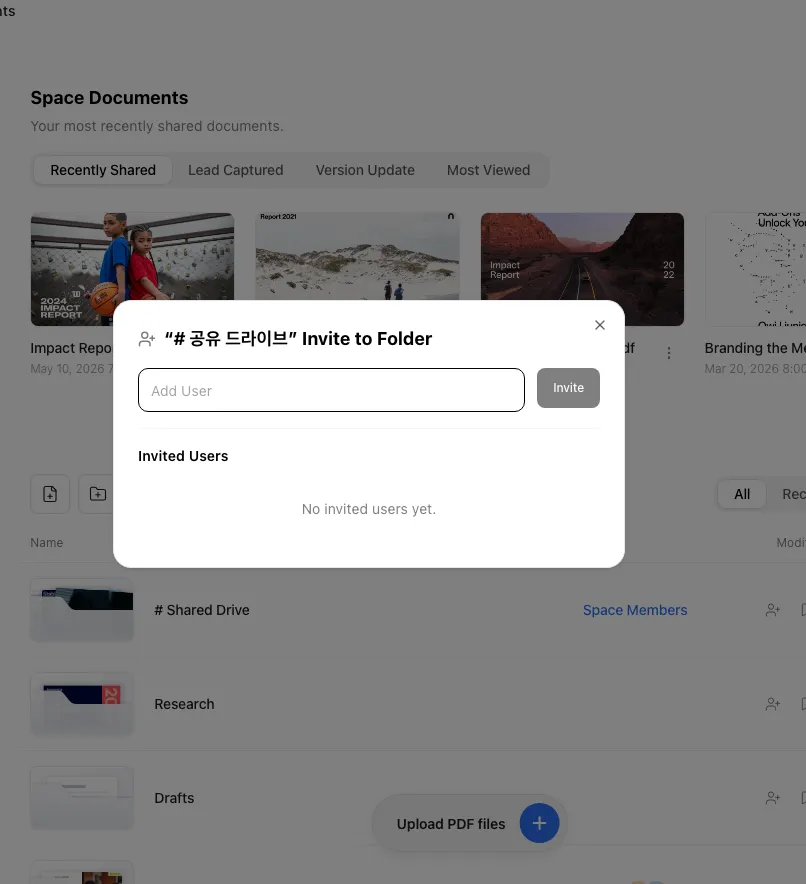
Invite people
Section titled “Invite people”Open the invitation dialog
Two routes lead to the same dialog.
- In My Documents, hover a folder row or card and click the Invite (person icon) button.
- Open the folder, then click the Invite (person icon) button at the top.
Search for a member
In the Add User field, type at least 2 characters of a name or an email. Up to 5 matching space members are suggested. People already invited to this folder and people already added as tags are left out of the suggestions. Type more to narrow the list.
Add them as tags
Click a suggestion or press Enter to add it as a tag. Pressing Enter without picking a row adds the first suggestion, so type until only the person you want is left. Add as many people as you need.
Choose a permission
Once you have at least one tag, the permission menu appears. Pick can edit (Can upload and edit documents) or can view (Can share links). The default is can view, and your choice applies to every tag in this batch.
Send the invite
Click Invite and everyone you tagged gets folder access in one action.
Reach an invited folder
Section titled “Reach an invited folder”The folder appears at the top level of the invited person’s My Documents list. Clicking it opens the documents inside right away.
Read sharing status in the list
Section titled “Read sharing status in the list”The My Documents list shows a different value on the right depending on the row.
| Row type | What appears on the right |
|---|---|
| Document | That document’s view count |
| Folder with invited people | Avatars of the invited members |
| # Shared drive folder | Space Members instead of avatars |
Change an invited person’s permission
Section titled “Change an invited person’s permission”The Invited Users list at the bottom of the dialog holds everyone who can currently reach this folder.
| Permission | What the screen says | What it covers |
|---|---|---|
| can edit (editor) | Can upload and edit documents | Upload and edit documents, upload versions, create per-recipient links, change per-link share settings, delete the folder, invite people |
| can view (viewer) | Can share links | Open documents in the folder, copy the Open-access link and the Lead capture link |
Use the permission dropdown on each row to switch a person between the two. The full matrix of what each level can do is in Understand access permissions.
Cancel an invitation
Section titled “Cancel an invitation”Open the invitation dialog
Use the Invite button on the folder row, or the one at the top inside the folder.
Remove the person
Click the X button next to their name in the Invited Users list.
Folder invitations and billing
Section titled “Folder invitations and billing”A folder invitation costs nothing. Billing moves at the space level, not the folder level.
- Space member invites are a Business and above feature. On Starter or Pro, clicking Invite Member opens “Manage documents together with your team — Upgrade and get started with 3 seats.” instead of the invite dialog.
- While seats remain free, inviting a member changes nothing on your bill. Only when every seat is taken does an invite add one seat, prorated for the rest of the period and charged right away.
- Seat counts, extra seat pricing, and how to change the seat count are covered in Invite your team.
Ways to use this
Section titled “Ways to use this”A folder invitation turns into a team workflow once you combine it with the two permission levels, share links, and the Sharer filter. Three combinations people reach for most.
Drop a file into a team chat and nobody knows who holds the current copy, and a file that left cannot be recalled. A folder invitation grants access in one place instead of document by document, and when someone moves on, the permission dropdown and the X revoke it on the spot — subfolders included.
Button and shortcut reference
Section titled “Button and shortcut reference”| Button or element | Where it is | What it does |
|---|---|---|
| Invite (person icon) | Folder row or card in My Documents (on hover) | Opens the invitation dialog for that folder. Works for the owner or can edit only. |
| Invite (person icon) | Top of the folder, once you are inside | Opens the same invitation dialog. |
| Add User field | Top of the invitation dialog (the field’s placeholder reads “Add User”) | Suggests up to 5 joined space members after 2 characters of a name or email. Click or press Enter to add a tag. |
| Permission menu | Invitation dialog, after you add a tag | Applies can edit or can view to every tag in this batch. Default is can view. |
| Invite | Bottom of the invitation dialog | Grants folder access to everyone you tagged, in one action. |
| Permission dropdown | Each row of Invited Users | Switches that person between can edit and can view. |
| X | Each row of Invited Users | Removes that person’s folder access, including subfolders. |
Shortcut: Open My Documents
Frequently asked questions
Section titled “Frequently asked questions”Can I share a folder with someone outside my company?
Not through a folder invitation — those reach joined space members only. Use the document’s share link instead. It opens without a login, and you can narrow it per link with an Email allow list or a Password. To send several documents as one page, use a data room.
An outside email won't go into the folder invite box. Can I invite someone who isn't a space member?
No. Folder invitations reach people who have joined the space. Type an email that is not on the member list and it never appears in the suggestions and never becomes a tag. Someone who was invited to the space but has not accepted yet is excluded too. For a client or partner who just needs to see the documents, send a data room. For someone joining your team, invite them under Settings > Member Management first, wait for them to accept, then invite them to the folder.
I clicked Invite Member and got an upgrade prompt instead of the invite dialog.
Space member invites are a Business and above feature. On Starter or Pro you get “Manage documents together with your team — Upgrade and get started with 3 seats.” To add a colleague who is not in your space yet, move the space to Business or above first. Adding an existing space member to a folder works on any plan and costs nothing.
Does inviting someone to a folder raise my bill?
No. Attaching an existing space member to a folder costs nothing. Your bill moves only when you invite a new space member while every seat is taken. In that case one seat is added, prorated for the rest of the period and charged right away.
The invite button is disabled.
You hold can view on that folder. Ask the folder owner or someone with can edit to send the invitation.
Can I invite several people at once?
Yes. Add everyone as tags, then click Invite once. All of them get the same permission in one action.
I invited several people and only some seem to have worked. Can I see who failed?
Tags disappear from the dialog as soon as you click Invite, whether each one succeeded or not, and no failure list is shown. Open the Invited Users list below and check whether anyone you meant to invite is missing. Add the missing people as tags again and re-invite them.
Can I change an invited person's permission later?
Yes. Use the permission dropdown on their row in Invited Users to switch between can edit and can view at any time.
Can I invite a different person to just a subfolder?
Yes. A subfolder inherits from its parent by default, but inviting someone to the subfolder grants extra access to that subfolder only.
If I remove someone from the parent folder, do they lose subfolder access too?
Yes. Unsharing a folder revokes access to everything beneath it immediately. To keep one subfolder open, invite them to it before removing them from the parent.
How can I tell which folders are shared in the list?
The value on the right of each My Documents row differs by row type. A document row shows its view count, a folder with invited people shows their avatars, and the space-wide # Shared drive folder shows Space Members instead of avatars.
Do I see my own account in the Invited Users list?
Yes, but your row shows a read-only badge instead of a permission dropdown and an X button, so you cannot change or remove your own access.
I have can edit and the list seems to let me change or remove the owner. Does that actually work?
Only your own row is protected as read-only on screen. Every other row, the owner’s included, still shows the permission dropdown and the X to someone with can edit, so it looks as though you could downgrade the owner to can view or remove them. The server judges the request separately, so in practice the change usually does not stick and you get an error instead. To change an owner’s permission, ask the owner directly rather than trying it from this screen.
I clicked Invite and closed the dialog immediately. Does that cancel the invitation?
No. The request goes to the server the moment you click Invite, and closing the dialog does not stop it. Closing only clears on-screen state such as the input field and the tags. The invitation finishes and shows up in Invited Users.
Key points
Section titled “Key points”- Folder invitations reach joined space members only. Use a share link for anyone outside the space.
- The two permissions are can edit (editor) and can view (viewer), and the default is can view.
- The invitation dialog works for the folder’s owner or an editor only.
- Unsharing a folder revokes subfolder access at the same time.
- Folder invitations cost nothing. One seat is charged only when you invite a new space member with every seat taken.