
Bookmarks
A bookmark pins a document or folder to the Bookmarks section of the sidebar so you can open it in one click. Bookmarks are personal — other teammates never see yours — and they are kept separately per space.
What is a bookmark?
Section titled “What is a bookmark?”A bookmark is a personal shortcut to a document or a folder. Nobody else sees it, and each space keeps its own list. Switch to another space and you see only that space’s bookmarks; come back and the earlier list reappears untouched.
Add a bookmark
Section titled “Add a bookmark”The bookmark icon sits in three places, and every one of them feeds the same sidebar list.
From the document or folder list
Find the item
In My Documents, find the document or folder you want.
Click the bookmark icon
Hover the row and three icons appear on the right — Invite (folders) or Share (documents), Bookmark, and Edit. Click the middle Bookmark icon; a filled icon means the bookmark is saved.
From inside a folder
Open the folder
Go into the folder you want to bookmark.
Click the bookmark icon at the top
Click the Bookmark icon next to the folder name at the top to save the folder you are looking at.
From the document detail screen
Open the document
Click a document to open its detail screen.
Click Bookmark in the top toolbar
Click the Bookmark button in the top toolbar. On an already-bookmarked document the tooltip reads Remove bookmark.
Read your bookmarks in the sidebar
Section titled “Read your bookmarks in the sidebar”The Bookmarks section of the sidebar collects everything you saved.
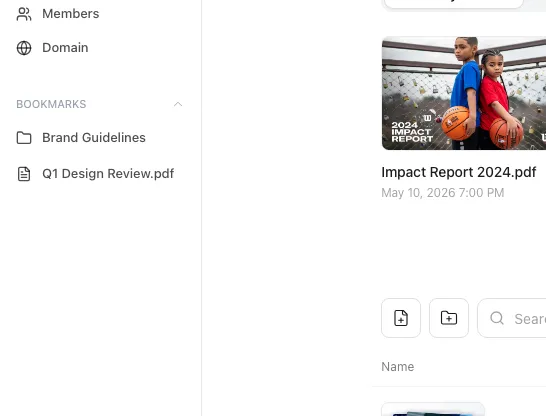
| Behavior | Detail |
|---|---|
| Item display | Folders carry a folder icon, documents a document icon, each with its name. |
| Order | Folders first, then documents. Not most-recently-added. |
| How many show | The first 6 appear; the rest sit behind Show more / Show less. |
| Navigation | Click an item to jump straight to that folder or document detail screen. |
| Highlight | The row is highlighted when the page you are on is that bookmark. |
| Collapse the section | The arrow next to the section title folds the whole Bookmarks section. |
| Empty state | With nothing saved, the section reads No bookmarks. |
Remove a bookmark
Section titled “Remove a bookmark”Click the filled bookmark icon again — from the list row, the folder header, or the document detail toolbar — and it is removed at once.
How renames, versions, and deletions are handled
Section titled “How renames, versions, and deletions are handled”Bookmarks follow the original on their own.
| What happened to the original | What happens to the bookmark |
|---|---|
| Document renamed | The sidebar label updates to the new name. |
| Folder renamed, or its memo changed | The sidebar label updates to the new name. |
| New version uploaded, or an old one restored | The bookmark moves to the new current version and keeps opening normally. |
| Only the exact version the bookmark points at is deleted | That bookmark disappears from the list automatically. |
| Document or folder deleted | The bookmark disappears from the list too. |
Ways to use this
Section titled “Ways to use this”A bookmark is a shortcut on its own, but picking the folders you’re actively working and the documents you check daily is what shortens your route.
Save a document address in your browser favorites and it goes stale the moment the document is renamed or replaced with a new version. A FeatPaper bookmark follows the original, updating on renames and version swaps, and disappearing from the list when its target does.
Button and shortcut reference
Section titled “Button and shortcut reference”| Button or element | Where it is | What it does |
|---|---|---|
| Bookmark icon (list row) | Right side of a document or folder row, on hover | Click to fill the icon and save; click again to remove. |
| Bookmark icon (inside a folder) | Top of the folder | Saves or removes the folder you are viewing. |
| Bookmark button (document detail) | Top toolbar of the document detail screen | Saves or removes the current document. Already saved, the tooltip reads Remove bookmark. |
| Show more / Show less | Sidebar Bookmarks section, past 6 items | Expands or collapses the full list. |
| Arrow next to the section title | Sidebar Bookmarks section header | Folds or unfolds the whole section. |
| Bookmark list item | Sidebar Bookmarks section | Jumps to that folder or document screen. |
Shortcut: Open My Documents
Frequently asked questions
Section titled “Frequently asked questions”How do I take one item off my bookmarks list?
There’s no remove button or ⋮ menu in the sidebar bookmarks list. Click the item to open the original document or folder, then click the filled Bookmark icon again and it drops off right away. The bookmark icon on a list row or in the document detail toolbar works the same way. Bookmarks are personal, so removing one doesn’t touch anyone else’s — your teammates never saw it in the first place.
Do other teammates see my bookmarks?
No. Bookmarks are stored per person and only you can see them. Whether or not a teammate bookmarked the same document, each sidebar shows only what its owner saved.
A document I bookmarked isn't in the sidebar.
Only the first 6 items show; the rest sit behind Show more. The order is folders first, then documents rather than most-recently-added, so with 6 or more bookmarked folders a document you just saved lands behind Show more. Also, a collapsed sidebar hides the Bookmarks section completely.
If I bookmark something in space A, does it show when I switch to space B?
No. Bookmarks are stored per space. In space B you see only space B’s bookmarks, and returning to space A brings its list right back. Nothing was lost; each space keeps its own.
I don't see the bookmark icon.
In the document and folder list you have to hover the row for the icon group (Invite or Share, Bookmark, Edit) to appear on the right. Inside a folder and on the document detail screen it is always in the top toolbar.
How many bookmarks show in the sidebar, and in what order?
Six by default, with the rest behind Show more. All folders come first, then documents, and inside each group the server’s order is kept as is.
What happens if a bookmarked folder or document is deleted?
It is no longer reachable, so it disappears from the bookmark list as well.
I bookmarked a specific version — what if that version is replaced or deleted?
A bookmark made on the document detail screen binds to the version you were looking at. Upload a new version or restore an older one and the bookmark moves to the new current version, so it keeps opening normally. Delete the exact version it points at and that bookmark disappears from the list automatically.
If I rename a bookmarked folder or document, does the sidebar label update?
Yes, both do. Renaming a document refreshes the name stored on the bookmark, and renaming a folder or changing its memo updates the sidebar label the same way.
What if my access to a bookmarked folder is revoked?
You can bookmark a folder you reached through an invitation even when you do not own it. Clicking a list item navigates without checking permission first, so after access is revoked the click can end in a denial or a blank screen. A bookmark stays in the sidebar even after your access is revoked — it does not disappear on its own, so remove bookmarks you can no longer use yourself. The only thing that clears a bookmark automatically is deleting the folder or document itself.
If I bookmark a folder, are its subfolders and documents bookmarked too?
No. A bookmark covers the one folder or document you picked. Bookmark each child item separately.
I jumped to another document from a bookmark and Insights showed the previous one.
Jumping straight to another document from the sidebar bookmarks or from global search used to change the title while the Insights and Viewers tabs kept showing the previous document’s data. The screen is now re-rendered when the document changes, so you get the data for the document you landed on.
Key points
Section titled “Key points”- Bookmarks are stored per person and per space and stay invisible to other teammates.
- Add or remove them from the list row, the top of a folder, or the document detail toolbar — the same icon everywhere.
- The sidebar shows folders first, then documents, up to 6 items, with the rest behind Show more.
- A collapsed sidebar hides the Bookmarks section.
- Renames refresh the label, and a new version moves the bookmark to the new current version automatically.