
Can I prevent PDF downloads?
Yes, you can. Turn off PDF Download in a link’s share settings and anyone opening the document through that link can read it online but cannot save it as a PDF. Download blocking is available on Pro and above, and it is set per link rather than for the whole document.
When to use it
Section titled “When to use it”- A price list or proposal you are willing to show but do not want circulating inside the other company.
- Design work or a portfolio you want reviewed without handing over the source file.
- Sending the same document internally with downloads on and externally with downloads off.
- Pairing download blocking with a viewing period and a password so only certain people, for a certain time can read it.
How to set it up
Section titled “How to set it up”Open the link's share settings
Go to the document detail and open the Share links tab. Its link list runs top to bottom as per-recipient links, the lead capture link, the open-access link, and the Public web link. Find the link you want to lock down and open its share settings.
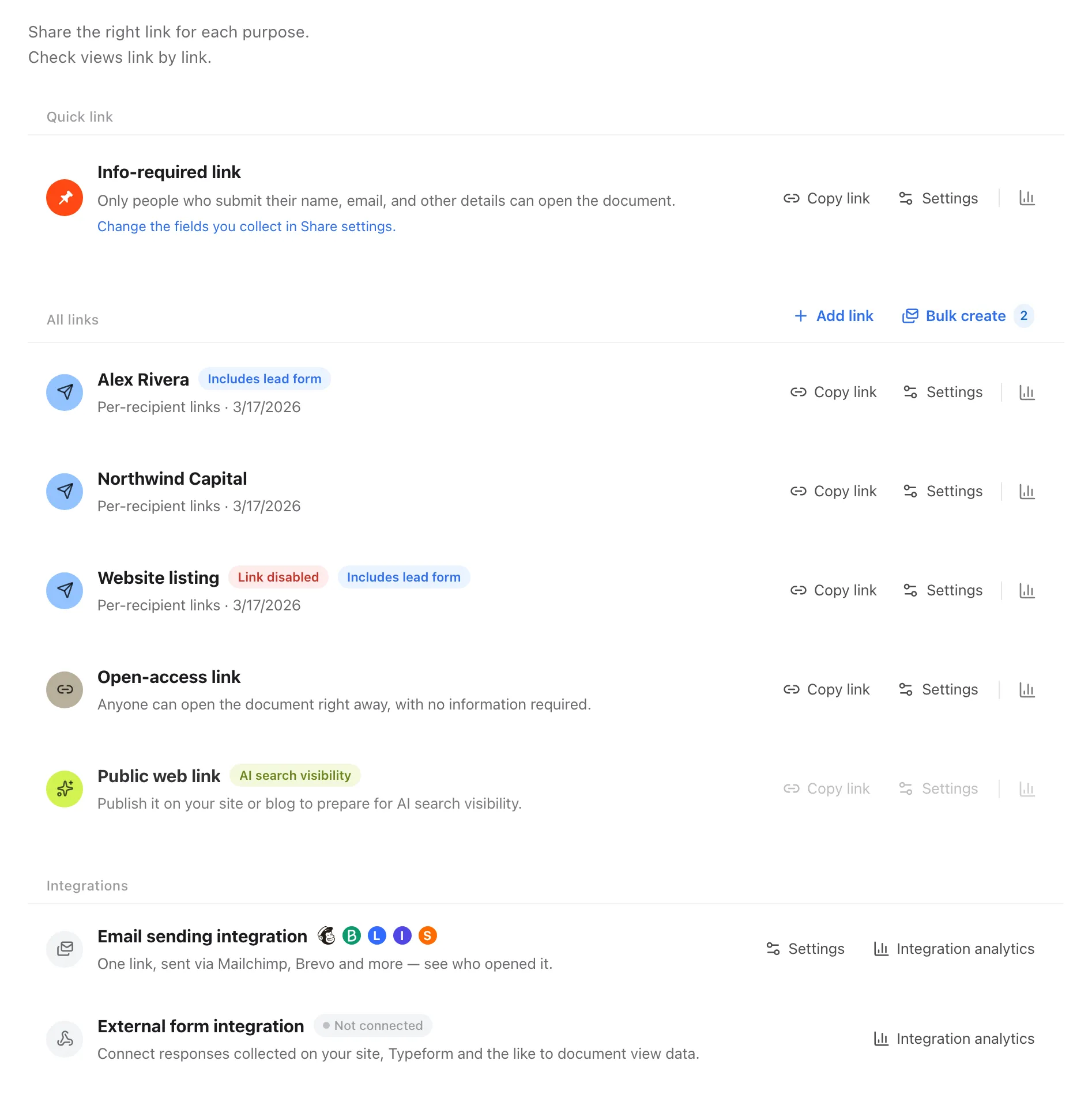
Turn off PDF Download
PDF Download is the switch for “viewers can download the PDF from the web viewer.” Turn it off and save. Every read after you save has downloads blocked, and the link address you already sent keeps working.
Add access limits if you need them
The same screen holds an email allow list (only listed addresses can open it), a password, and a viewing period (Pro and above). The link row only gets a red badge when the link cannot open right now — link disabled, email required with no one allowed, or expired with a date. Everything else, such as a password or an upcoming expiry, you check inside share settings.
Everything in per-link share settings
Section titled “Everything in per-link share settings”Effective settings are the document defaults with the link’s own settings layered on top. Two access limits are the exception — they are never inherited.
| Item | What it controls | Scope | Plan |
|---|---|---|---|
| Viewer type | For Presentation or For Report web viewer | Per link | All plans |
| Lead form settings | The fields a viewer fills in before the document opens (opens the editor) | Per document, shown only on the lead capture link | All plans |
| Communication and CTA channels | Which channels appear on the web viewer | Per link | 3 on Starter, 3 on Pro, 5 on Business |
| PDF Download | Whether the file can be saved | Per link | Pro and above |
| View notification | Sends a notification when someone reads through this link | Per link | All plans |
| Viewing Period Settings | In 7 days, in 1 month, or a date you pick | Per link | Pro and above |
| Email allow list | Only listed addresses can open it. @example.com allows a whole domain | Link only, never inherited | All plans |
| Password | The viewer enters a password to open the link | Link only, never inherited | All plans |
| Disable this link now | Shuts down this one link | Link only | All plans |
| Delete link | Removes the link | Per-recipient links only | All plans |
| Disable this document’s link now | Shuts down every link on the document regardless of expiry | Whole document, at the bottom of the dialog | All plans |
What the viewer sees
Section titled “What the viewer sees”| Situation | What the viewer gets |
|---|---|
| A link with PDF Download off | The document opens normally; only saving is unavailable |
| An expired or disabled link | A screen saying the link is invalid or has expired |
| The whole document disabled | A notice that the document is not being shared, plus a form to request access with email, company, and name |
| A link with an email allow list | An email verification step, then the document |
| A link with a password | A password prompt, then the document |
Ways to use this
Section titled “Ways to use this”Download blocking on its own only stops the file from being saved. It becomes real control when you pair it with access limits, a viewing period, and instant disabling.
Attach a PDF to an email and the file passes straight to the recipient’s disk and their internal chat, with no way to recall it. Send a link and you can show the screen without handing over the file — and if you suspect a leak, cutting that one link ends access immediately.
Good to know
Section titled “Good to know”- Starter has downloads fixed to allowed. Download blocking and the viewing period start at Pro.
- The email allow list and the password are not inherited from document settings. Set them again on each link.
- If the allow list is on with no addresses in it, nobody can open the link. The link row shows an “email required, no one allowed” summary, so check for it.
- Disabling is a soft block. The analytics collected so far are not deleted.
- Do not save while the settings dialog is still loading. Wait for the values to appear so existing limits are not cleared.
- Download blocking stops the file from being saved. It cannot stop screenshots, so pair it with a viewing period and an email allow list for anything sensitive.
Frequently asked questions
Section titled “Frequently asked questions”Can I block PDF downloads?
Yes. Turn off PDF Download in the link’s share settings and anyone opening that link can read the document but cannot save the file. Available on Pro and above.
Can I block downloads on the free Starter plan?
No. Download blocking and the viewing period start at Pro. On free Starter, downloads are fixed to allowed. See Compare plans and pricing.
What access controls are there besides download blocking?
An email allow list (use @example.com to allow a whole domain), a password, a viewing period (in 7 days, in 1 month, or a date you pick — Pro and above), disabling one link, and disabling every link on the document. See Share with a link.
If I change the setting, does it apply to links I already sent?
Yes. The new setting applies from the next read or download after you save. You do not need to recreate the link or send a new address.
A link leaked — can I cut it off right now?
Use Disable this link now inside the share settings to cut that one link, or Disable this document’s link now at the bottom to shut down every link on the document regardless of expiry. The analytics collected so far are kept.
Can I use different settings per link?
Yes. Download blocking, viewing period, viewer type, CTA channels, and view notification are all per link. The email allow list and the password are never inherited from document settings and apply only to that link.
Can I restrict a link to one company?
Add @example.com to the email allow list and only addresses on that domain can open the link. You can add individual addresses alongside domains.
Does blocking downloads also block printing?
Not confirmed. This setting is documented as blocking saving the PDF file. For material that must not leak, combine it with a viewing period and an email allow list.
Key points
Section titled “Key points”- Turn off PDF Download in a link’s share settings and that link becomes read-only.
- Download blocking and the viewing period are Pro and above; Starter has downloads fixed to allowed.
- The email allow list and the password are not inherited from the document — they apply only to that link.
- If a link leaks, use Disable this link now or Disable this document’s link now; the analytics stay in place.