
Connect a custom domain
A custom domain serves your share links from an address like docs.our.com instead of featpaper.com. The link itself carries your brand, which keeps the experience consistent for the person receiving it.
What a custom domain is
Section titled “What a custom domain is”It serves the FeatPaper viewer from a domain of your own, such as docs.mycompany.com. One domain per space.
Which links change?
Section titled “Which links change?”Once the domain reaches Verified, the share links you copy from the dashboard use it.
| Link | Custom domain |
|---|---|
| Open-access link · information-form link · per-recipient tracking link | Applies — copied as https://yourdomain/u/... |
Document alias address (/n/...) | Applies |
| Public web link | Does not apply — this link is served from the feat.page domain |
| Data room public page | Does not apply — a published room stays on featpaper.com/{space}/dataroom/{room} |
Register a domain
Section titled “Register a domain”Open the domain screen
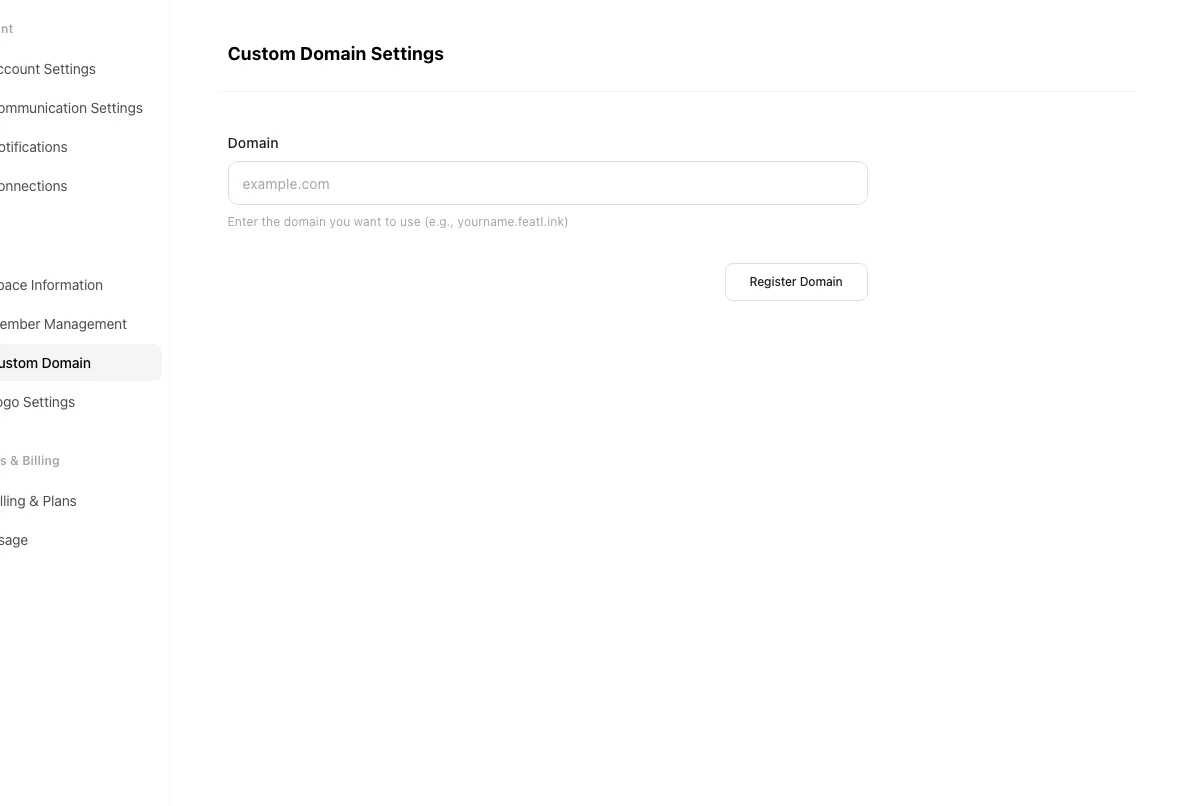
Click Settings at the bottom of the sidebar, then the Custom Domain tab under Space. The tab is shown to admins only.
Enter the domain
Type the address into the Domain field. The hint below it reads “Enter the domain you want to use (e.g., yourname.featl.ink)”.
Register
Click Register Domain. The button reads “Registering…” while it works.
After registration the status becomes DNS setup needed and the records to add appear. The input form disappears at that point, leaving only the status card, so the domain value can’t be edited in place. Use Reset domain and register again to correct it.
Add the DNS records
Section titled “Add the DNS records”Two CNAME records appear. Each card has a Copy button for its Name and its Value.
| Record | Purpose |
|---|---|
| Certificate Validation | CNAME proving domain ownership so the SSL certificate can be issued |
| Service Connection | CNAME routing viewer traffic to FeatPaper |
Open your DNS manager
Sign in to the DNS service that hosts the domain, such as AWS Route 53, Cloudflare, or your registrar.
Add both records
Copy each name and value as shown and add Certificate Validation and Service Connection as CNAME records. Both are required for the connection to complete.
Check the connection
Return to FeatPaper and click DNS setup complete, check connection.
Domain status
Section titled “Domain status”| Status | What it means |
|---|---|
| DNS setup needed | The domain is registered and waiting for its DNS records. |
| Verifying | The check is running. It refreshes every 5 seconds while the screen stays open. |
| Verified | The connection is complete and the custom domain is active. Copied link addresses change from here on. |
| Verification failed | DNS verification failed. Use Reset domain, then register again. |
Reset the domain or disconnect it
Section titled “Reset the domain or disconnect it”Click the button at the top right
In the Verified state the button reads Disconnect. In every other state — DNS setup needed, Verifying, Verification failed — it reads Reset domain.
Confirm
Read the dialog and click the button with the same name again.
Ways to use this
Section titled “Ways to use this”A custom domain changes the address; Logo Settings changes what sits inside the page. Set both and the link your recipient receives carries no trace of an outside service.
A link that shows an outside service’s domain reads as an unfamiliar address to the recipient’s security policy, and it also tells them which tool you use. A custom domain changes the address to yours without breaking existing links, so you can move over without scheduling a cutover.
Button and shortcut reference
Section titled “Button and shortcut reference”The buttons people look for most on this screen.
| Button / element | Where | What it does |
|---|---|---|
| Custom Domain tab | Settings > Space, admins only | Opens the custom domain screen. |
| Register Domain | Below the domain field | Registers the address and moves the status to DNS setup needed. |
| Copy | Each DNS record card | Copies that record’s name or value to the clipboard. |
| DNS setup complete, check connection | Below the records, in DNS setup needed | Starts verification and auto-checks the status every 5 seconds. |
| Disconnect / Reset domain | Top right of the screen | Removes the domain — Disconnect in the Verified state, Reset domain otherwise — once you confirm in the dialog. |
Shortcut: Open domain settings
Frequently asked questions
Section titled “Frequently asked questions”Which plan can use a custom domain?
The Enterprise plan only. On other plans, clicking the tab opens the upgrade prompt “Share documents from your own domain”. The check follows the space you are currently in, so the same account can have it in one space and not another.
I haven't registered a domain yet and the screen looks empty.
An unset domain is treated as a normal state, so the registration form is shown right away. If you see the domain field, go ahead and register.
I added the DNS records but the status won't change.
Verification starts only after you click DNS setup complete, check connection. After that it re-checks every 5 seconds, so give it a moment. Confirm you added both records — certificate validation and service connection — and that the values match exactly.
Verification failed. Can I try again?
Not from the same screen. Use Reset domain to clear the setup, then register the domain again from the start.
Can I connect several domains to one space?
No. One custom domain per space.
Which links change once the domain is connected?
After the status turns Verified, open-access links, information-form links, per-recipient links, and document alias addresses (/n/...) are built on your domain. Two things stay where they are. The Public web link is served from feat.page, and a published data room’s public page keeps its featpaper.com/{space}/dataroom/{room} address. The custom domain applies to share links only.
While DNS verification is in progress, do my existing share links break?
No. The custom domain isn’t active until the status reaches Verified, so existing links keep working on FeatPaper’s default domain while you wait.
What happens to links I've already shared if I disconnect the domain?
They stop opening on the custom domain. The documents themselves aren’t deleted and remain reachable on the default domain, but custom-domain links don’t redirect there automatically. Send recipients the default-domain address before disconnecting.
Can a member who isn't an admin set up a custom domain?
No. The tab is shown to admins only. If a member opens the page’s URL directly, the Admin-only page card appears before any plan notice, so raising the plan won’t open the screen for them. Ask an admin.
What happens if I close the tab in the Verifying state after checking the connection?
DNS and certificate validation continue on the server, so nothing restarts. The 5-second auto-check only runs while the screen is open, so reload the page later to see whether the status has turned Verified.
In the Verifying state, can I click the connection check again to re-validate?
No. The DNS setup complete, check connection button appears only in the DNS setup needed state. There is no way to re-trigger validation from the screen; reloading shows the latest stored status.
I entered the domain wrong, with a protocol or a typo. Does the registration step catch it?
No. The field format isn’t validated, so https:// or a typo still registers. The bad value surfaces later as Verification failed during DNS and certificate checks. Check the address before registering.
Can I edit a registered domain to a different address in place?
No. After registration the form disappears and only the status card remains. Use Reset domain to clear the registration, then register the new address from the start.
Key points
Section titled “Key points”- A custom domain is Enterprise-only, admin-only, and limited to one per space.
- The flow is register → add two CNAME records → check connection → Verified.
- The four statuses are DNS setup needed, Verifying, Verified, Verification failed, and a failure needs Reset domain rather than a retry button.
- Existing share links keep working on the default domain until the status is Verified.
- After Verified, general, information-form, and per-recipient links carry your domain. The Public web link stays on
feat.page, and a data room’s public page stays onfeatpaper.com— the domain covers share links only.