A fashion lookbook condenses the point of a season into one carefully composed document. The team plans the shoot, arranges the collection, and refines every image and type choice in Figma. Once that work becomes a PDF, however, a different design problem begins: distribution.
A buyer is looking for priority categories and a path to a wholesale conversation. An editor wants the season story and campaign assets. A distribution partner may start with market positioning and the shape of a potential relationship. They can open the same lookbook without needing the same sequence or the same next step.
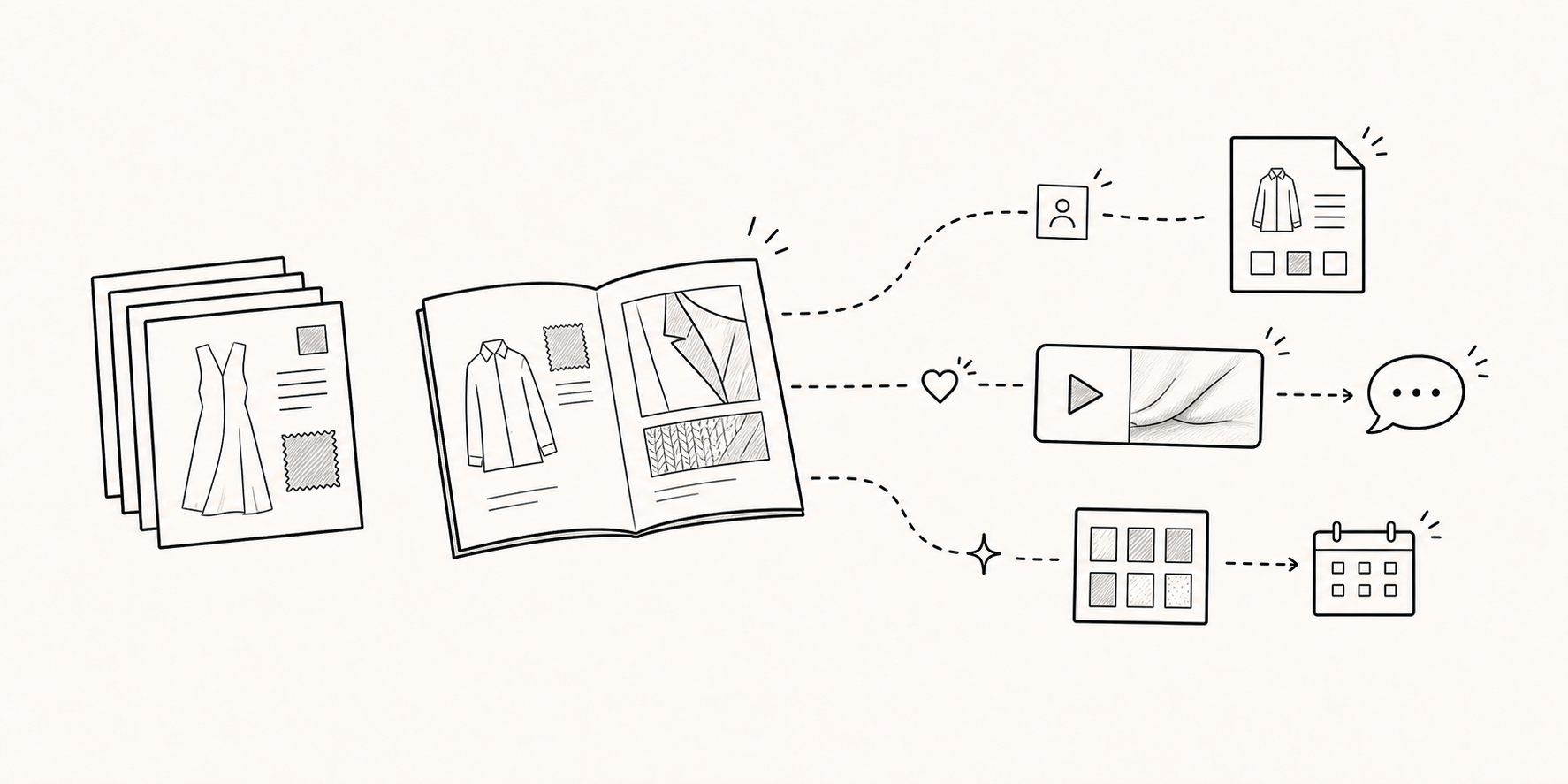
A stronger digital lookbook is not a static PDF rebuilt as an elaborate website. It preserves the visual asset while helping each reader find the right product story, view the details that need more than a still image, and continue the conversation from an appropriate point in the document.
Who is opening the lookbook—and what do they need?
A table of contents built only around internal labels such as About, Collection, Products, Contact leaves the reader to work out the route. An audience-led opening makes one lookbook useful across several groups without forcing everyone through the same order.
| Reader | What they need first | A useful next step |
|---|---|---|
| Retail or wholesale buyer | Collection overview, priority categories, product qualities | Request a line sheet or make a wholesale inquiry |
| Distribution partner | Brand position, market direction, partnership scope | Start a distribution conversation |
| Press or editorial team | Season story, campaign imagery, hero products | Request press assets |
| Collaboration lead | Brand point of view, previous work, possible areas of collaboration | Ask about a collaboration or meeting |
The first interaction to design is not a contact button. It is a clear route into the collection.
Design the path to product discovery, not a page count
It is easy to judge a Figma template by its cover and image grid. For a lookbook that will be distributed to buyers, the order in which products are discovered matters more.
1. Give the season a practical point of view
If the season name does not explain enough, add one useful cue: the defining material, silhouette, or wearing context. A concise frame for the collection is more helpful than a long brand introduction.
2. Let the reader choose a route
Offer a few distinct paths such as the full collection, key categories, campaign story, wholesale, or press. The choices should remain easy to scan and select on a phone.
3. Establish collection context before listing products
Introduce the materials, colors, forms, and use cases that connect the season. This is less a manifesto than a short guide to how the following products should be compared.
4. Give each category one dominant decision cue
When imagery, fabric, colorways, styling, price, and brand story all compete on one page, the product becomes harder to read. Outerwear may lead with silhouette and fit; accessories with construction and combinations; fabric stories with texture and movement.
5. Reserve motion for what still images cannot explain
Fabric drape, a bag’s internal construction, the way jewelry catches light, or the fit of a garment may benefit from a short clip. FeatPaper’s Figma plugin and widgets can connect video and supported external tools to an interactive document. Using motion for two or three meaningful moments keeps it useful rather than turning every page into a competing animation.
Decide where identification belongs
Not every lookbook needs a long gate at the entrance. FeatPaper’s native Lead Form appears before the document opens, not halfway through the pages. With a standard link, a team can request only the fields it needs—such as email, name, or company—or turn the form off when open access matters more.
For broad campaign or press distribution, it may make more sense to let readers enter first and offer a Tally form, Calendly booking, or another communication link after they have seen the relevant category. The native Lead Form and an external form connected inside the document occupy different points in the journey and should not be described as the same feature.
A dedicated link can also be used for a known buyer. It distinguishes the viewing record by the email entered when the link is created, but the link itself is not an access-control mechanism. If only approved email addresses should be able to open the lookbook, Access Control must be configured separately.
Place calls to action where interest becomes specific
A single Contact Us link on the last page is easy to miss when a buyer stops after the category they needed. Repeating the same button on every page has the opposite problem: the lookbook begins to read like a sales banner.
Match the action to the question the page is likely to raise.
- After the collection overview: Request the full line sheet
- After a priority category: Ask about wholesale terms for this category
- After the brand and distribution direction: Discuss a distribution partnership
- After campaign imagery: Request press-ready images
- At the end: Choose wholesale, press, or collaboration
The aim is not to add more buttons. It is to tell the reader what they can reasonably ask for at that moment. An email address or external communication tool in the FeatPaper viewer can then offer a practical way to continue without losing the context of the page.
Reuse the document while preserving channel context
The same lookbook may appear in a buyer email, a collection page, an exhibition QR code, a newsletter, and a partner message. The document can remain consistent while the reason to open it changes.
- Exhibition QR:
Explore the collection - Buyer email:
Lookbook for wholesale review - Press outreach:
Season campaign and image assets - Partner message:
Distribution partnership overview
Record that channel context in the team’s workflow. A page viewed repeatedly after a trade show may not mean the same thing as the same page revisited by an existing stockist.
What can viewing context actually tell you?
With a link-based document, a team can review visits, time by page, revisited pages, and links clicked within the document. None of those records proves that a buyer intends to place an order.
The imagery may have been appealing, or the buyer may have been comparing similar products. They may have returned because information was missing, or simply left the document open while doing something else.
| What was observed | What it does not prove | A better question for the next conversation |
|---|---|---|
| A category was viewed for a long time | The buyer selected that category | Which silhouettes or product range fit the buyer’s channel? |
| A product page was revisited | Order quantities are being planned | Are more images, material notes, or specifications needed? |
| A video played or a related link was clicked | The buyer is ready to proceed | Is there a fit or construction detail that needs clarification? |
| A wholesale CTA was clicked | Commercial intent is confirmed | Which market and category are under review, and what material would help? |
| The session ended midway through the collection | The reader rejected the full collection | Are the priority products too late or the route difficult to follow? |
The category viewed longest is not the category already sold. It is the category worth asking about first.
Use an individual buyer’s record to prepare a conversation. Use patterns repeated across many readers to revise the lookbook’s navigation and sequence.
Keep one current link for the same season
Sending a new attachment every time a description or image changes leaves earlier versions in email and chat history. FeatPaper can update a document while keeping its existing shared link. If the page count or layout changes, recheck the position of video, buttons, and other interactive elements.
Keeping one reference link works well for corrections, replacement imagery, and selected product updates within the same season. Create a separate document when the season, intended buyer, or access boundary changes. Maintaining a current version and separating different campaigns are not the same task.
Distribution checklist for a Figma lookbook
- Finalize the season message and category structure in the Figma source.
- Build routes around what buyers, distribution partners, and press teams need to find.
- Add motion only to the few moments that still imagery cannot explain well.
- Choose the link type and Lead Form setting according to whether the distribution is public or recipient-specific.
- Place one context-specific inquiry or asset-request CTA after each priority category.
- Explain why the document is worth opening differently in email, on the website, and beside a QR code.
- Review individual responses and repeated audience patterns separately, applying them to the next conversation and the next lookbook version.
A better digital lookbook does not demand more clicks
Making a lookbook interactive does not mean asking the reader for more fields, more choices, and more clicks.
A considered distribution path helps people find the right products, uses motion only where it adds information, and offers a low-friction next step where a question is likely to arise. The brand treats the resulting record as context for a conversation and an input to the next edition—not as a substitute for the buyer’s judgment.
The visual work completed in Figma can remain intact. What changes is the role of the lookbook: from a file that finishes the presentation to a document that helps the buyer and the brand continue it.
Frequently asked questions
Can an existing Figma lookbook be used?
Yes. Selected Figma frames can become a FeatPaper sharing link, with supported video, widgets, and communication channels added where they are useful. This is different from rebuilding the design as a website from scratch.
Must every reader submit information before opening the lookbook?
No. The Lead Form can be enabled or disabled when a standard link is shared. Choose according to whether identifying an unknown recipient matters more than giving the lookbook the easiest possible entry.
Can a form be connected inside the document?
The native Lead Form appears before the document opens. For a response inside the reading flow, consider connecting a supported external tool such as Tally or Calendly through a Figma widget, or use another communication link.
Does a long view on a product page indicate strong buying interest?
Not on its own. Interest, comparison, confusion, and missing information can all produce the same record. Use it to decide what to ask about, not to predict an order.
What still needs native review?
An English reviewer should check fashion wholesale terminology, especially the distinction among lookbook, line sheet, and wholesale inquiry. The reviewer should also confirm that CTA examples sound appropriate to buyers and that viewing context is never presented as evidence that a buyer has decided to order. Native review remains pending.