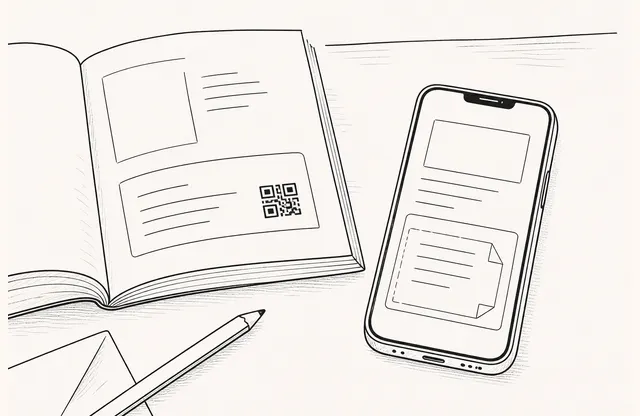
Once a team has a product demo, a looping GIF, and an executive interview ready to go, the temptation is to put all three into the product document. Motion makes a PDF feel richer and may seem to reduce the amount of explanation the page has to carry.
Then several pages start moving at once. The reader has to decide where to look, and practical details such as pricing or implementation conditions can be overlooked. The useful question is not “Where can we add a video?” It is: What becomes difficult to understand if it stays still?
Use video when time is part of the explanation
Video earns its place when meaning depends on sequence, change, or motion. It can show what happens after someone presses a button, how a machine moves through a cycle, or how a result changes when a setting is applied. A workflow that crosses several screens or a product working in the field may also be easier to grasp in motion.
Specifications, pricing, support coverage, comparison tables, and schedules serve a different purpose. Readers need to scan and revisit them, so they should remain as text or tables. Video works best as a supplement to one point that a still page struggles to show.
Give GIFs and video different jobs
A GIF is useful for one short, repeatable action. It might show a menu opening after a click or a result changing when one setting is adjusted. The loop should make sense without narration and within a few seconds.
Use video when the reader needs a longer sequence or more context. It can follow a task across several screens, show the product in a real environment, or add an explanation from a specialist. Instead of dropping a full demo onto the page, select the segment that answers the question at hand. The reader opened the document to make sense of that question, not to complete a training course.
Keep critical information outside the player
The reader may have sound turned off. A mobile connection may be slow, or playback may fail. When someone returns later to confirm one condition, replaying an entire clip also gets in the way.
Keep three things visible before anyone presses play: the question the clip answers, what to watch for, and the conclusion the page can deliver on its own. Add captions and a thumbnail that makes the subject clear. Pricing, scope, and sources should remain easy to find outside the video.
Let only one element move at a time
Several videos and GIFs moving at once compete for attention. Autoplay and continuous loops can make the surrounding copy and tables especially difficult to read.
State the point first. Add motion where the reader is likely to ask, “How does that actually work?” Then place the relevant conditions and next action below it. In this order, motion supports the explanation instead of decorating the page.
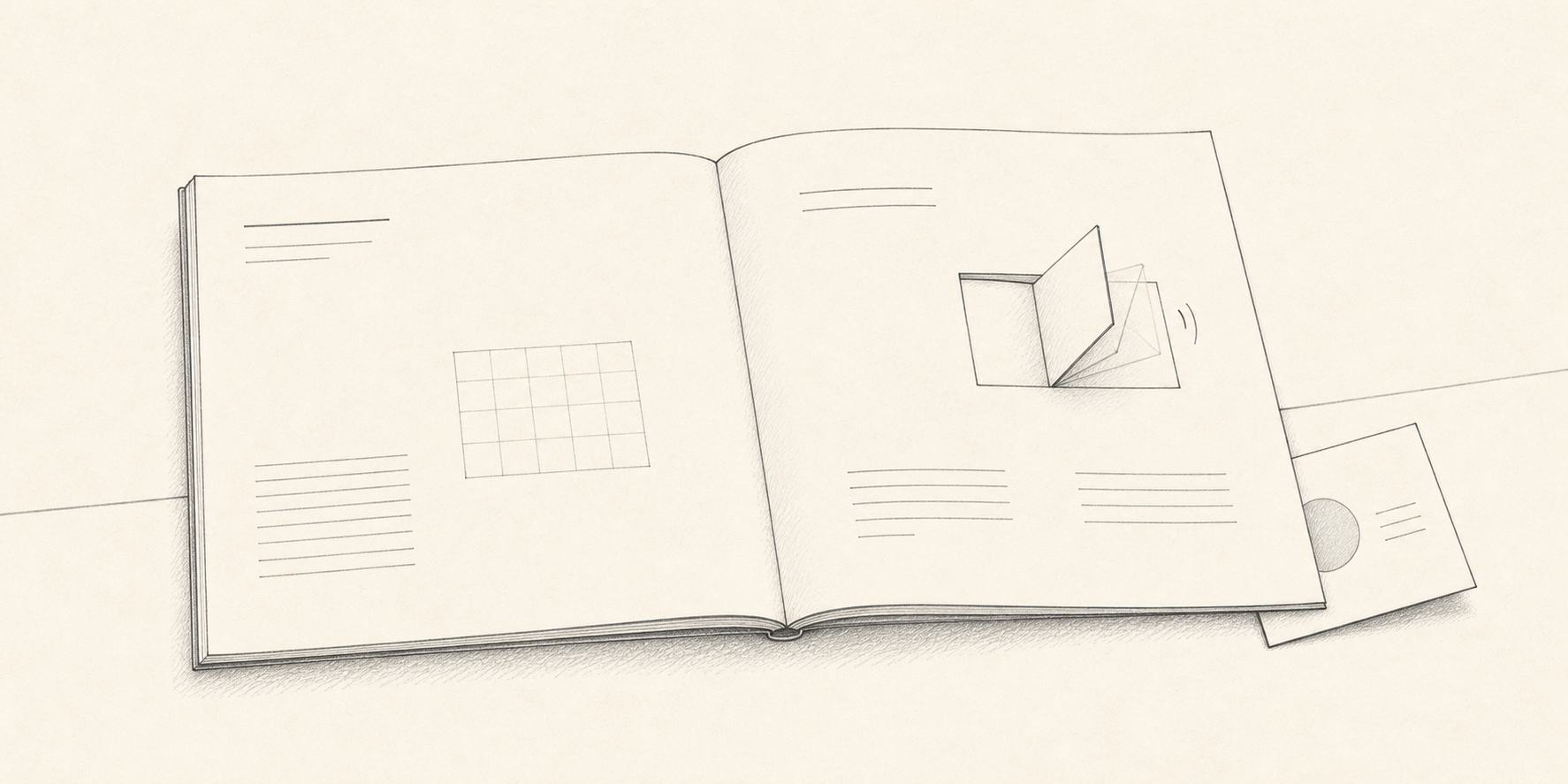
Give each format one job
The document preserves figures, conditions, and sources for later verification. Slides organize the discussion in a meeting. Video and GIF reveal changes that are awkward to explain with words or a still image. Giving each format a distinct role keeps derivative content anchored to the source.
Feat AI Viewer presents PDF content in formats such as mobile reading, summary slides, and short video. The practical question is not how many versions to produce, but which format helps the reader at that point. After conversion, a person should still confirm that the conditions and sources match the original.
What should the pre-publish checklist cover?
- Does the page make its point without playback?
- Can the reader follow the scene with sound off?
- If playback fails on mobile, do the conditions and conclusion remain?
- Is only one element competing for attention at a time?
- When the clip ends, is the next resource or action clear?
A good motion document does not move on every page. It moves only where a still page would leave the reader behind.